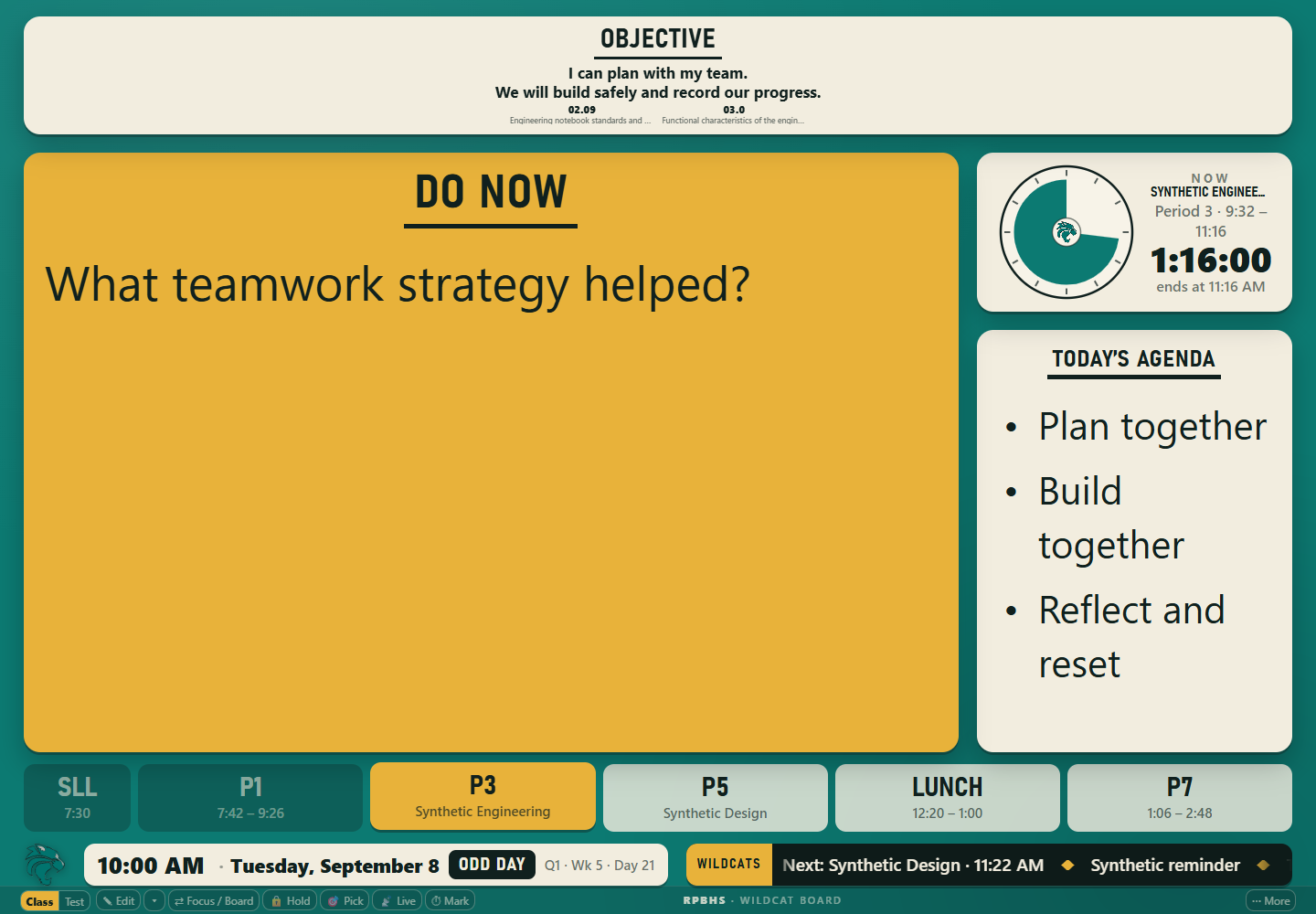
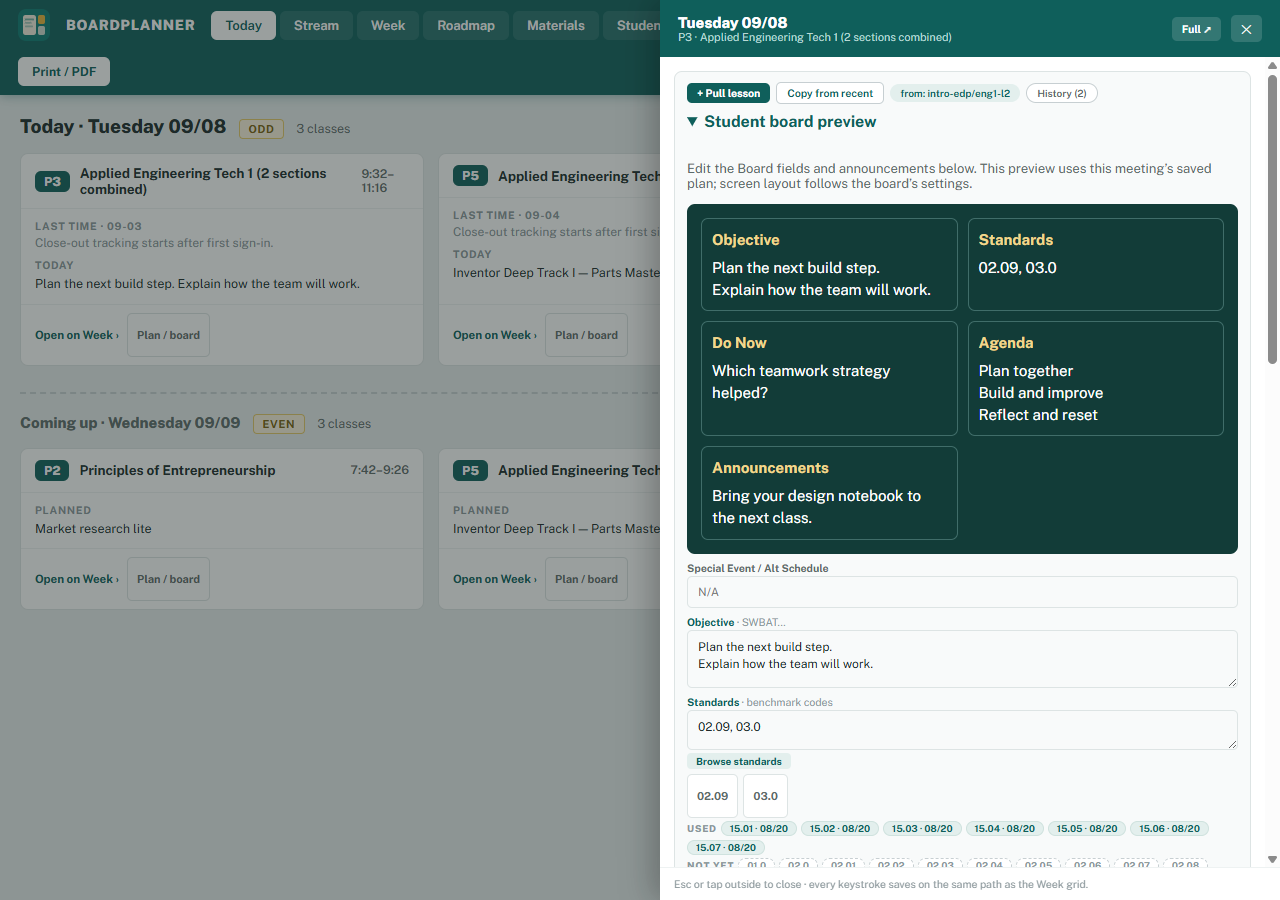
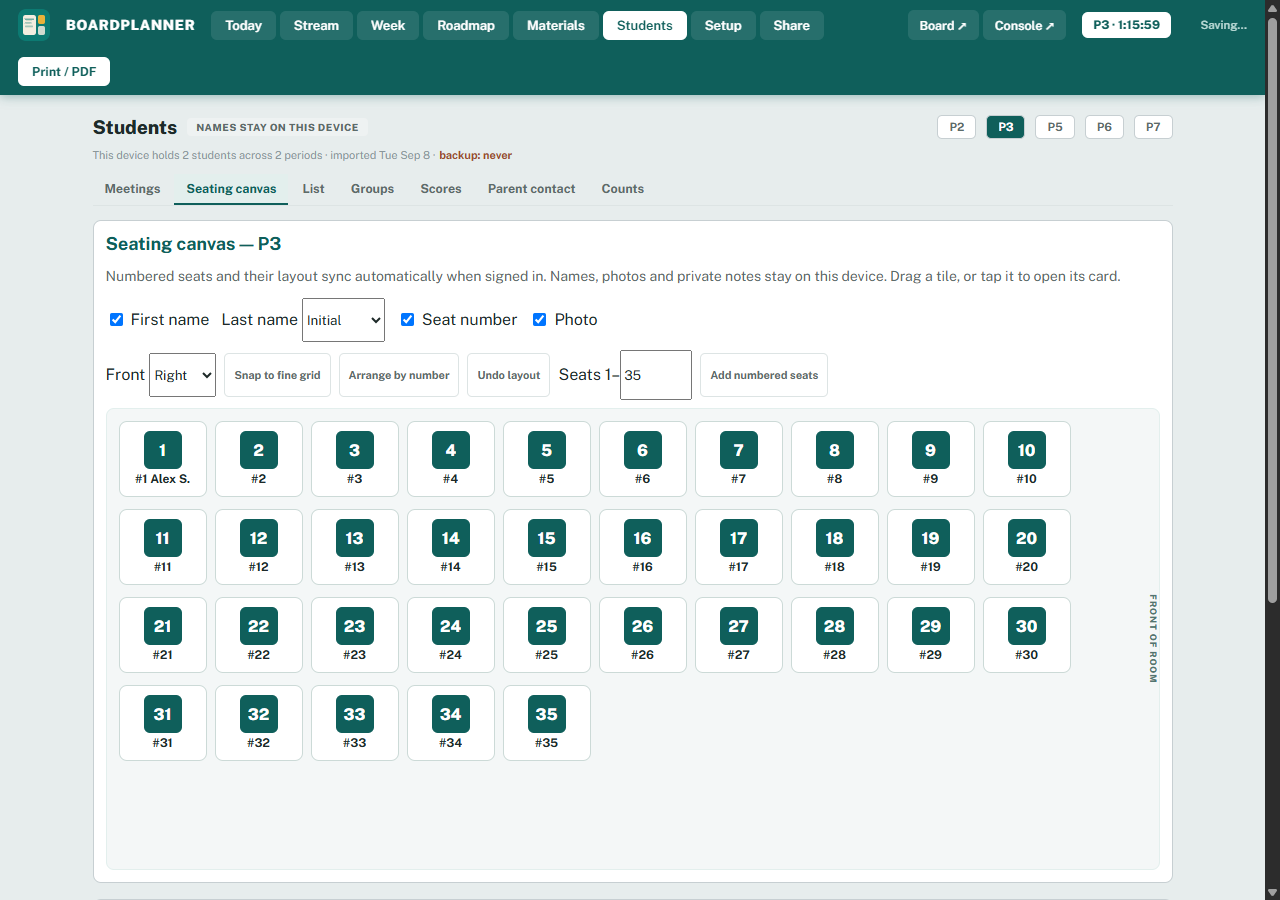
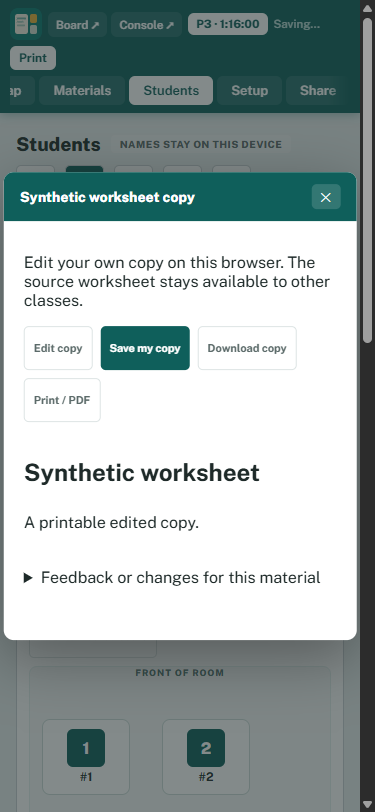
Everything that has changed in BoardPlanner, newest first. If something here would
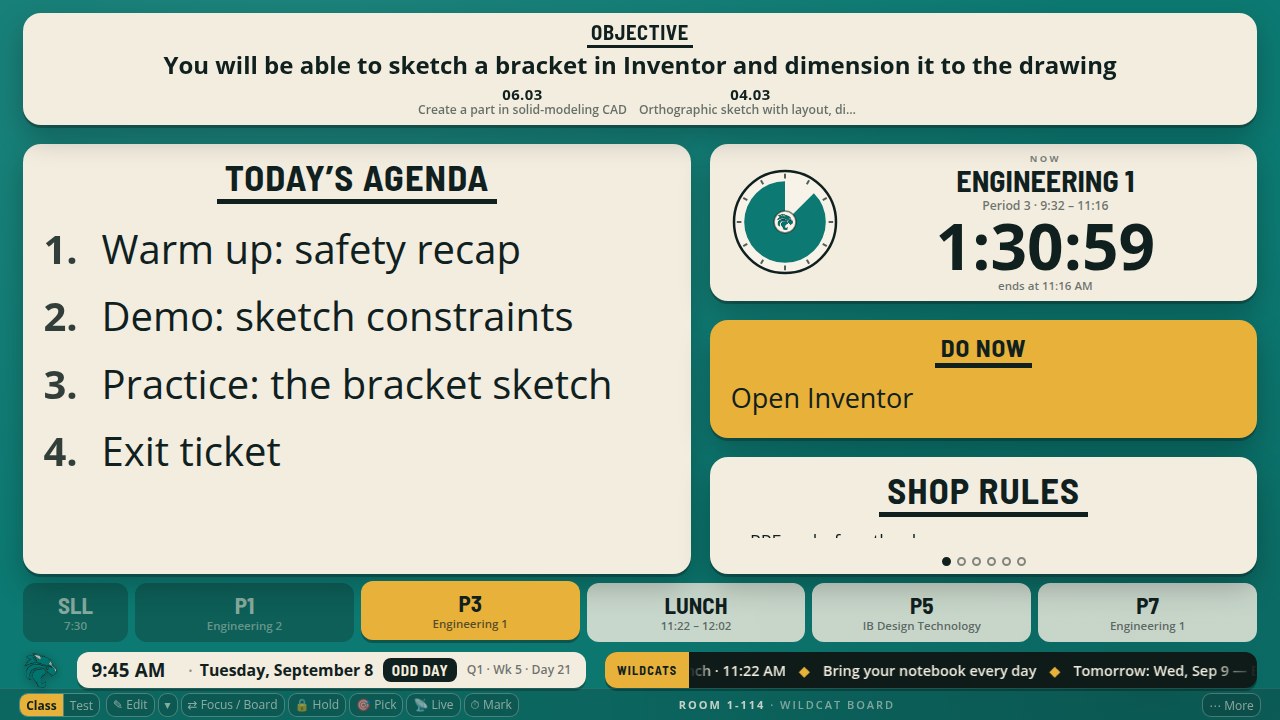
help your room, it is already live in the pilot. Every picture shows made-up lesson content.
October 7, 2026
A Back button that works in the planner, and a lesson card you read first
A warning five minutes before class ends
Your computer can now pop up a notice and play a soft chime five minutes before each class ends, so you have time to wrap up. Turn it on in Settings under Bells & wind-down with Turn on warnings on this device, choose how many minutes ahead you want it, and pick which classes get one. Planning periods stay quiet, and on a day with a changed bell schedule the warning moves with the bells. It shows once, even with the board open in two tabs.
What you type stays up when the bell rings
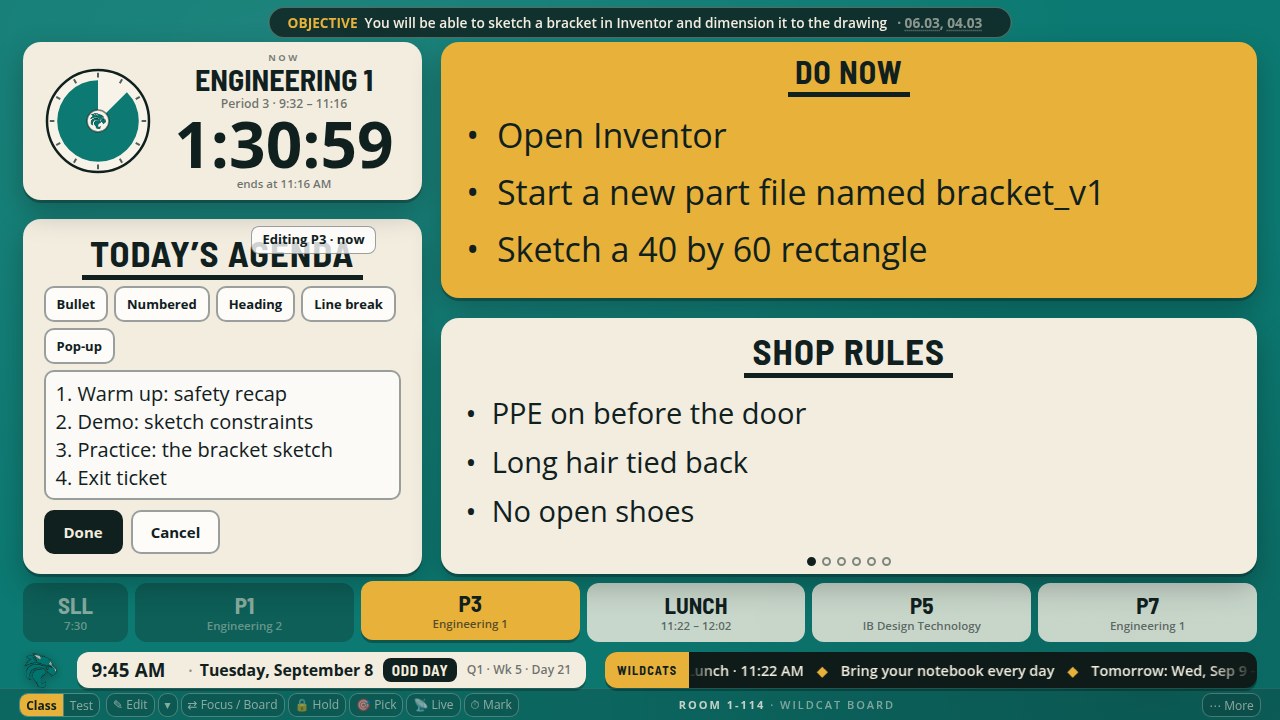
Type the agenda or Do Now for your next class during planning, passing time, or before school, on the board or on any screen where you are signed in, and it stays up when that class starts. This also works when you put the next class on the board early or preview it and make your changes there. If that class also has a planned lesson, a Show plan button appears at the bottom of the board, so you decide which one the class sees, and Undo brings the other back. A typo you fix during class stays with that class and does not carry into the next one. A class with no Do Now of its own now starts with an empty Do Now card instead of the one the class before it saw.
Every planner page has its own web address
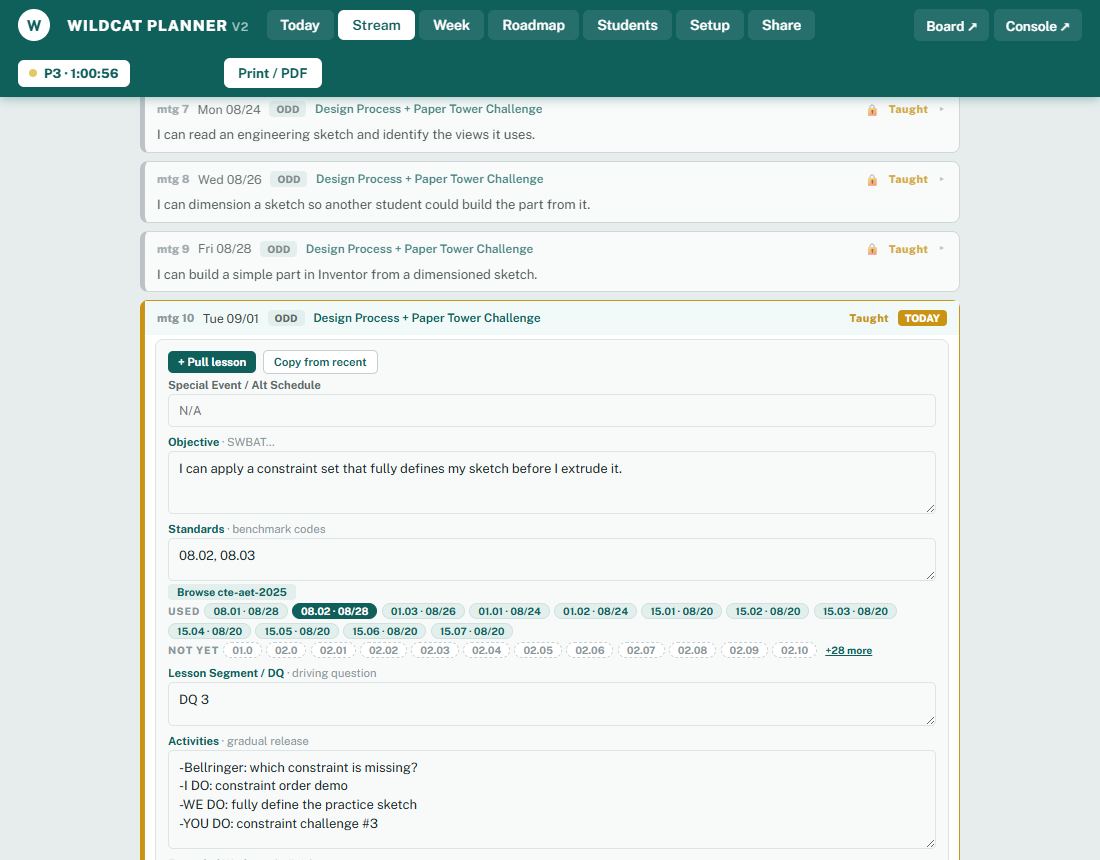
Each page of the planner now has its own address: Today, a lesson card, the Roadmap with its open unit, a class and tab on Students, Materials and Podium. The Back button takes you to the page you were on before instead of leaving the planner, Forward brings you back, and a reload opens the same page. Copy the address and it opens that page on another computer. If you press Back while a block of text is still being edited, the planner asks first, exactly as the close button does, so nothing you typed is lost.
Plain words on the Podium, and links with a | in them
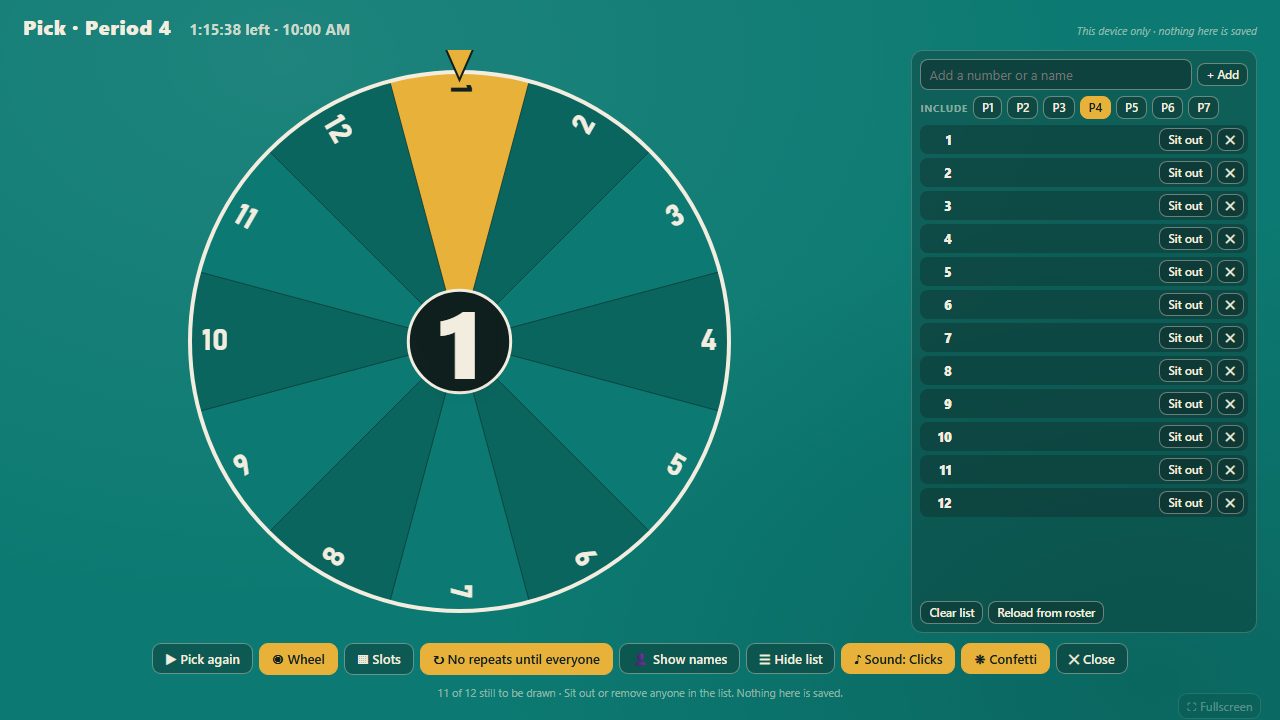
The Podium's How did it go card now offers the same plain choices the planner uses: Went as planned, Ran short, Did something else, Lost the class, I was out. On the board, a web address that has a | in it now opens as a link instead of being cut short.
Open a lesson as a card, not a form
With the Labs switch New lesson card on, tapping a class opens a card in teaching order: how last class went, the agenda students see, the objective with the names of its standards, one list of links where each link says whether students see it, the post for students with the posts already made and their attached files and Forms, and your own notes. Edit one block at a time. Everything the lesson plan grid needs sits under one fold, with nothing removed. Text that came from a lesson or a kit is marked until you make it yours, and web addresses in your notes open as links. Switch it off in Labs to get the old panel back.
October 6, 2026
A quicker Today page, answers that move the next class, and standards names for Principles of Entrepreneurship
When a class runs short, the next class offers to pick up the rest
After you say a class ran short or did something else, the Today card for that class's next meeting asks whether to move the rest there, in one line with Move it and No, leave it. Move it keeps days you pinned, posted or typed by hand where they are, then the card says what moved, with Undo and a Draft it button for the rest of the lesson. The offer also appears for answers you gave late or from the board at the bell.
Tap the class name to open the lesson
On Today, the top of each class card, the period, the class name and the time, now opens that lesson. The button under the card says Open lesson, since that is what it does; the board is opened from inside the lesson as before.
Saying how a class went is one quiet line
The list of classes waiting for a "how did it go" answer now sits under today's classes as a single line, closed until you open it. The answers use plain words: Went as planned, Ran short, Did something else, Lost the class, I was out. One button, All went as planned, answers for every class on the line after it asks you once and checks that no other device answered first.
Standards with their names for Principles of Entrepreneurship
The Florida course standards for Principles of Entrepreneurship (course 8812110) are now in the standards picker with their full titles, in the planner and in the board's class editor. The ESB exam objective codes used on that course's materials are listed under their own heading and no longer show as unknown.
October 5, 2026
Layouts that stay put, a better stopwatch, and class lists that are easier to keep
Save a board layout for a class, or for every class
Arrange used to save a layout for one class meeting only during the school day. Save for now lets you choose this meeting, that period every time, every class, or just today, and the Save button names your choice. A lesson you arranged on its own keeps its own layout. In Settings, Use the board as it looks now makes the current arrangement your usual one.
A stopwatch that is easy to stop, with laps and a log
The stopwatch now has its own Stop button, and tapping the time stops it too. The time stays on screen so you can read it, with Resume and Clear. Lap marks a time without stopping. Save keeps a time with a name you choose, such as Clean-up, and the new Times tab in the Timer window lists them by name and class. When the timer fills the screen, the space bar starts and stops the stopwatch.
Edit your class list right in the list
Change a name or a number in its row, add a student at the end of the list, and copy a number with one click. Remove asks first and offers Undo. The import instructions fold away until you want them, and every backup button is in one place.
Class list backups without a passphrase
A backup file no longer needs a passphrase unless you turn one on. If a computer comes up with no class list, the page offers Restore from a backup file as its first button, and one step brings back every class. Before a backup file is written, the planner checks what is already in it. If the file and this computer differ, nothing is written until you choose which version to keep, and you see what each choice would change.
Edits to check say what changed
Each edit to check now names the setting and shows what it was and what it would become, in place of a general note. The planner's save line also says plainly how many edits are waiting for your OK, and clicking it takes you to them.
Sign in with a code
The sign-in email now has a short code as well as the link. Type the code on the sign-in page to get in, which helps when your email opens in a different browser or on your phone. Pasted codes work too, and you can ask for a new one after a minute.
September 30, 2026
Everything for a class in one place, and fewer clicks
A class kit at the top of each day
Each day in the planner now opens with that class's kit: the slides, handouts, links, your plan for the period and what to post for students. Your notes for the day also show on your Presenter screen, next to each slide's own notes.
See what a class did last time
Previous classes lists a class's past days, newest first, with the lesson, how it went and its links. Links students got are listed apart from your own copies. Search by any word, and open a day with one click.
Pick standards from a list
Every day in the Week view now has a Pick standards button. For a course without an official list, it offers the codes you have already used and lets you add new ones. Typing codes still works.
Resize tiles without losing them
A tile's Larger and Smaller buttons now change the same side and undo each other exactly, and Smaller stops before a tile gets too small for its own buttons. Undo now covers tile sizes and arrangements too. In Arrange, Reset this box and Reset all boxes put things back.
Edits to check, sorted out in one click
If the board could not save an edit, you now see one entry per class and day, not one per attempt. Pick Keep saved version or Use my newest edit, or do the same for everything at once. Anything that already matches your saved copy clears by itself. The notice sits with the other controls, away from your logo, and you can close it.
September 28, 2026
Look ahead in your slides without the class seeing
Preview a slide first, then show it
On your Presenter screen, Next, Previous and the slide list now move only your view, so you can read ahead through slides and notes while the class stays where it is. When you're ready, press Show this slide to the class, or Enter. Presenter always says which slide the class sees, and Back to the board's slide brings you back. A new button on the slides tile puts the slides full screen and opens Presenter in a new tab.
September 27, 2026
The board shows your school
Your mascot, your logo
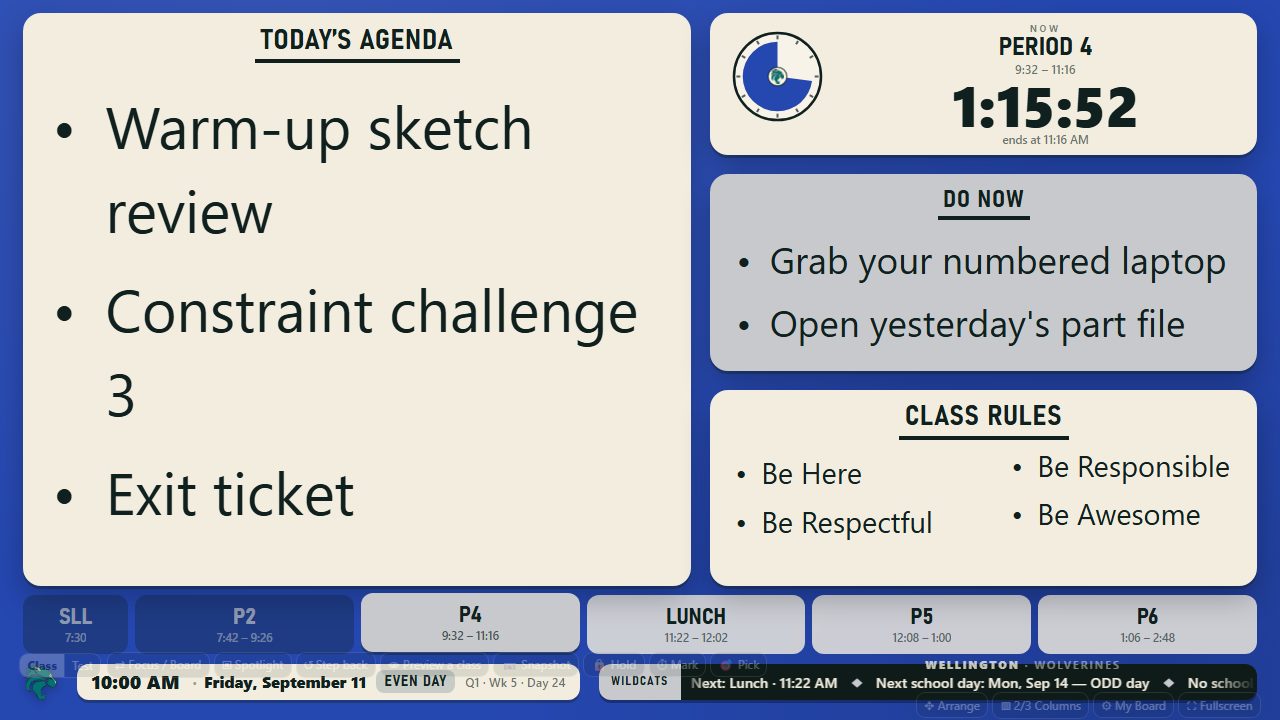
The label beside the scrolling news line now shows your school's mascot, or the one you type in Settings. Before you pick a school, the board shows the BoardPlanner mark and no label. Upload your school's logo and it appears in the corner and in the middle of the class timer.
September 26, 2026
Class lists that are harder to lose
Your backup keeps the full list
If your class list suddenly gets shorter, or empties, your saved backup file keeps every student. The planner tells you what changed and waits for you: restore the backup, or choose to update it to the shorter list. Clearing a class list now asks first, and restoring shows how many students and marks it will bring back before anything changes.
September 25, 2026
Quick tile edits that show on your board
Edit one tile at a time
A tile's pencil opens its small editor right on the board. Use Edit class when you want the full class editor. Saved questions now appear on the current board, including changes received from another signed-in window. Saving from the class editor also puts its saved text back on a board showing an older copy.
September 24, 2026
Keep your work and find it again
Look back through today's board
Board history keeps captured moments while the board is open, including preparation before class. Choose a time to preview the text and card arrangement, read complete paragraphs, or copy them. Restore selected text into a class draft to review before saving. Recent versions also has a full-text reader, and Close stays within reach.
A newer edit stays protected
When two screens change the same text, both versions are kept for review. Offline changes wait on the device, and saved account history is available on another signed-in device. Undo and Redo remain available after reopening the board. Interrupted class drafts can be recovered without putting them on the board automatically.
Edit in the shape of your board
The class editor uses familiar board cards, text boxes grow to fit their contents, and Save, Cancel and the top close button stay visible. Open class prepares a lesson; Show on board displays it. Morning announcements belong to the first class on the schedule, with their own timer phase. The lesson timer can begin while your activity stays on screen.
Copy class details from a private window
Open the current class list in a separate, covered window. After revealing it on your private screen, tap a name, student email or student ID to copy it. These details stay in that browser's local class list and are excluded from board history and account sync.
September 22, 2026
Class reviews and phone readability
Keep board text readable after an edit
Objectives, agendas and class rules adjust to their tiles after an edit, a layout change or a font finishes loading.
Review the right class
A close-out uses the lesson or recorded board for that meeting. Planning periods marked in the planner no longer appear as classes needing a close-out, even when the board uses a different display name.
Read the board on your phone
The schedule keeps period labels readable and scrolls sideways. The Focus countdown and dial have separate rows, and save notices sit beside the menu instead of covering the objective. Before the first bell, the board's clock keeps AM or PM on the same line.
Keep test controls within reach
The open resource box moves clear of the test timer and its menu.
September 21, 2026
Say what really happened in class, and let the rest of the term move over
Catch up shows only what it really needs to ask
The list now holds only the classes with nothing on record yet, and it says where it looked: the
board ran it, or there is no record from the board. Today shows one line per class, and a tap opens
that class. Every meeting offers all five answers however old it is, "No class that day" asks what took
it, and a class you are not ready to answer can wait until tomorrow.
Partial says where the class got to
Partial and Diverged now open one card. Pick the deck, form or handout you were in and say where you
stopped: the slide, the section, or whether the form was given. Tick the standards and steps you got
through, and type a quick note. The materials you used lately sit right there, and you can mark one
"left off here", "in the middle of", "last thing we did" or "next". Marking one next puts it into the
next class. If a class already has an answer, the card opens holding it and says so before you save.
In the planner
Find materials now reads a lesson's standards properly, so a day that listed nothing under its own
standards finds the materials that match it.
What you record shows up where you look for it: the day sheet, the week, the stream and the podium all
say where the class got to.
A lesson can be pinned to its date, and the planner now knows which lessons you typed yourself, so it
never moves them without asking.
With the planner open in two windows, moving lessons checks what is actually saved first, and stops to
show you again rather than writing over the other window.
Your later lessons move over to make room
When a class does not get through its lesson, the card shows you what would happen next: each later
date for that class, what is on it now, and what would be on it instead. You decide. Nothing moves
until you say so, and one tap afterwards puts it all back.
Lessons you typed yourself, lessons pinned to their date and anything already posted to Google
Classroom keep their dates. The card names them and offers to move them too. A lesson with nowhere
left to go waits for a date, in plain sight, until you put it back.
The slide stops at your next review or test day, so an assessment keeps its date and the recovery day
before it absorbs the slip. You can push past it in one tap.
The next class starts itself
From what you just recorded, the planner drafts the next class: the objective, the standards you did
not reach, the agenda from where you stopped, the deck to finish, the knowledge check you did not give,
and your note. It is a suggestion, so nothing is saved until you accept it, and a box you already wrote
in keeps what you wrote unless you ask for the draft to go first.
September 20, 2026
A sync warning that tells the truth
The sync warning tells the truth
If a save does not reach your account, the warning now names the day it happened, not just a time,
and it clears itself once your work is safely there. It no longer lingers for days after everything
has caught up. Last pull is shown in your own time, and when something you typed is replaced by a
change from another computer, the notice says your earlier text is in Recently removed.
In the planner
Your plans keep loading in full as the year fills up, past a thousand days.
Two copies of a lesson that are the same are no longer read as different, so the planner stops
reporting changes from another computer that never happened.
Your class schedule can no longer be scrambled when two computers save it at the same moment.
September 19, 2026
A calmer board, and a planner that opens straight to your day
Fewer buttons on the board, on one centered row
The buttons along the bottom of the board now sit on one centered row that never wraps onto a second
line. Test mode is one button that reads Back to class while a test is on. One View button steps through
Board, Focus and Spotlight. Look back shows what this class did last time or how this board looked
earlier today, and Resources now holds the class's links. There is no Edit switch any more: point at
any card and its pencil appears, and Edit class opens the whole class at once. My Board is now called
Settings, and every button on the board is listed there, so nothing lives only on the row.
A timer you can find, and make big
Timer is now a button on the row in every view. While a timer is showing, one tap makes it fill the
board and one tap brings the board back.
Arrange that does what you expect
Dragging a tile moves that tile, at its own size, and the other tiles make room. An outline shows where
it will land before you let go. A tile you hide waits in a Hidden tiles tray until you tap it back. Undo
and Redo stay on screen while you edit or arrange, and say in words what they undid.
On the board
The objective has its own small button for moving it between a tile and the strip across the top, and
the board closes the gap it leaves.
Nothing is cut off halfway: translations and the class rules either fit or take turns, and when the
objective's standards will not fit with their names they show as codes.
The slides tile keeps its controls small and out of the way until you point at it, and the words on a
slide always fit above the little page dots.
The line at the bottom of the board is centered and names your school, and the browser tab does too.
Undo after your first change to a class puts back exactly what the class showed before, and Undo or Redo
never replaces a change made on another screen.
In the planner
When you are already signed in, the planner opens straight to your day instead of flashing the sign-in
page first. The logo shows right away, and the browser tab has an icon.
Fewer buttons across the top. Today, Stream and Week now sit together under Plan, each with a line
saying what it shows, and the rest is under More.
Put back no longer drops something you attached after removing another, and bringing back an earlier
version of a day now matches what its preview showed.
September 18, 2026
Slides you can teach from, and a planner that helps you start
Full-screen slides keep the objective and the timer
Full-screen slides now show the word Objective and your objective across the top, and the class timer
stays on screen in a corner. If it covers something on a slide, tap it and it moves to the next corner.
The board remembers where you left it.
Presenter view on your own screen
While the board shows one slide to the class, Presenter shows you the current slide, the next one,
and every slide in the deck to jump to, with your notes for the slide when the lesson has them. Moving
forward or back in Presenter moves the board. Notes never appear on the board or anywhere students
can see, and closing Presenter never stops the slides.
On the board
A slides tile has a bigger preview that leaves the rest of the board in view, a Pause button that
stays on one slide until you resume, and Smaller and Larger buttons. When a size will not fit, the
board tells you what is in the way instead of doing nothing.
A Do Now you type on the board shows right away, even when it matches what your planner already
had.
Step back, Last class and Last meeting show your class history from every device you teach on, not
only the one in front of you.
In the planner
Month can show the whole school year on one page, and a Weekends switch adds Saturday and Sunday to
every month for clubs and sports.
Type an objective and the planner suggests up to five standards from your course that fit it, one
tap each.
A class with nothing planned for today or later offers Start from last time, which fills in the last
lesson's objective, standards and agenda for you to change or accept. Nothing is saved until you
accept it.
The handle for dragging a unit on the roadmap shows as a clean grip instead of stray dots.
September 15, 2026
Your plans, saved in three places, and the right material in one tap
Find the right material for a lesson
Every class card in the planner has a Find materials button. It lists what your library holds for that
lesson's standard first, then anything that matches the objective's wording, then the rest of the unit,
each with Present, Print, Open or Attach. Attach saves it with the lesson on every screen, and a line under
each material says which classes have already used it.
On the board
Spotlight fills the whole screen again with the Do Now and the objective, whatever layout your board uses.
A board you put up early stays up. The between-classes countdown no longer takes over a board you chose
by hand, and it is off unless you turn it on in My Board.
The editor on the board opens with room for a dozen lines and grows as you type.
Tap a slides tile to show it full screen. The arrow keys step through the slides, and Escape brings the
board back exactly as it was.
The timer is always on the board, Spotlight included. Outside class time it shows the current time, and a
few minutes before the next class or club it counts down to the start. How many minutes is yours to set in
My Board.
The objective on the board reads exactly as you typed it. Nothing is added in front of your words.
An altered schedule that runs into the evening, an open house for instance, keeps its periods in order
after any change you make to it on the board.
A backup folder you choose
Pick a folder once and every change you make to a plan is also written there as a plain file,
with a dated copy for each day. Nothing to type in, no password, and the files open in any text
editor. If that folder lives in Google Drive on your computer, your plans are on your Drive too.
The save line tells you where your work is
Instead of a green tick, the planner now says where your last change landed: this computer, the
cloud, and your backup folder. If one of them is behind, it says so in words and keeps saying so
until it catches up. Typing saves as you go, and closing the tab a moment after you type loses
nothing.
Bring back anything you removed
Anything you remove from a plan, and any text a sync wrote over, waits in Recently removed in Setup
for thirty days, one tap from coming back.
Restore from a snapshot lists the dated copies in your backup folder and shows exactly what would
change before it changes anything. A restore only puts content back; it never removes newer days.
While you are typing in a card, nothing repaints under you. Updates from your other screens wait
until you leave the field.
September 14, 2026
Edits that stay put, and a clearer look at other classes
See another class's whole board
Preview a later class, or look back at one you already taught, and the whole board shows it.
Back to now and the arrows sit in the timer box instead of a bar across the bottom, so the date,
the ticker and the schedule strip stay in view. The class you are looking at is circled in the
schedule strip, and the time of day stays on the date plate.
Edits that stay put
A change you make on the board stays on the board and on your other screens, even one made while
the board was still saving an earlier change, or in a second window on the same computer.
A lesson you save in Settings for the class on now shows right away and stays there. Undo after
the bell keeps what you brought back, and Use this content from an earlier class stays up for the
rest of the class.
Releasing Hold brings up the class on now the way your other screens have it, and an edit on a
class whose lesson covers every period stays after the board refreshes its plans.
When a change you make on the board replaces a lesson you typed in Settings, the board now says so,
and says where to find the earlier text.
September 10, 2026
Set up a test ahead of time, and a steadier board
Prepare a test board before class
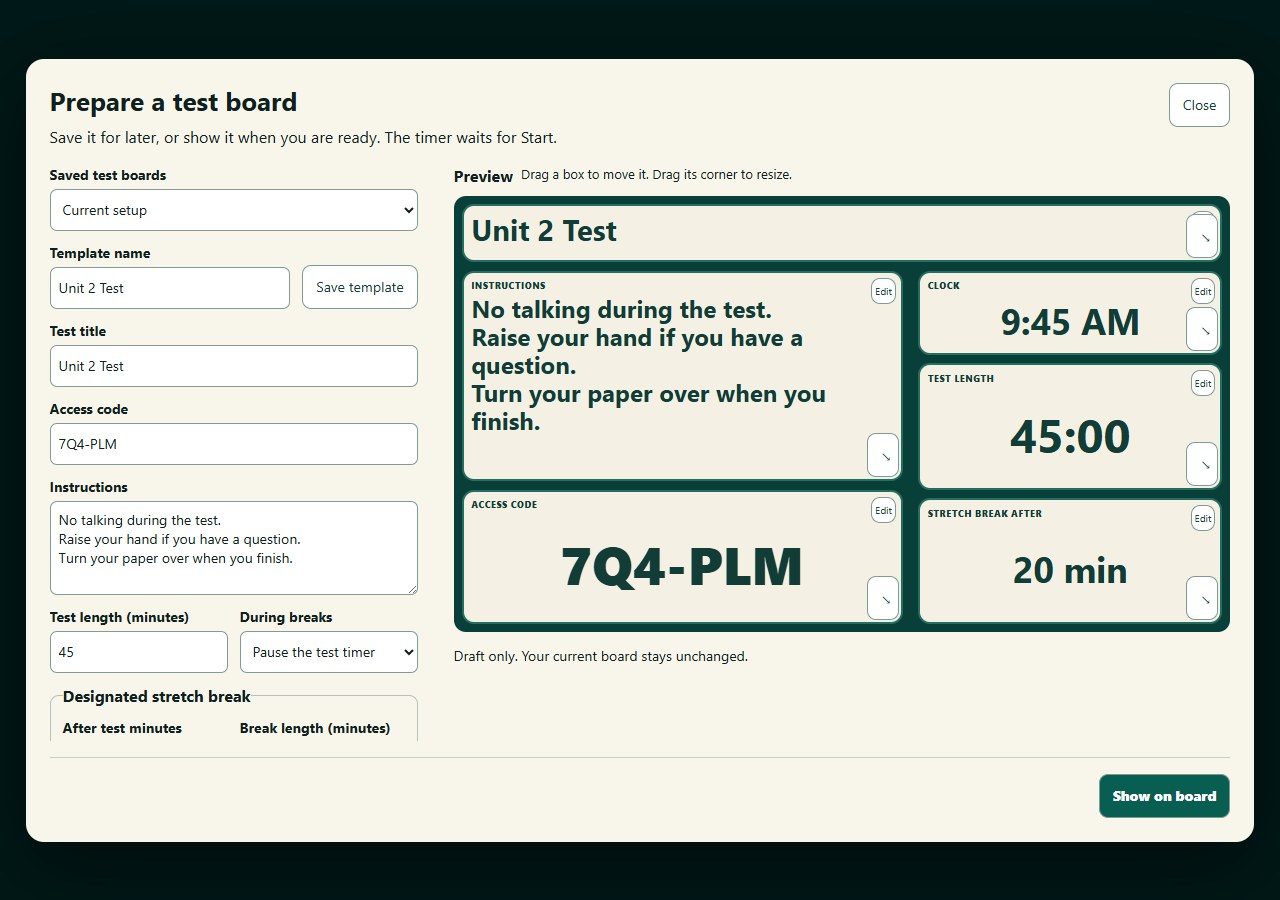
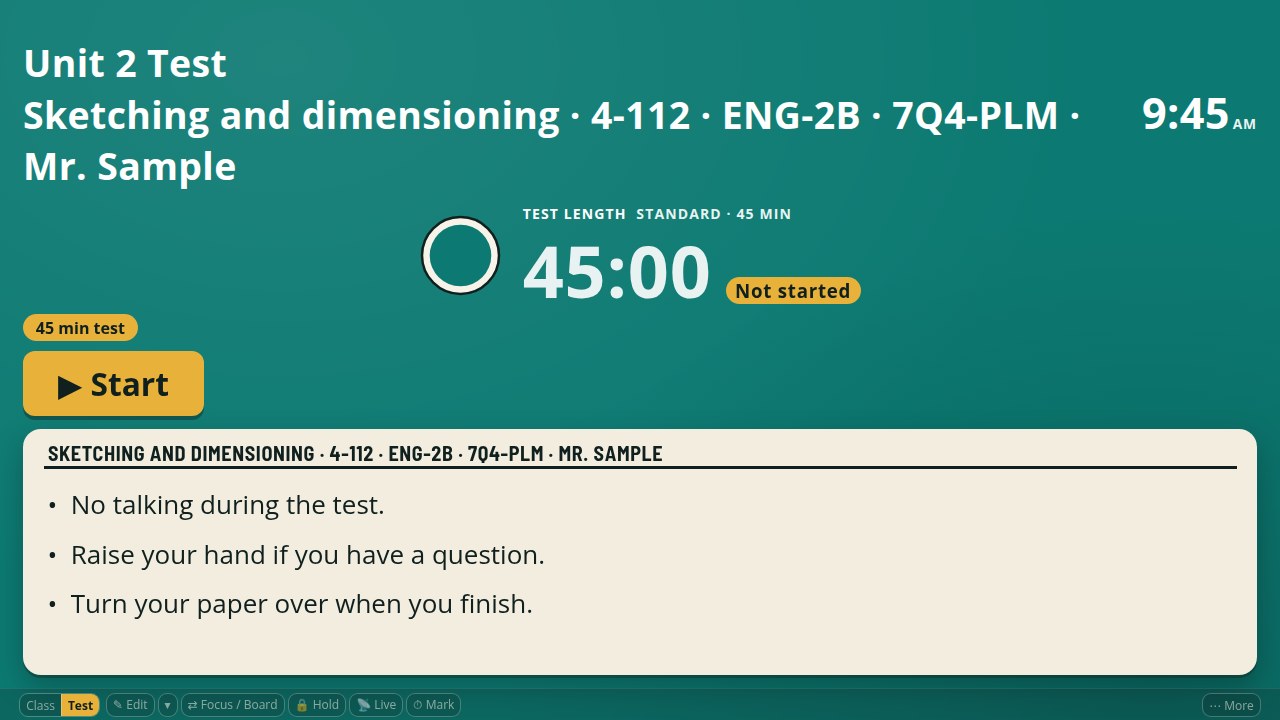
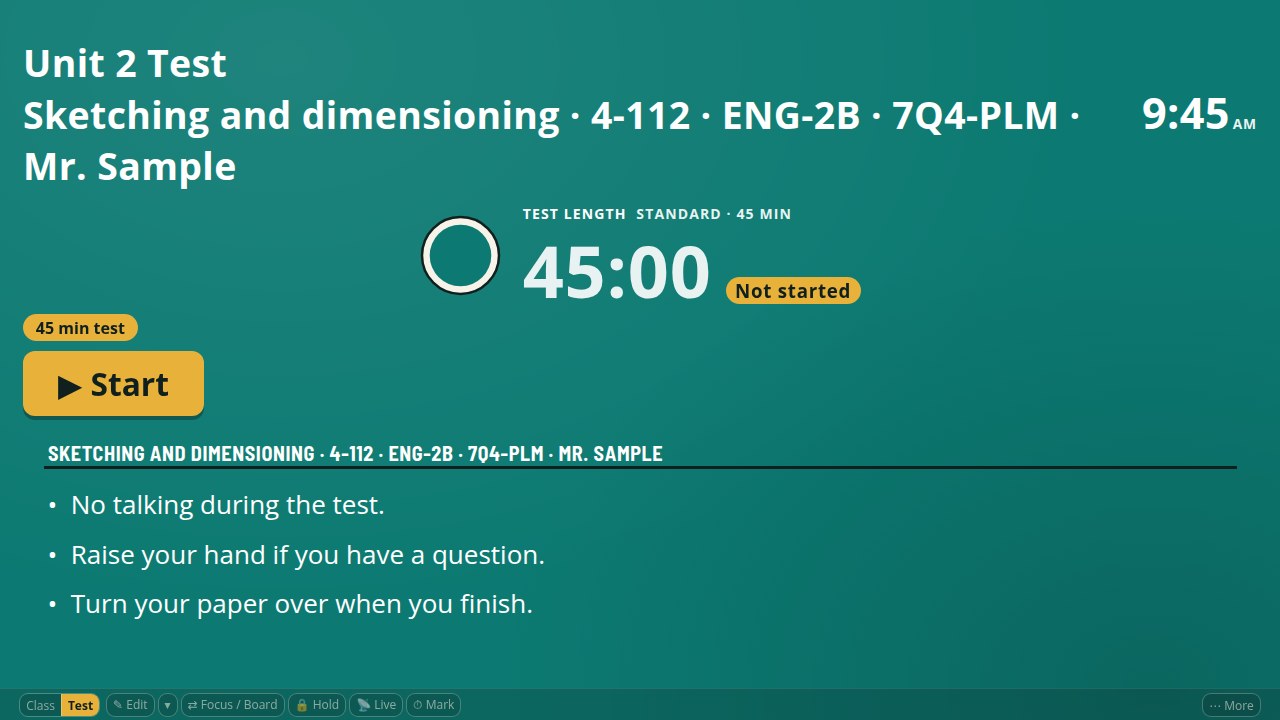
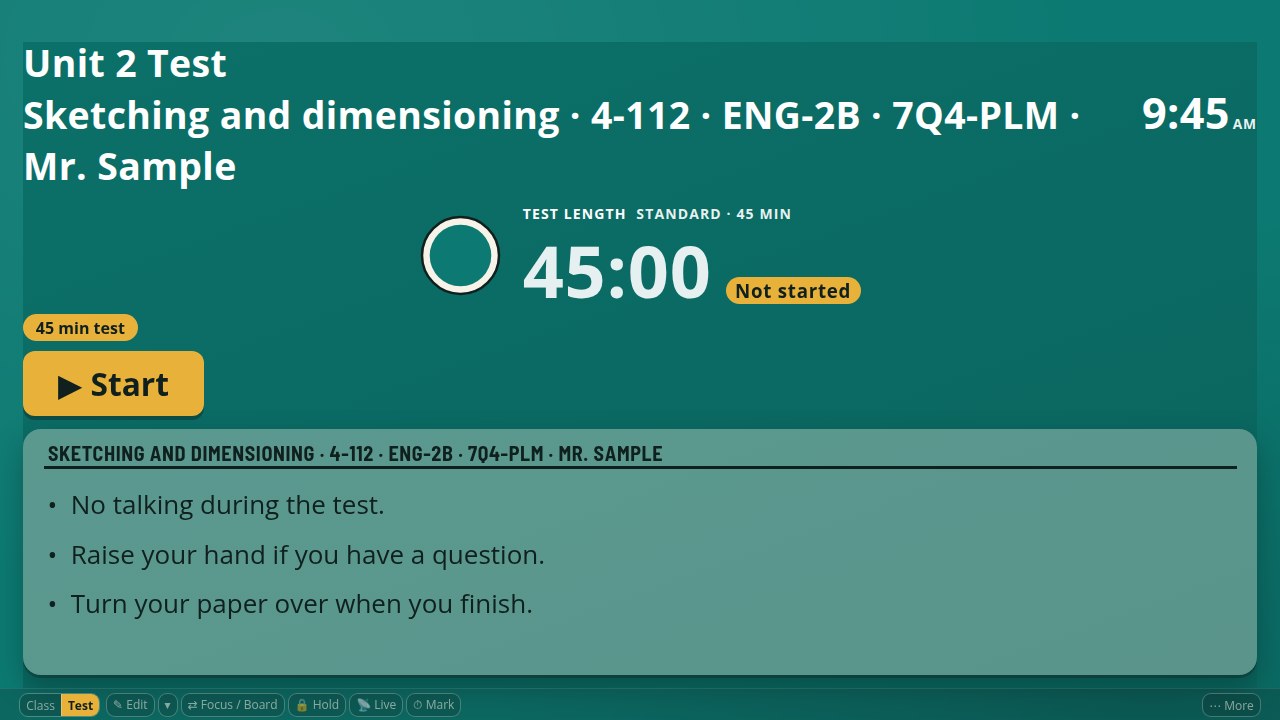
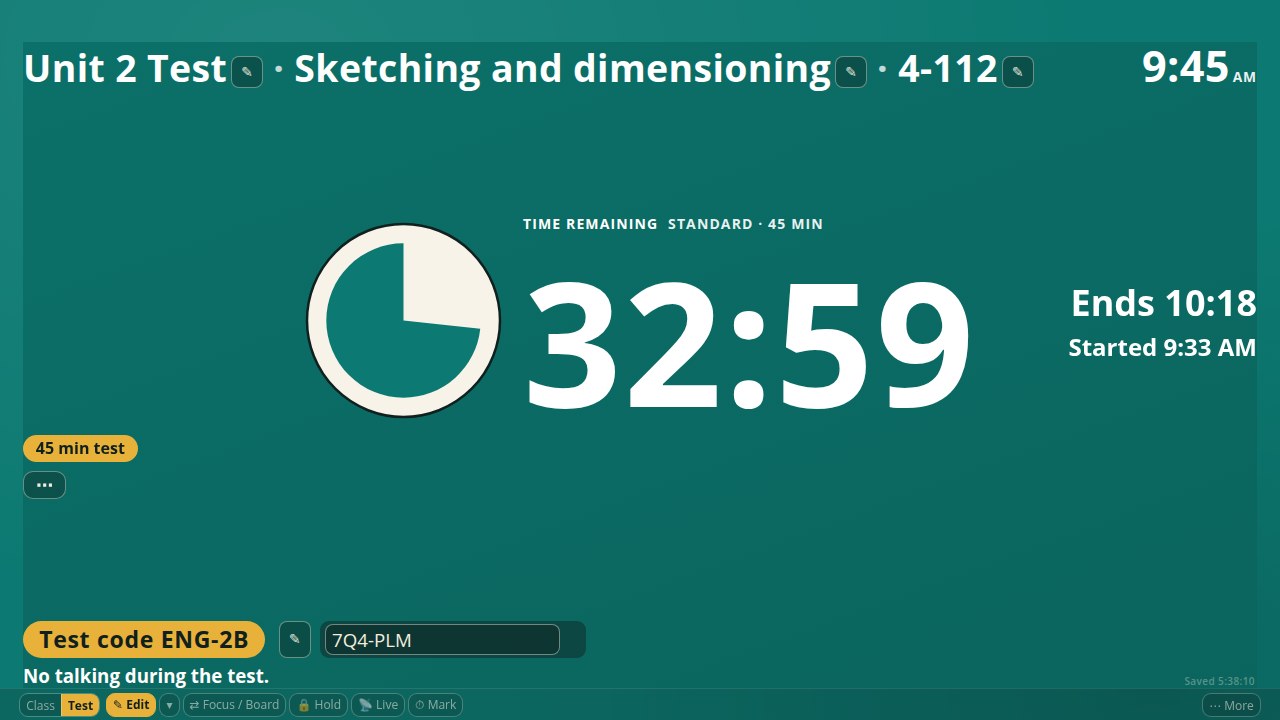
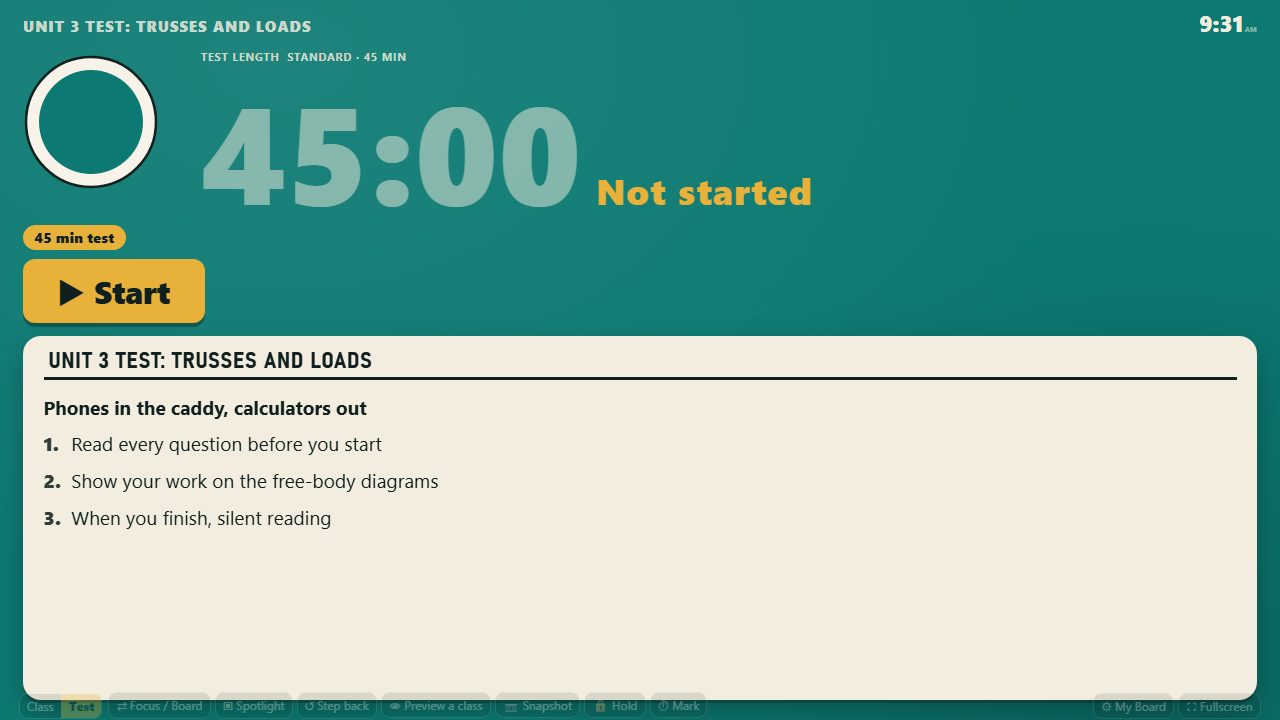
Tap Test boards to set up a test ahead of time. Type the title, instructions and access code,
choose a text size, and drag or resize each box on the preview until it looks right. Save it as a
template to use again; saving never changes the board your class is looking at. Show on board puts
it up, and the timer waits until you tap Start test. The clock, the test timer and the stretch break
timer each get their own box. The test timer pauses during a stretch break unless you choose to keep
it counting, and you can schedule a break after a set number of minutes or start one yourself. A
field you set to hide on break, such as the access code, leaves the board for the break and comes
back after it. A test you did not prepare here still opens on your usual test screen.
Set up the whole test board, then show it when your class is ready.
A steadier board, and bug fixes
Spanish and Haitian Creole translations hold their own space on a card, so the English stays still
while the languages take turns. A card too long to fit still scrolls itself, so the last lines can
be read.
Objectives wrap onto more lines instead of being cut off, and the board always leaves room for
them.
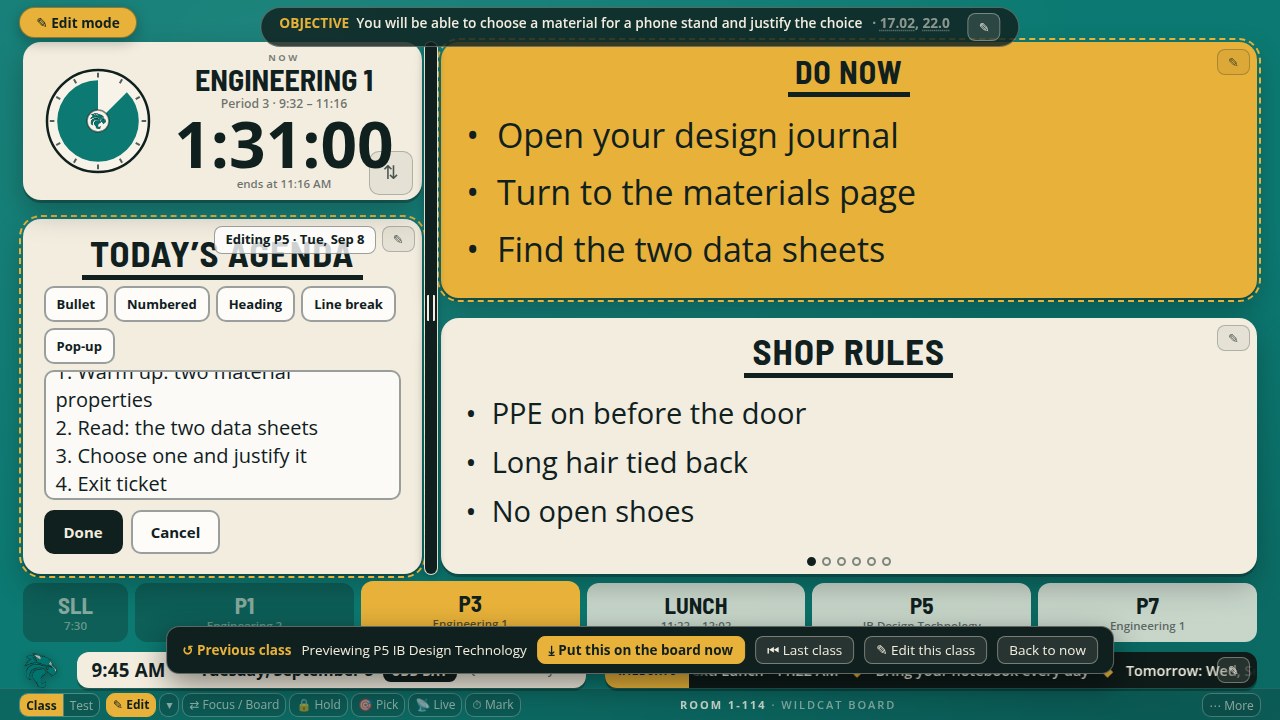
Preview a later class and choose Put this on the board now to show its whole lesson early. It
becomes the live class at its bell, and Back to now returns you to the current one. Previous period
today and Last meeting are now separate choices.
Between classes, editing on the board changes the class about to start, and the board says which
one. If an undo cannot reach your account, the board tells you and offers it again.
In the planner, groups you have sorted stay together when you sort again, and you can unlock a
group to let it change.
September 9, 2026
Board previews and class-list safety
Bug fixes and stability improvements
Board previews stay open when your sign-in renews. Opening another lesson checks your access before loading its board.
If the browser cannot read a saved class list, the planner now says so and offers Retry. It keeps the last available list on screen instead of reporting that the list is empty. A failed read also stops a backup update, preserving the existing backup file.
September 8, 2026
Put each box where you need it
Make smaller adjustments to individual boxes
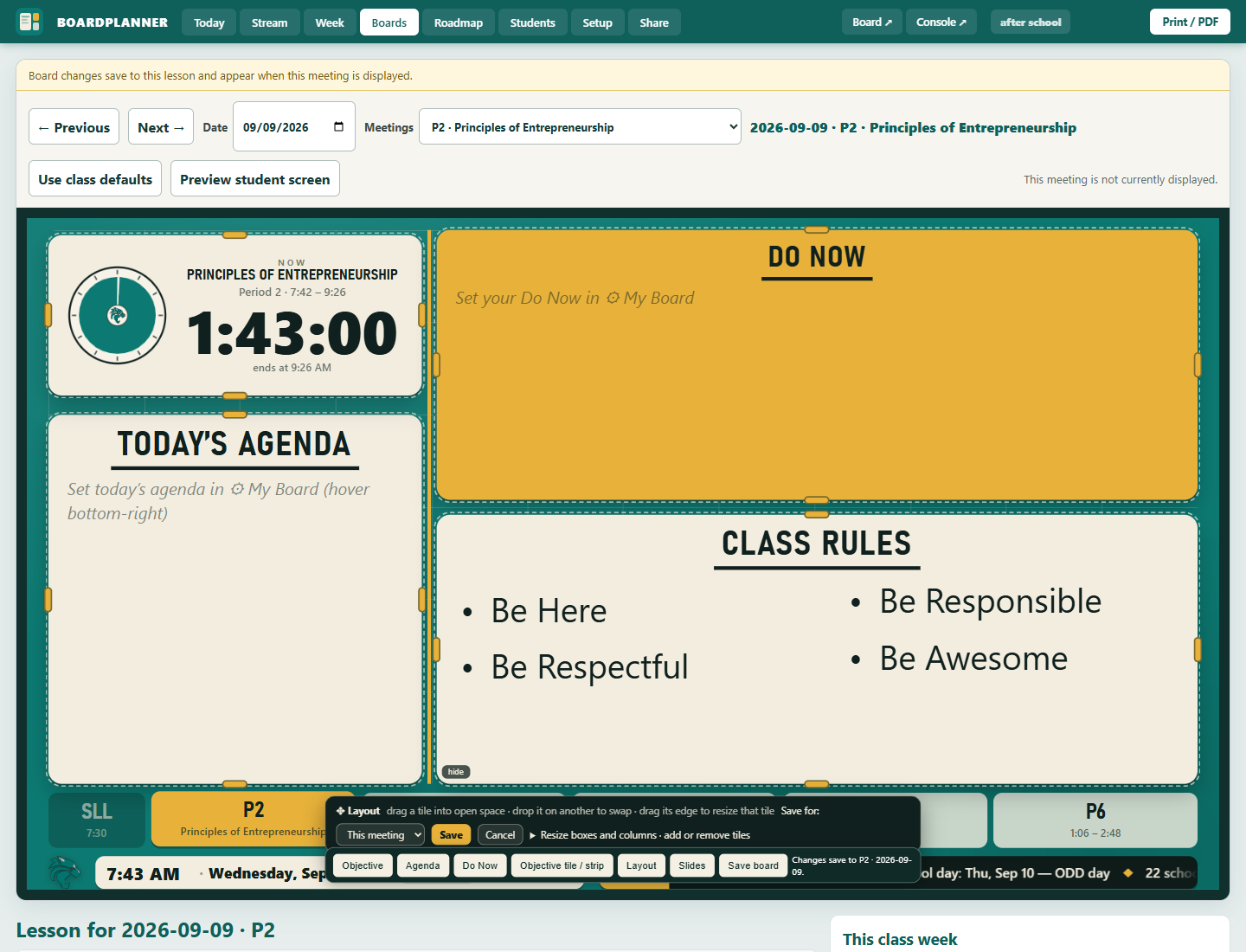
Resize in much smaller steps. Shrinking a box leaves the others where they are, and you can move it into open space without moving its whole row or column. Drop it on another box to swap places. Whole-column dividers are still available when you want to move a shared edge. Opening Layout keeps the arrangement you were already looking at.
Adjust one box, or use the separate whole-column controls. Save keeps the arrangement with the selected meeting.
September 8, 2026
See the board while planning each class
Prepare the real board for each meeting
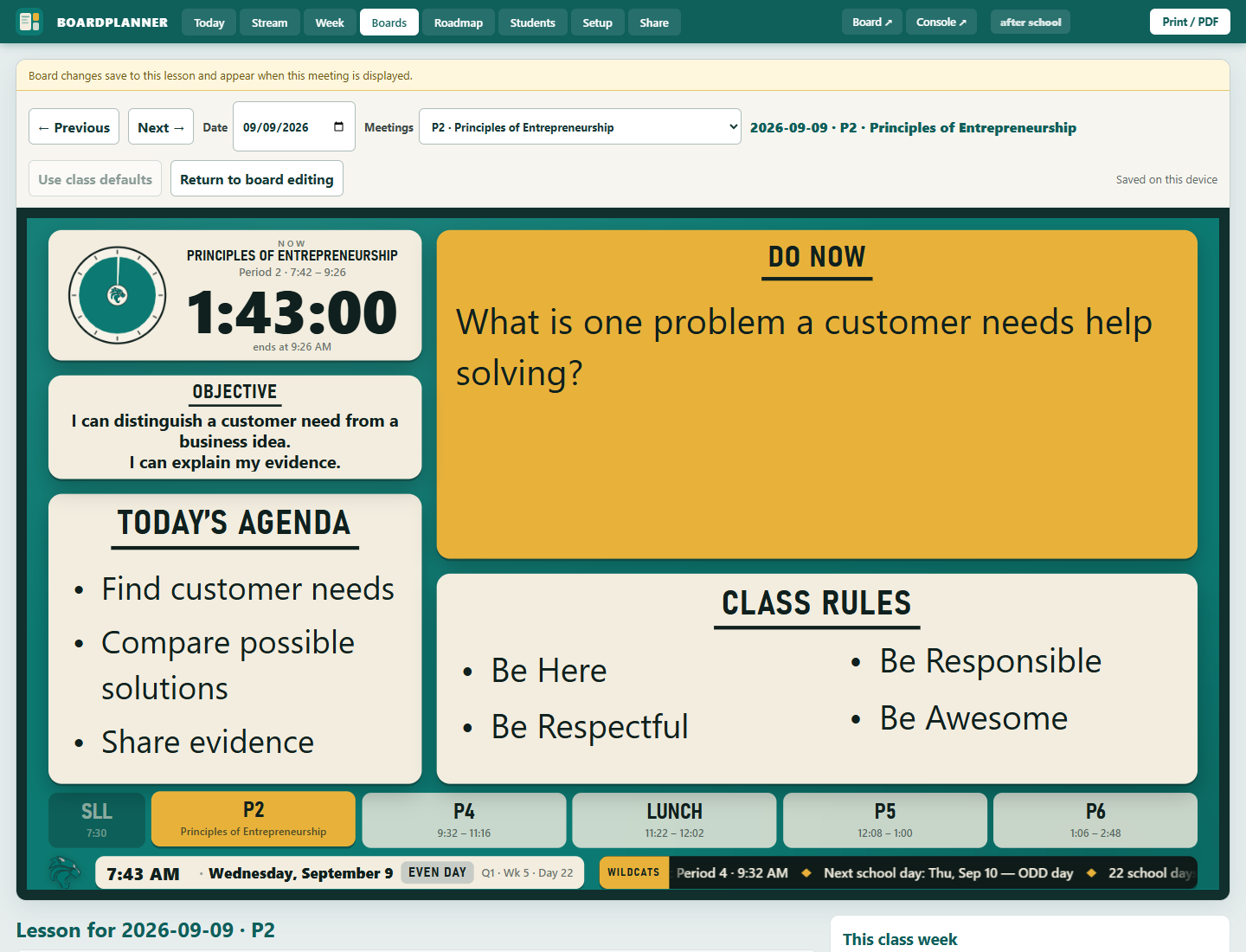
Open Boards in the planner to edit the same board your class will see. Choose a class and step through its meetings, with the full lesson, materials, and that class's week below. Edit the objective, resize and move boxes, and choose the board's slides for that date. Preview student screen hides the editing controls while keeping the board's layout. Year, Timeline, and Month connect the lesson to the bigger plan.
A sample Period 2 meeting. Next visits the next time this class meets, and edits save to this lesson.
Bug fixes and stability improvements
Objectives saved on the board stay visible when automatic lesson updates are paused. Preparing a future meeting keeps changes attached to its date and class. Saving the board preserves notes you are still typing in the lesson, and slide editors ask before discarding unfinished changes.
September 8, 2026
Prepare the lesson and shape the board
Rearrange the board without boxes landing on top of each other
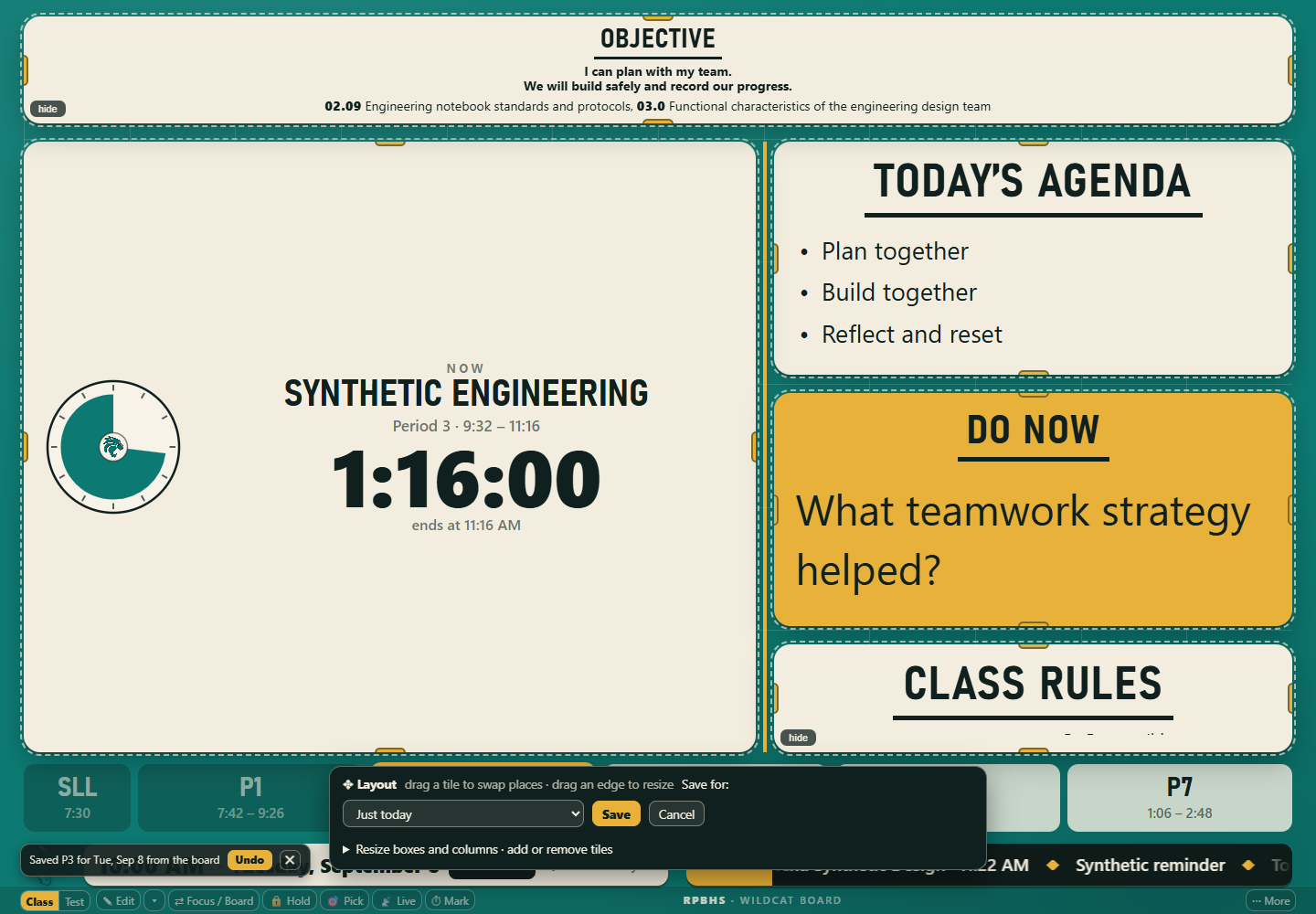
Drag a box onto another and the two trade places. Drag an edge and the box next to it makes room instead of being covered. The layout controls now sit along the bottom, so they no longer change the size of the board you are arranging. If a saved arrangement already has boxes overlapping, opening Layout offers a tidy one to start from, and Cancel still keeps what you had.
Arranging a sample board. The controls sit along the bottom and the boxes stay apart.
Change the objective by clicking it
Click the objective on the board and type. You no longer have to turn on editing first to reach it, and the pencils on each box are there when you point at them. Standards codes and their descriptions now wrap together at full size instead of shrinking into one cut-off line. When you are editing, the corner badge reads Done editing and ends it in one click.
Step through today's classes from the board
Previous class and Next class move you along today's bell order. If you are partway through typing, you are asked before anything is thrown away.
Set a wind-down for one class meeting
The Timer now opens the wind-down for the class in front of you. Pick the time it starts, choose whether it appears in Do Now or on its own screen, write what students should do, or turn it off for that one meeting. Use class default puts it back.
Name your groups and keep notes on them
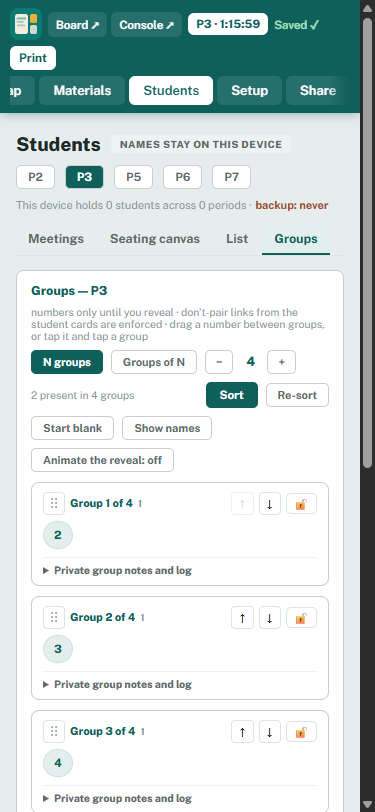
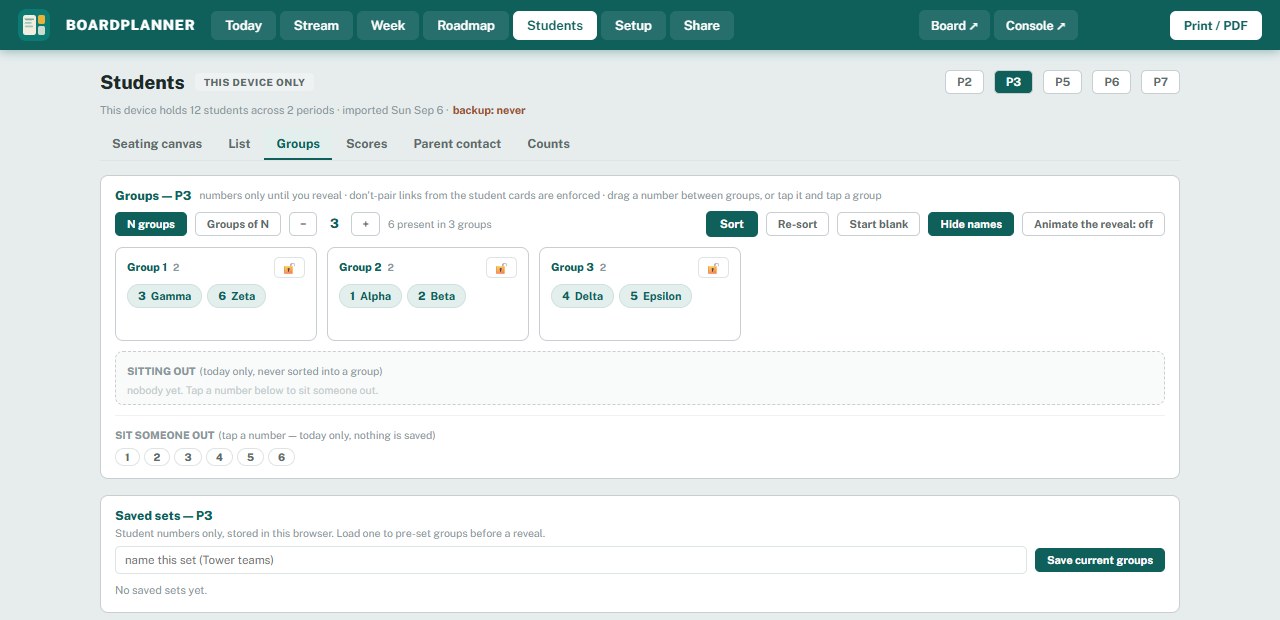
Each group can have a name, private notes and a dated log you add to as you watch them work. Drag a group card, or use the arrows, to put the groups in the order you want. Names, notes, logs, locks and order save by themselves for the set you have open, and re-sorting or reloading no longer loses them. Groups work from numbered seats alone, so you do not have to import a class list first. Notes stay in this browser and go nowhere else.
Sample groups with order controls and private notes on each card.
Write a live question before class
Prepare live question saves a question with the lesson. On the board it waits under Resources, Prepared questions, and goes live only when you choose to ask it. Resources also explains where lesson slides, worksheets and forms come from, and takes you straight to the lesson to add a link.
Students see which class they are joining
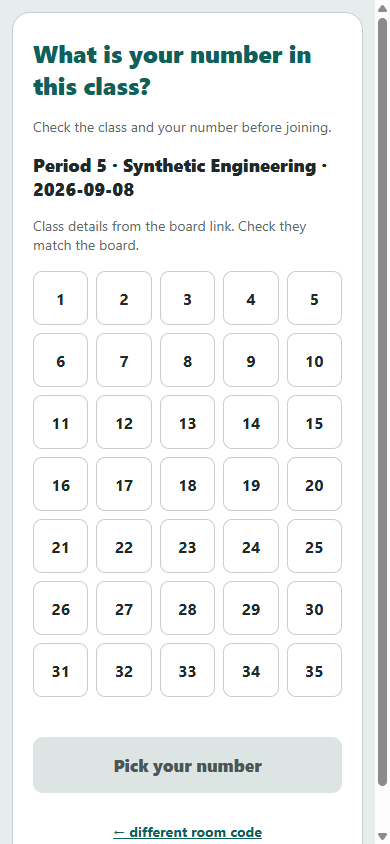
Scanning the board shows the period, class and date above the numbers, so a student in the wrong room notices before picking a number. Typing the room code by hand still shows the room, and changing the code clears the old class from the screen.
The wording students read has also been corrected. It used to say nothing was stored about them. Their class number travels with their answer and you can see it, so the screen now says so plainly.
A sample join screen. The class and date come from the board.
Make the board fit your room
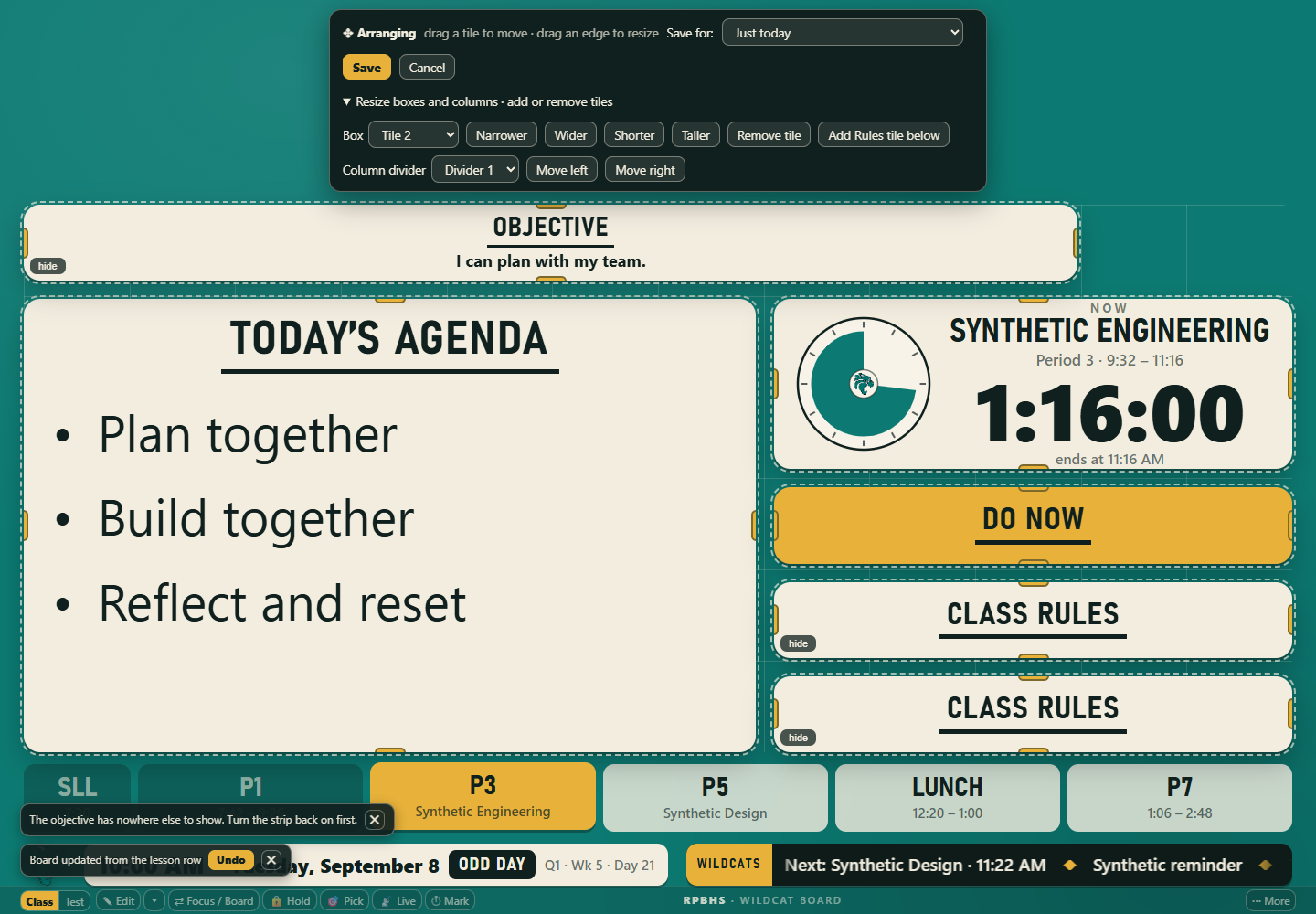
Choose a box to make it wider, narrower, taller or shorter, or move a column divider. Remove the Rules tile when you do not need it, or add another Rules tile below it. Save the arrangement for today, one class or your usual board. Cancel keeps your saved arrangement.
Arrange controls above a sample board with two stacked Rules tiles.
Give objectives enough room
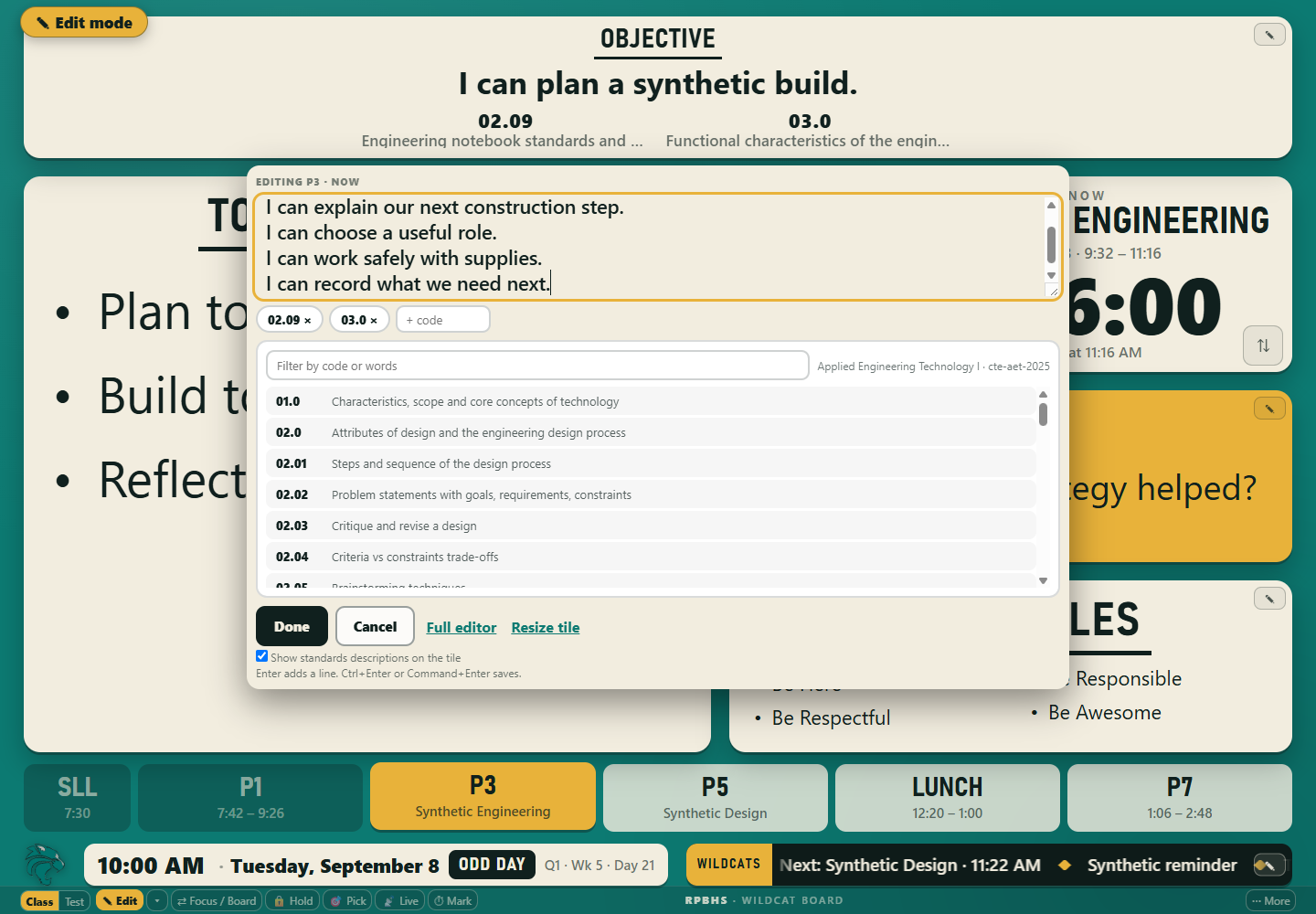
Write the objective on several lines. Enter adds a line; Ctrl+Enter or Command+Enter saves. Choose whether to show the descriptions beneath standards codes, and use Resize tile to adjust the objective box.
The multiline objective editor with standards, description visibility and Resize tile.
Keep the objective in Spotlight
The objective stays visible above the larger Do Now. Students can keep the goal in view while they work.
A sample Spotlight board with the objective, Do Now, clock and agenda visible.
Prepare the student board from your lesson
See the student-facing objective, Do Now, agenda and announcements together as you edit. Add a reminder for the class and choose standards from the same picker. Detailed teaching steps stay in your private lesson fields. The preview shows the lesson content; the board keeps its own screen arrangement.
A sample lesson with student board preview, multiline objective and standards controls.
Arrange seats before importing names
Numbered seats and their positions sync when you are signed in, even before a roster is imported. Choose first names, last initials or surnames, seat numbers and photos for this screen. A finer grid keeps whole seat cards apart. Names and photos stay on the device.
A sample seating canvas with numbered seats, name display choices and fine-grid controls.
Open, print and adapt lesson worksheets
Preview the available worksheet, print it, or edit a copy in this browser. Save and download your copy, and download a feedback note when you want to ask for changes. The original resource stays available.
A sample worksheet copy with edit, save, download, print and feedback controls.
A clearer sign-in email
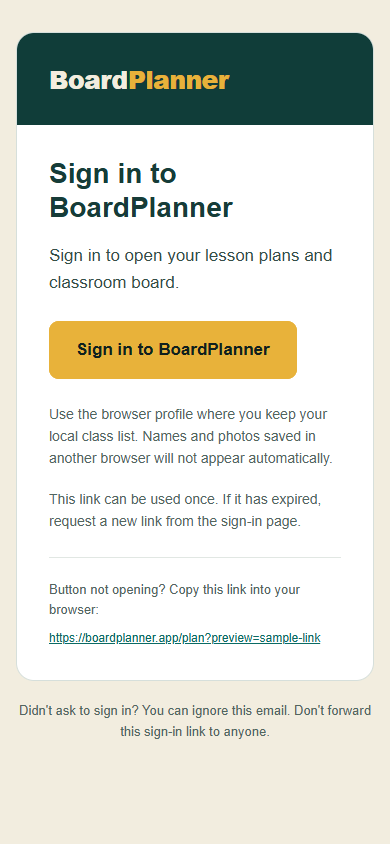
Your sign-in email has a larger button and a copyable link, with a reminder to use the browser where you keep your local class list.
Email preview with an inactive sample link.
Bug fixes and stability improvements
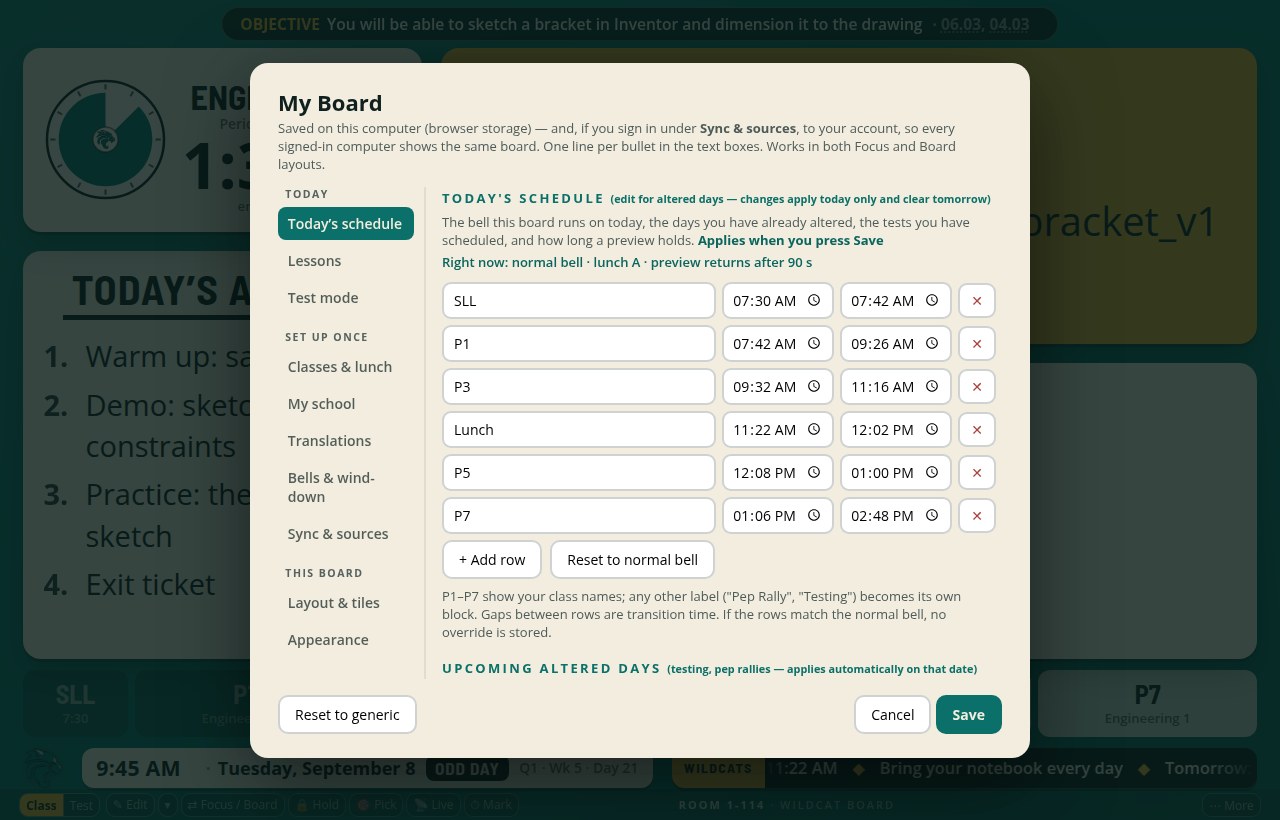
Roster restore now shows its passphrase field on the page, with clear retry and cancel controls. Failed seating saves can retry after reopening the planner, and simultaneous edits to the same class ask which layout to keep. What is new no longer opens by itself during the school day; the corner badge and the button are still there when you want it. The join address and its instructions are larger on a projector. The name picker has a Show names button on the screen itself and a clearer sound when it lands. Today's schedule shows the normal bell beside your changes, and its rows can be reordered. A question bank crash when preparing an activity is fixed, and if this browser cannot save a group change it now says so instead of losing your text.
September 7, 2026
Get your marks off this computer, and find the day you want to grade
Take your marks off this computer
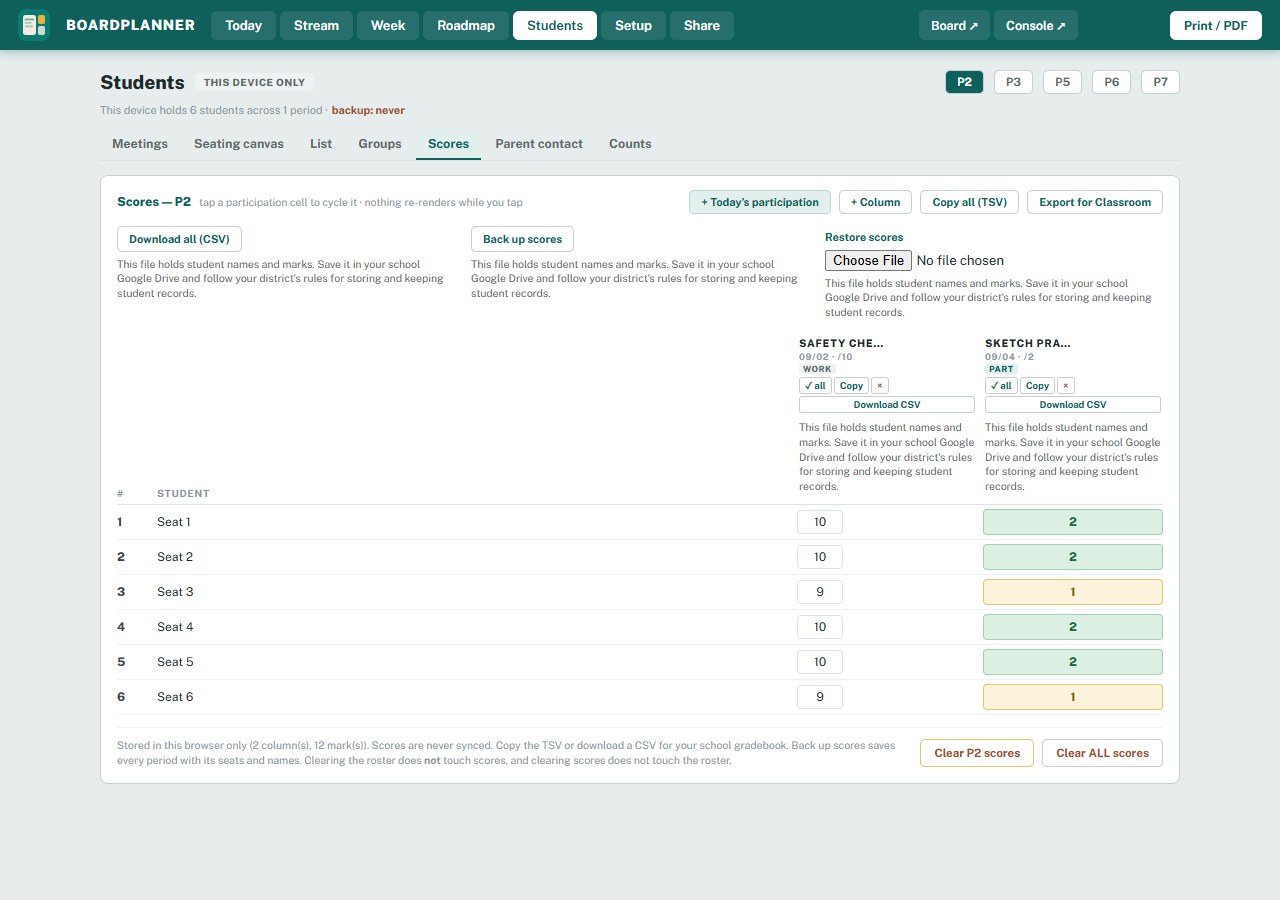
Your marks have only ever lived in one browser, on one machine. Now you can get them out.
Download CSV saves one assignment, with seat numbers, names and marks, ready for your
gradebook. Download all (CSV) does the same for every assignment in the period. Back up
scores saves the lot, every period, into a single file you can keep in your school Google
Drive, and Restore reads that file back and shows you what it will replace before it
replaces anything. If your browser lets you pick a folder, it remembers the one you chose,
so the next backup is one click. Nothing leaves this computer unless you save a file.
The file buttons in Scores, with made-up marks and Seat 1 through Seat 6 placeholders.
Find the day you want to grade
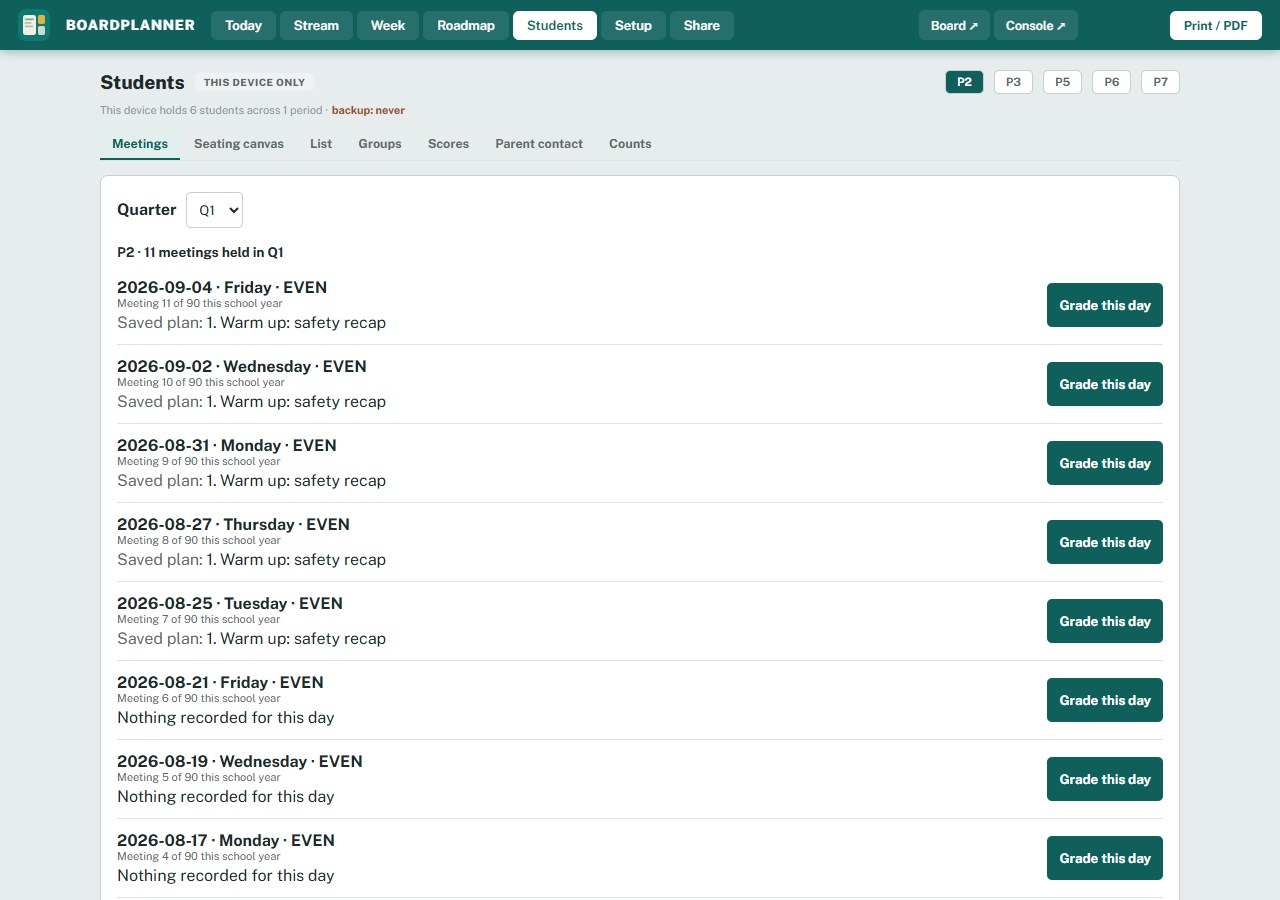
Students has a new Meetings tab. Pick a period and a quarter and you get every class you
have already held, newest first, with the date, the day of the week, whether it was an odd
or even day, and which meeting of the year it was. If you saved a plan for that day, it
shows here too. Grade this day opens Scores with a column already dated for that meeting,
so you never have to work out when you taught something. Classes still to come are listed
under a line, and there is nothing to grade on them.
Recent P2 meetings, with the saved plan for each one and Grade this day beside it.
September 6, 2026
A better-looking board, and your buttons your way
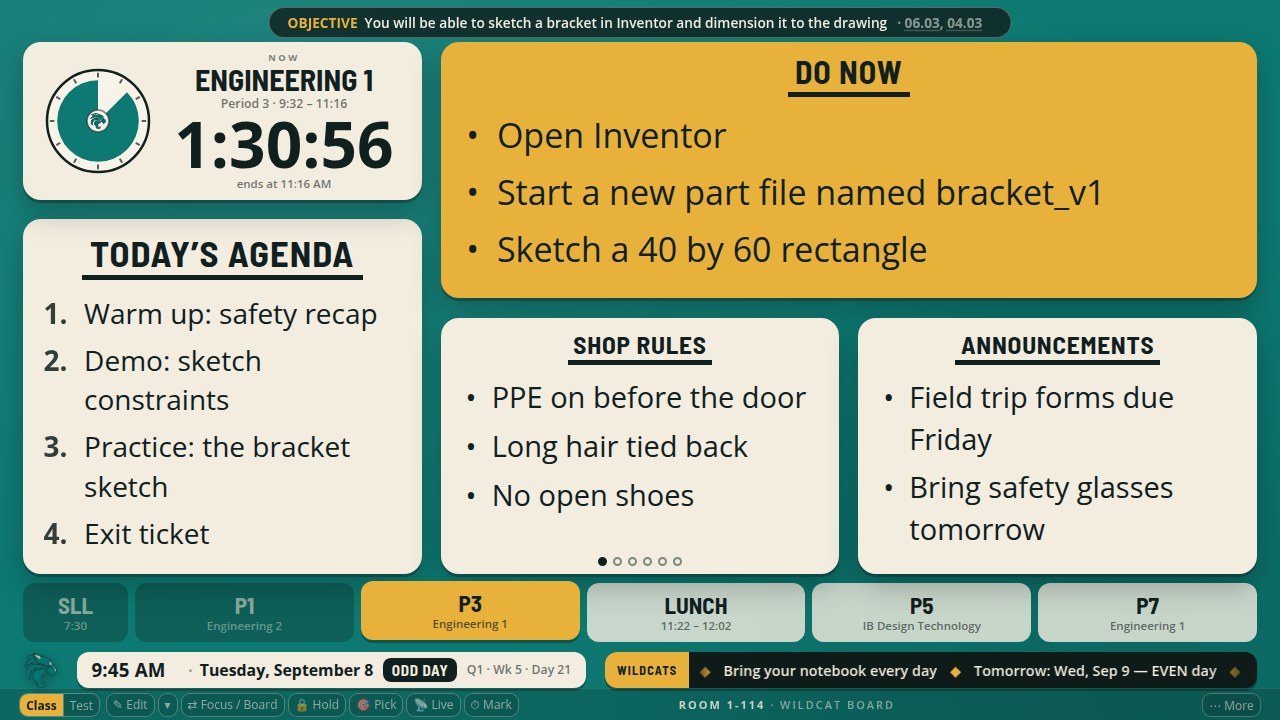
A better-looking board
Card titles are a third larger, so they hold their own beside the text under them, and you can set
their size under Settings, Appearance, Tile titles (Normal, Small or Large). A card with a single
line shows it plain, with no bullet; two or more lines keep their bullets or numbers. A rules slide
written as one line, such as "Shop rules: PPE on before the door", now shows Shop rules as the title
and the rule under it. Bullets sit at the edge of the card, a line that continues an item shows
smaller under it, and a blank line is a small gap instead of a hole. The little dots that page
through a tile's slides sit at the bottom centre, never over the title. Short Do Now lines stop
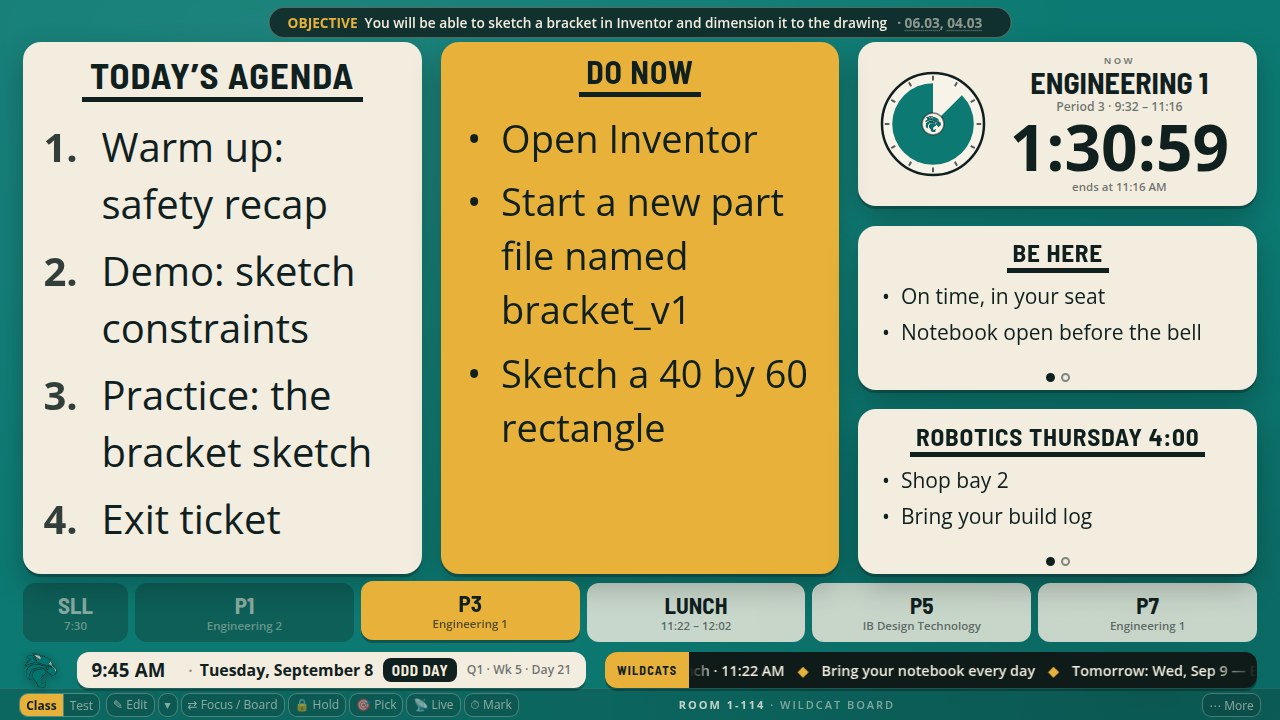
growing before they fill the card, so the board stays balanced. Three of the four arrangements from
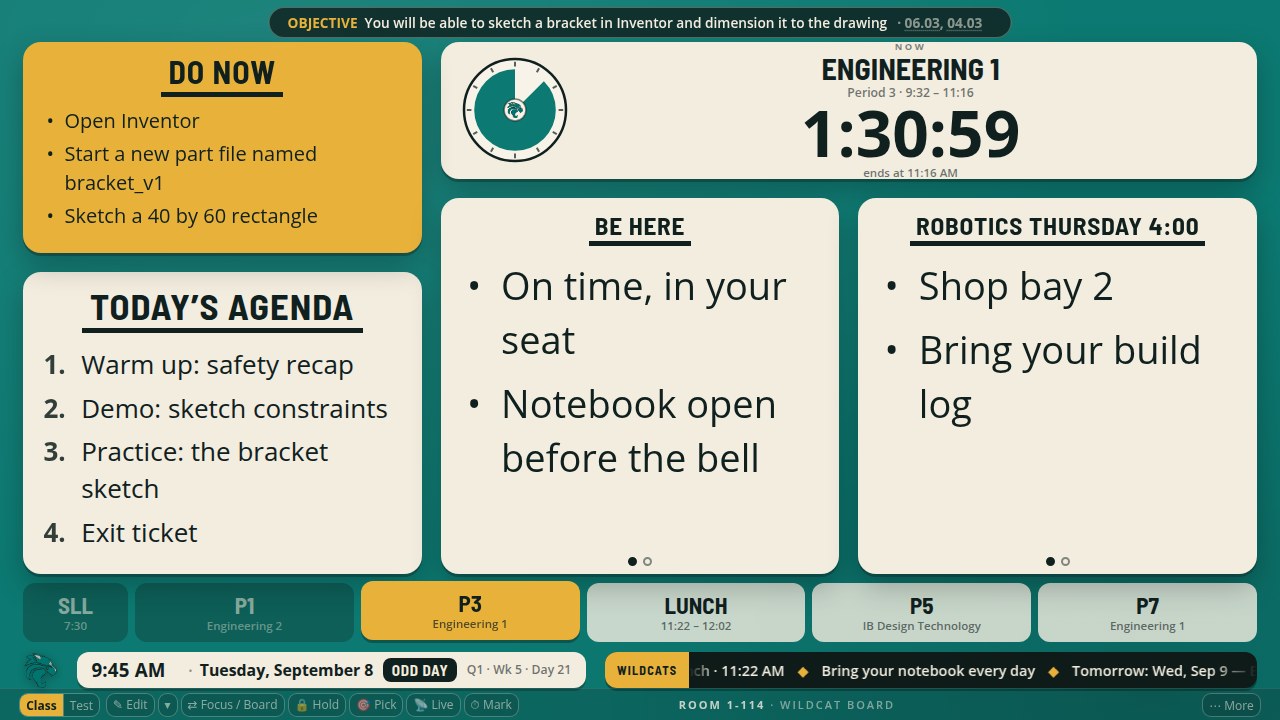
yesterday were reshaped: Do Now beside the tiles now gives the Do Now a tall middle column with the
clock top right and the tiles stacked under it; Tiles side by side gives the tiles row more height;
Do Now leads puts the Do Now over the agenda on the left with the clock top right and the tiles
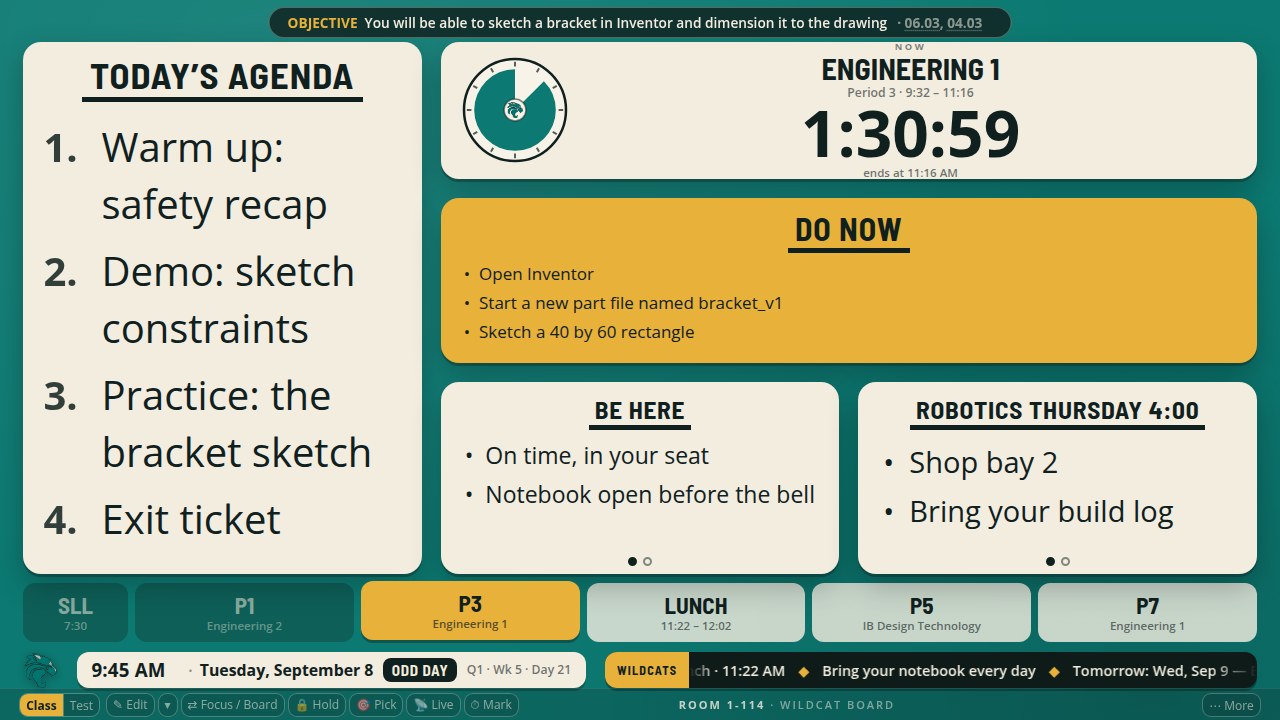
under it. Clock above the agenda is now the arrangement a new board opens on; a board that already
chose keeps its choice. On the testing screen the wall clock is larger and the words keep a clear
margin from the card edges.
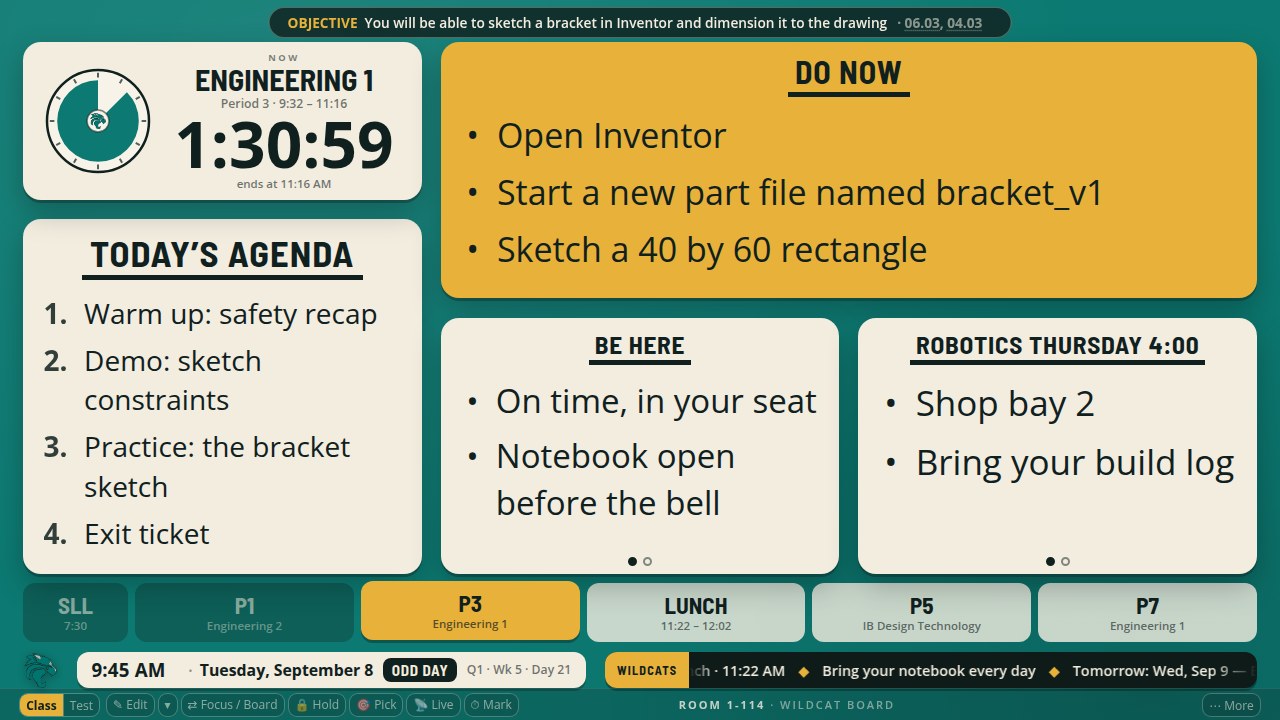
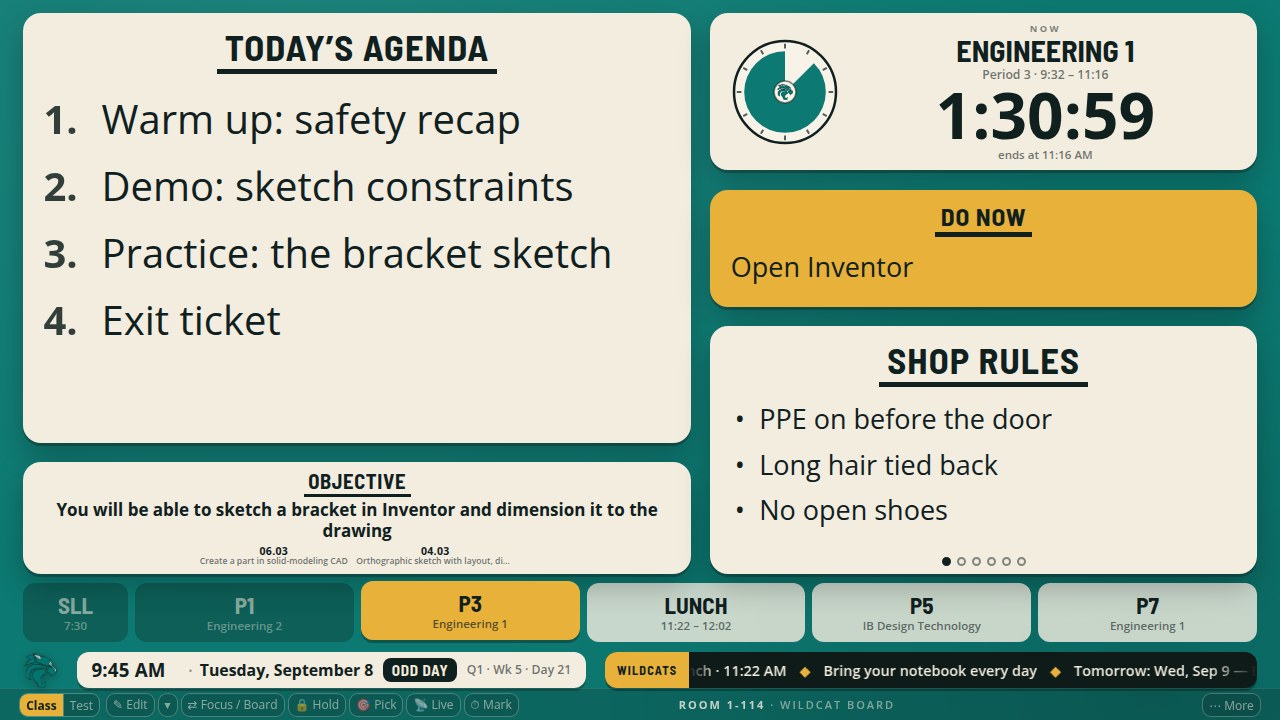
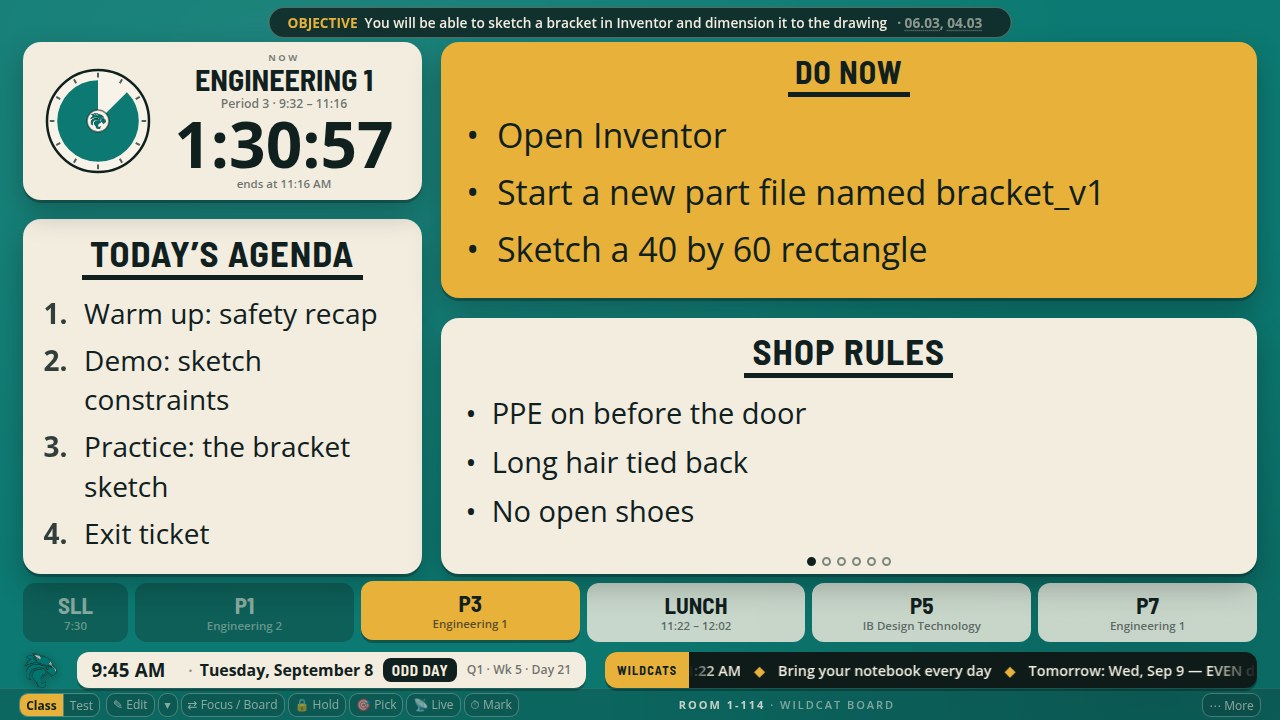
The board after the changes, in the Clock above the agenda arrangement.
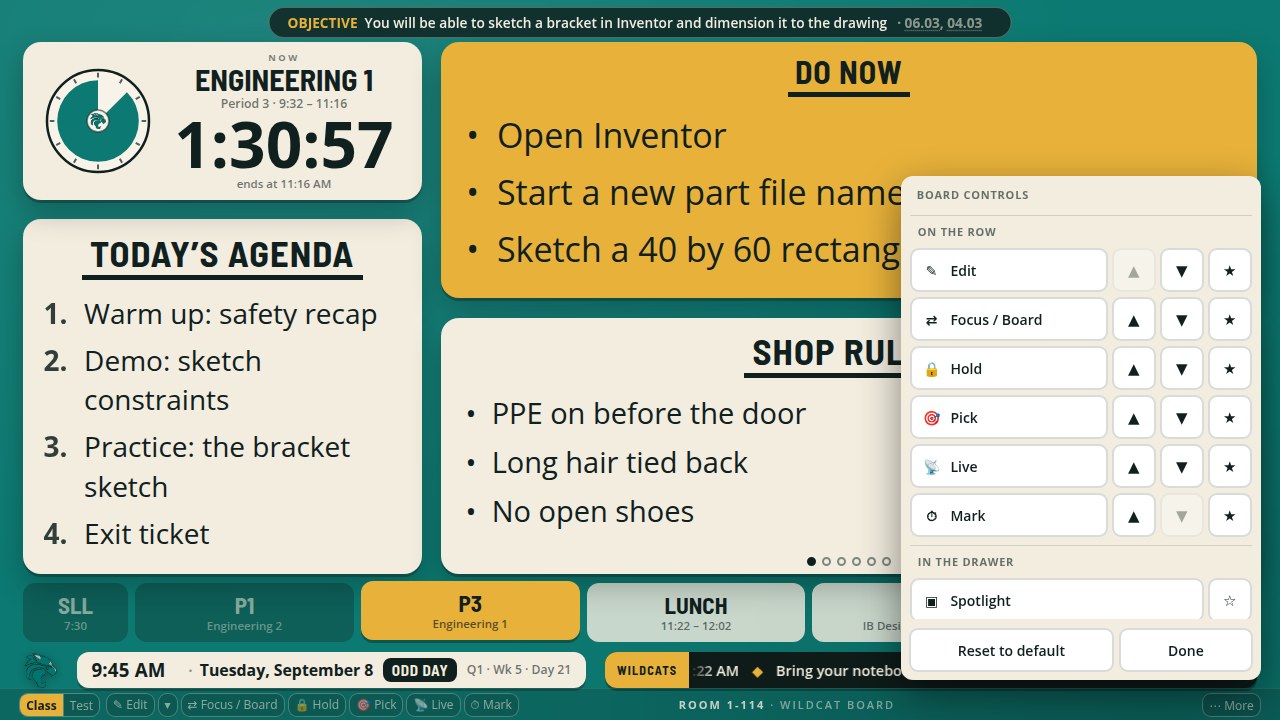
Keep the buttons you use on the row, the rest in a drawer
The row of buttons at the bottom right of the board used to drop its words on smaller screens
and show icons alone. Now the buttons you use most stay on the row with their words at every
size, and everything else waits behind one More button. Tap or hover More and a drawer opens
with every control listed by name; tap a star to move a button onto the row or off it, use the
arrows to change the order, or choose Reset to default. The row starts with Edit, Focus / Board,
Hold, Pick, Live and Mark. On a phone the menu lists the same controls in the same order.
The drawer open, with the six starting favourites at the top.
Notes for a class: the Announcements tile and reminders at the moment you choose
Add a note to a class now keeps a running list for that class, shown on the board as its own
Announcements tile, so every note you add joins the same list instead of the crawl. Choose where
the note goes (the Announcements list, the ticker line, or the Do Now), when the board should pop
it up (when the class starts, five or ten minutes in, ten or five minutes before the end, or at a
time you type), and how long it shows (the next meeting only, or every meeting until a date, ten
at most). The first note puts the tile in Tile 2 for you; a tile with nothing to say shows its
slides instead. In Edit mode the tile has a pencil, the full editor has a Notes for the board box,
and the planner shows the list under that day. Rename the tile under Settings, Layout and tiles.
The Announcements tile with two notes for the class on screen.
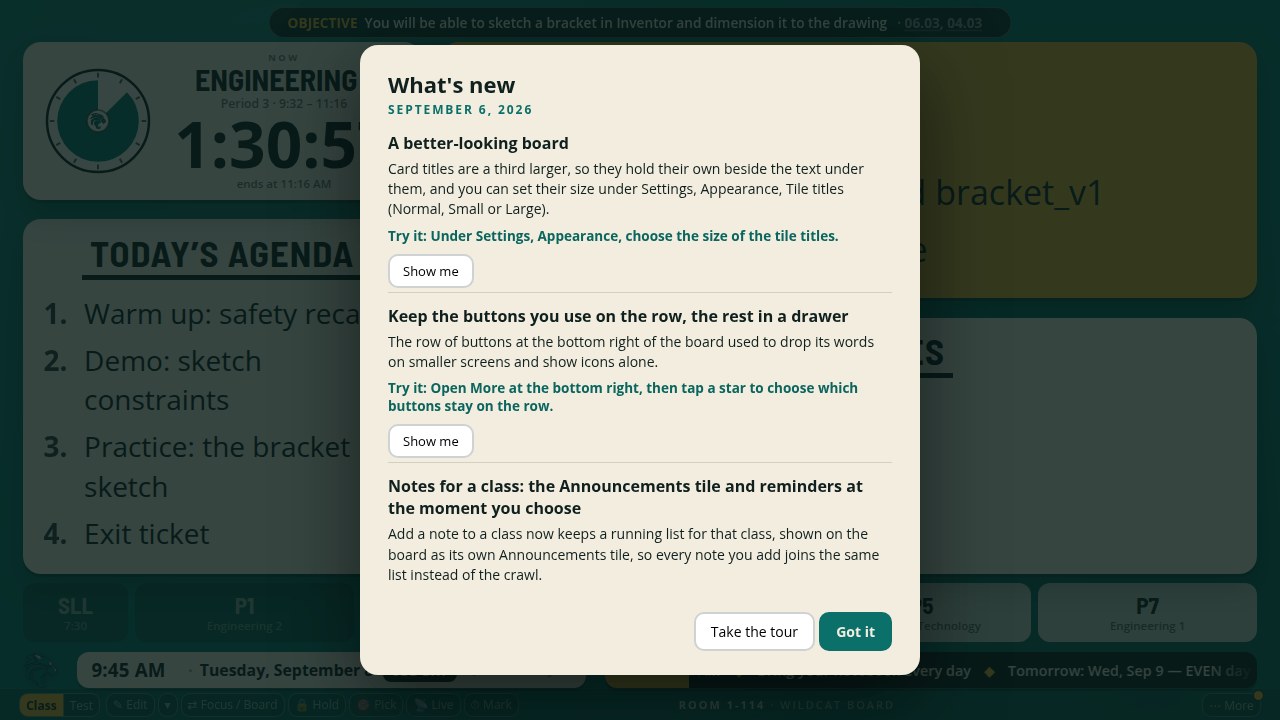
What's new, right on the board
After an update, the board puts up a short card the first time the room is free: one block per
change, each with a Try it line and, where there is a button to point at, a Show me that rings
that button (opening the drawer for it if it lives there). Take the tour walks through them all.
Until you close the card, a small dot sits on every button the update touched, on More while one
of them is in the drawer, and on What's new in the drawer, which opens the card again any time. It
never interrupts a class, a dialog or an edit, and each screen sees a release once.
The What's new card after an update.
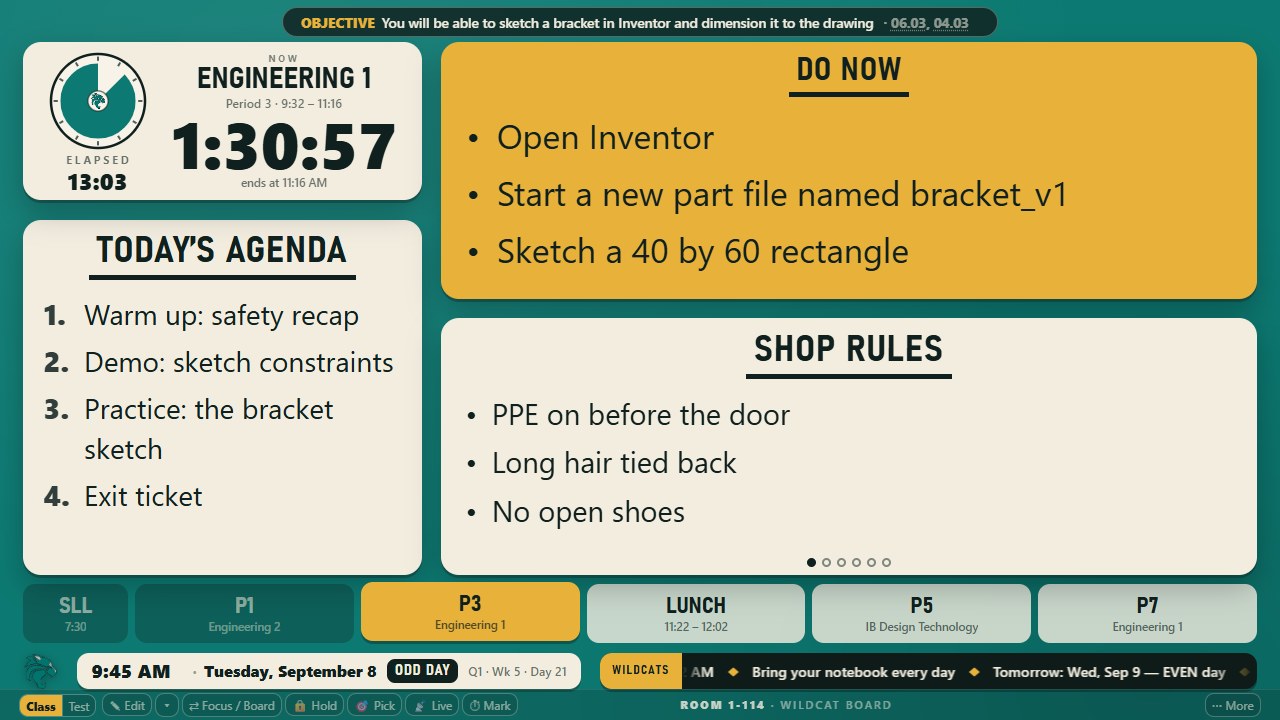
The elapsed time sits under the dial
When the clock tile shows the period's other number (Settings, Bells and wind-down, the class clock), it now sits under the dial as two clear lines, the word over the digits, instead of a small note in the corner. The swap button and the s key still trade the big read-out between remaining and elapsed. Also fixed: the Arrange screen now draws its snap grid on every board, including one with the objective tile and two small tiles on at the same time.
The elapsed time under the dial.
Export your marks for Google Classroom
On the Scores view in the planner, Export for Classroom writes one file with your class's names, seats and marks so a small program on your laptop can post the grades to your Classroom course after showing you what it is about to post. The file and the program stay on your computer; nothing about a student goes through BoardPlanner's servers. The program and its setup steps are in the project's tools folder.
Shift+Enter keeps a line with its item
In a card's box on the board, in the Class Editor and in the planner's board boxes, Shift+Enter starts a new line inside the same item instead of a new bullet. The box shows that line with a plus sign in front of it; the board shows it under its item, with no bullet. Enter on its own still starts a new item.
The board on your phone
The weekend and no-school screen no longer breaks a word or splits the time across two lines on a phone. Add the board to your phone's home screen and it now installs as BoardPlanner, with its own icon, opening on the board. The BoardPlanner home page fits a phone again when you are signed in. Before the first bell, the Focus screen on a phone now stacks the clock over the countdown instead of squeezing them side by side.
A to-do list of your own, under Labs
Turn on Tasks under Setup, Labs, and the planner gets a box at the top of Today: type a line like Order bracket stock for P3 by Friday and it files itself to the class, the date or the unit it names, with chips you can clear before you press Enter. A short strip on Today shows what is due today or overdue, a class's page shows how many things are waiting for it, and the Tasks page lists everything by Due, This week, Later and Done. Press t from anywhere to reach the box. You can also add one from the board itself: Add a task sits in the board's More drawer, its phone menu and the console, reads the line the same way, and files it to the class on screen unless you say otherwise. Nothing about your task list ever appears on the projected board. Tasks sync with your account like your plans. Nothing here is about a student.
September 5, 2026
Edit right on the board
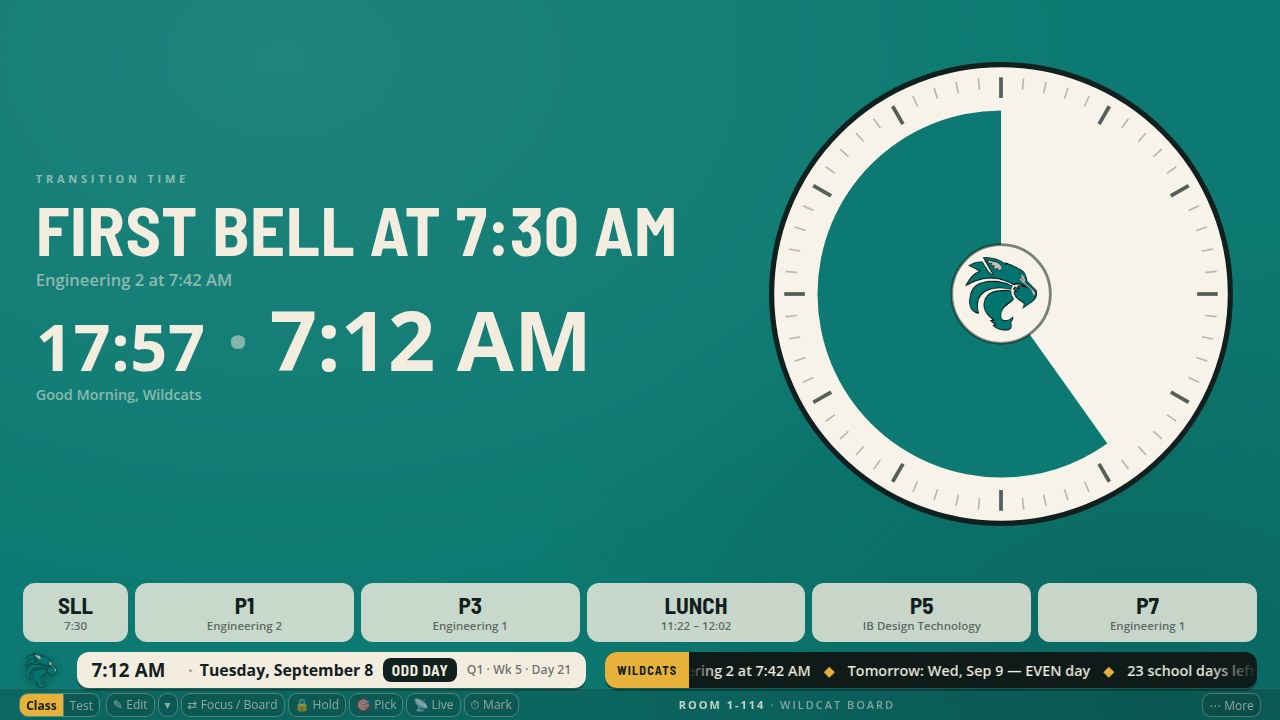
Transition time, and a countdown to the first bell
Before school, the board now counts down to the first bell beside the time, with the dial filling
over the last thirty minutes, so the morning has the same shape as every gap between classes. The gaps
between classes are called transition time everywhere now (the board, the phone, Settings) instead of
passing time.
Eighteen minutes before the first bell.
Elapsed time on the clock tile
Under Settings, Bells and wind-down, turn on "Always show the elapsed time in a corner of the clock"
and the clock tile shows how long the class has been running, small, in its corner. To swap the big
read-out between time remaining and time elapsed, tap the swap button that appears when you hover
the clock (always shown in Edit mode), press S, or use the row in the phone menu; when the big number
shows elapsed, the corner shows remaining, so the two never say the same thing. Each class starts
back on time remaining.
The elapsed time in the corner of the clock.
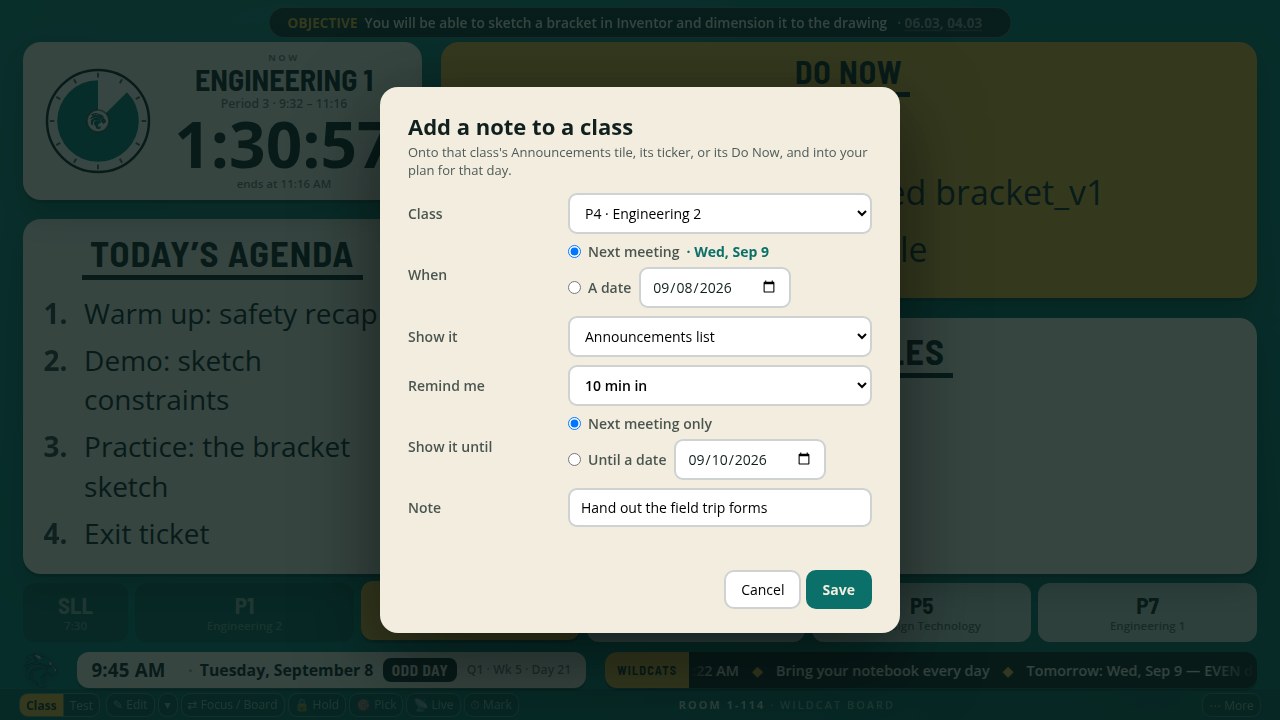
Quick add: a note for a class's next meeting
Remember something for Period 4 while Period 3 is running? Open the editing menu (or press N, or use
Quick add on your phone), pick the class, type the note, and save. It lands on that class's next
meeting, or on a date you choose, and it shows in your planner too. Choose when the reminder pops
up and the board and your phone both flash the note at that moment. If you back out with a note
typed, the board asks first.
A note for Period 4's next meeting, with the reminder on.
Small fixes
When time is called on the Poster and Focused testing screens, the "When time is called" line now
shows in the bottom band, where the first instruction was. The testing screen fits a phone on every
layout; the countdown no longer runs off the edge. On the two-tile board arrangement, a two-line Do Now
fits its card instead of scrolling. On a phone, the "Editing" label sits under the card heading instead
of over it. The language tag under a translated card is easier to read, and a long card that scrolls
with translations on no longer piles up empty translation lines below the text.
Three new looks for the testing screen, and one clock
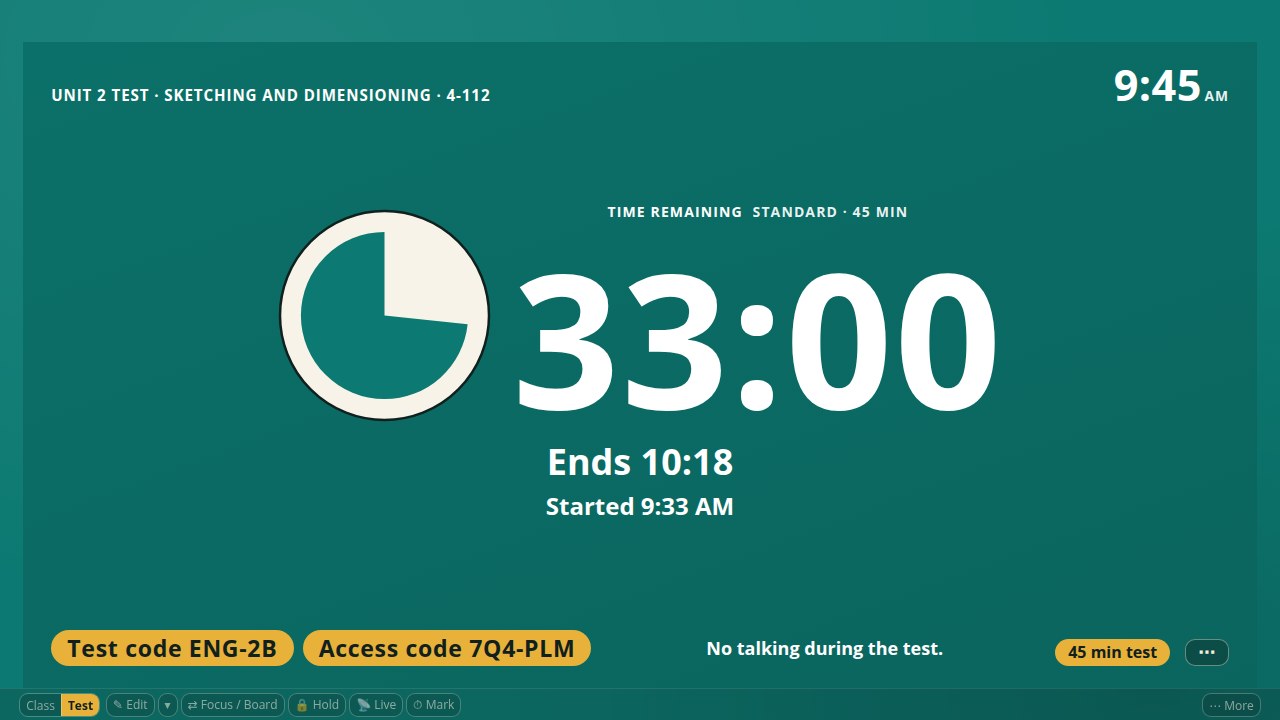
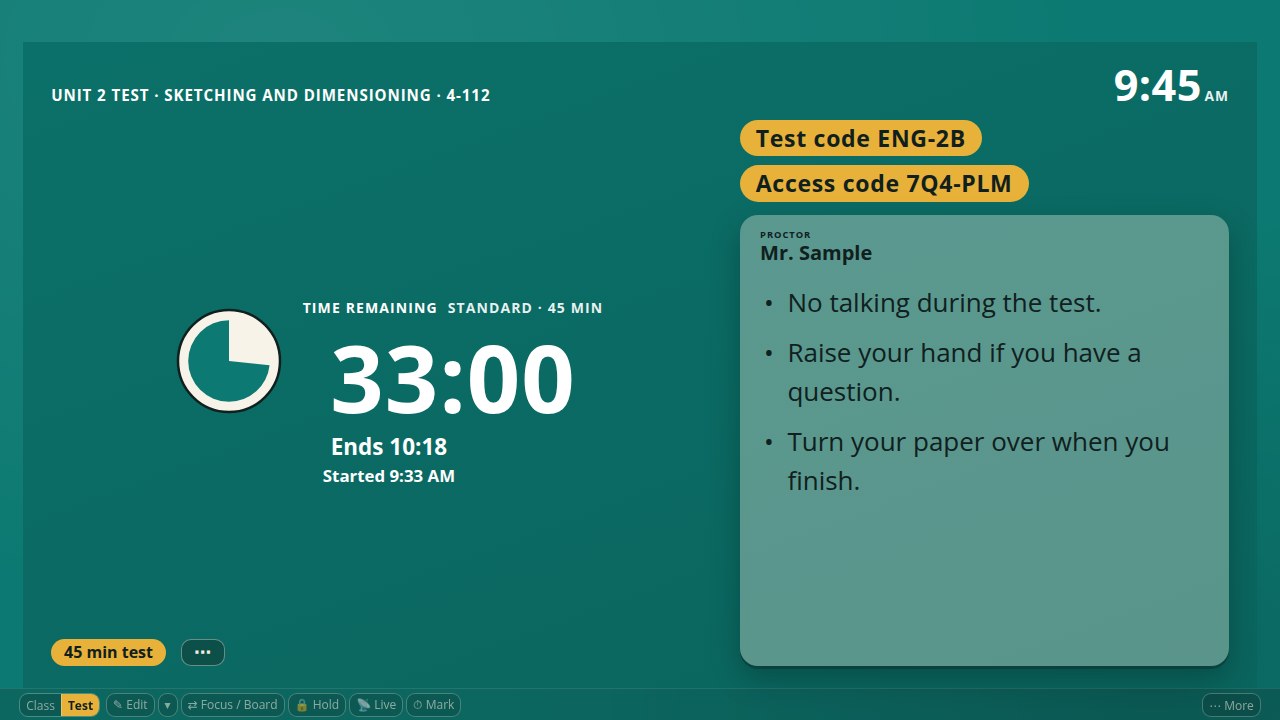
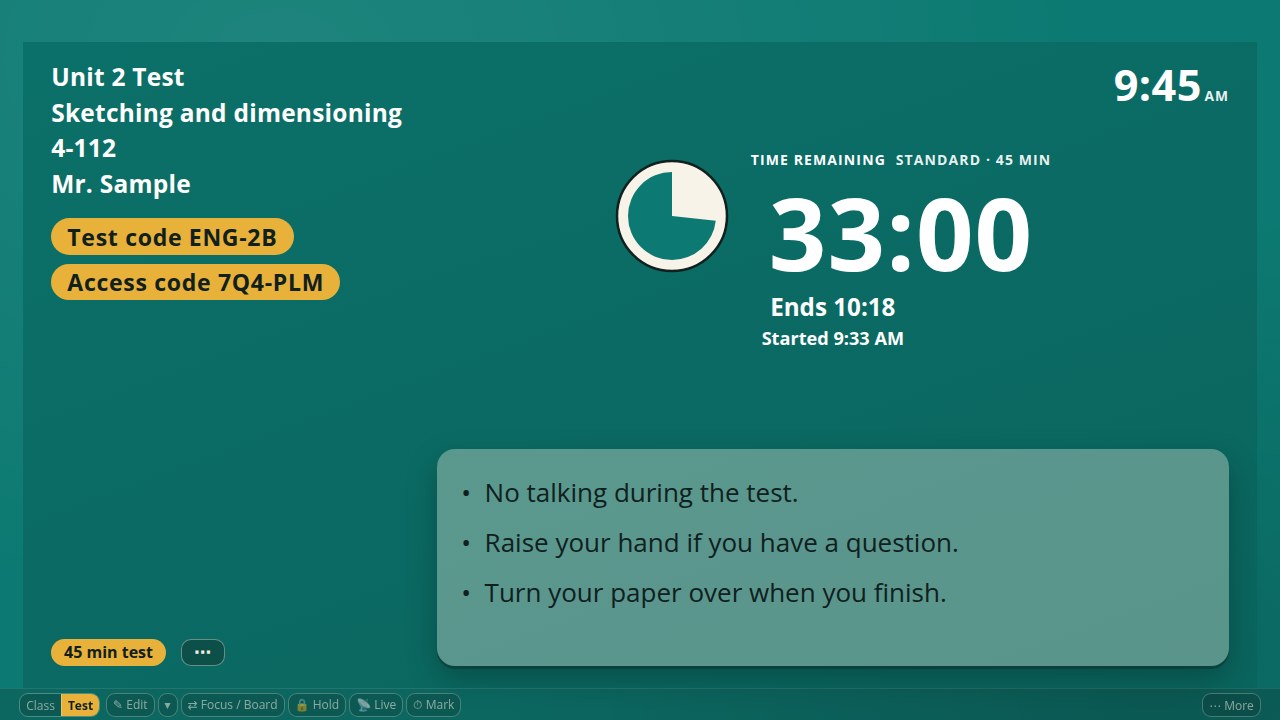
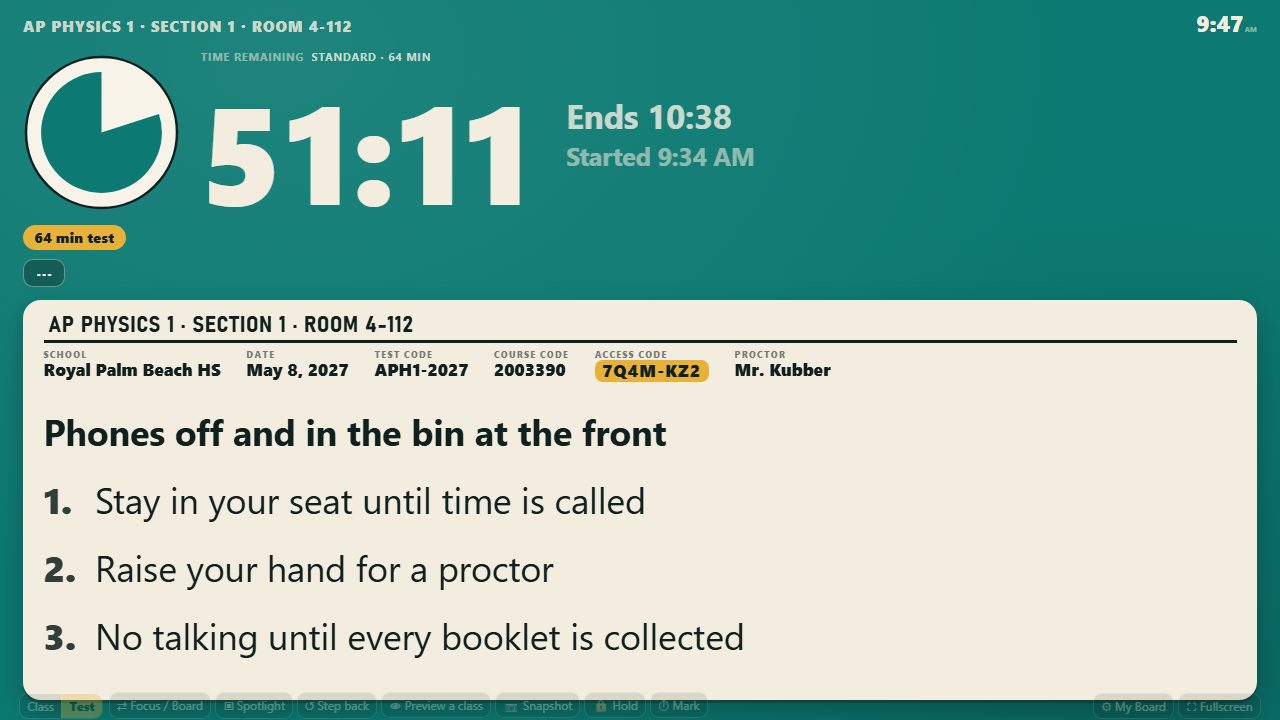
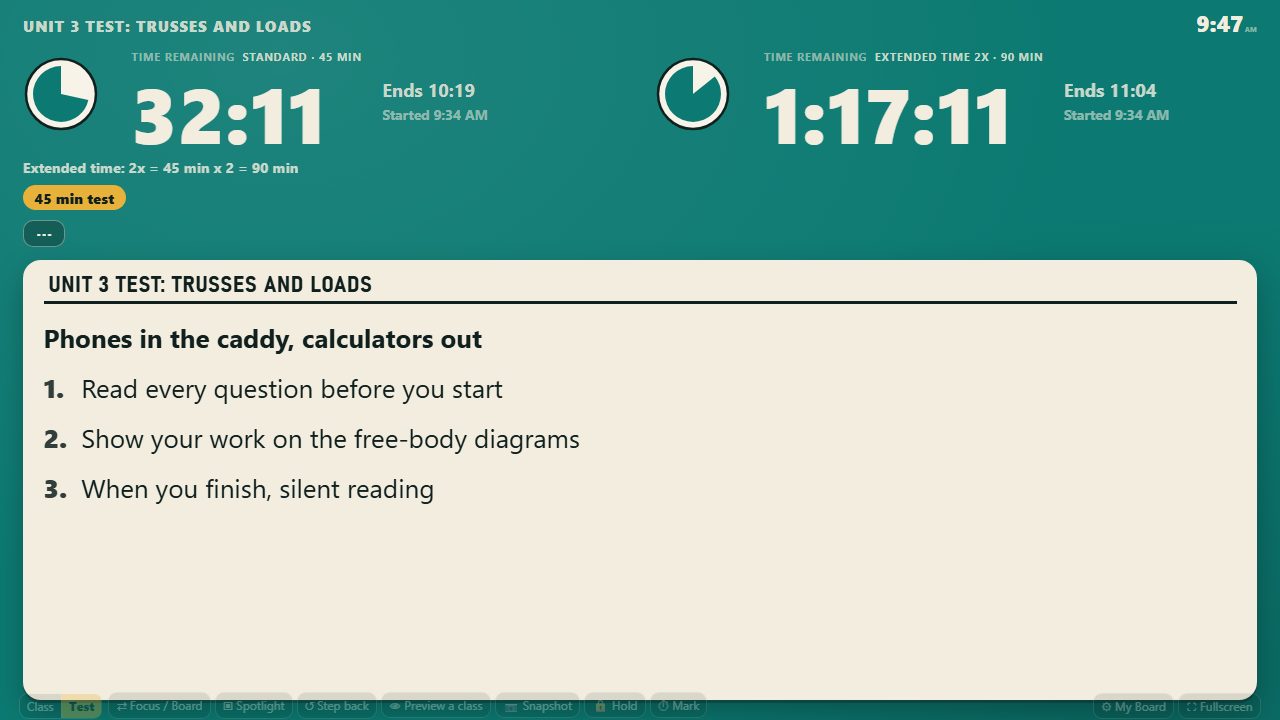
The testing screen has three new layouts, and the first is now the default. Poster shows one big
countdown, with the test name and room on a slim line above and the codes, the first instruction and
the test length in a band below; it suits a classroom test. Two panels puts the countdown on the left
and everything students copy down on the right: the codes, the proctor and the instructions on one
card. Rail keeps a column on the left with the test name, room, proctor and codes stacked large and
gives the countdown the rest. Switch between them in one tap from the editing menu during a test, or
under Settings, Test mode. In Edit mode you can drag the seam between the columns, and on Poster the
seam between the countdown and the instructions. There is now one clock: the wall time at the top
right, with the end time and the start time under the countdown. The codes are bigger, and the test
length and the menu sit in the bottom band instead of floating in the middle. A new address,
boardplanner.app/test, opens the board straight onto the testing screen, ready to start, on every
screen you are signed in on; make it your bookmark for test day.
Poster.Two panels.Rail.
Four new arrangements, and columns you can drag
Under Settings, Layout & tiles, four new arrangements give the right side of the board room to
breathe: the agenda takes the left third, the Do Now stands as a tall middle column and the clock
sits top right with the two small tiles stacked under it (Do Now beside the tiles); or the clock and
then the Do Now run across the right with the two tiles side by side under them (Tiles side by
side); Do Now leads puts the Do Now over the agenda in the left column with the clock top right and
the tiles under it; Clock above the agenda puts the clock over the agenda on the left and the Do Now
top right. In every arrangement, turn on Edit mode and drag the seam between the columns to make the left
side wider or narrower; the board remembers the width for that arrangement, and a double tap on the
seam puts it back. The board's address is now boardplanner.app/board; the old /app address still
works and forwards there.
Do Now beside the tiles.Tiles side by side.Do Now leads.Clock above the agenda.
Copy from yesterday or tomorrow in one tap
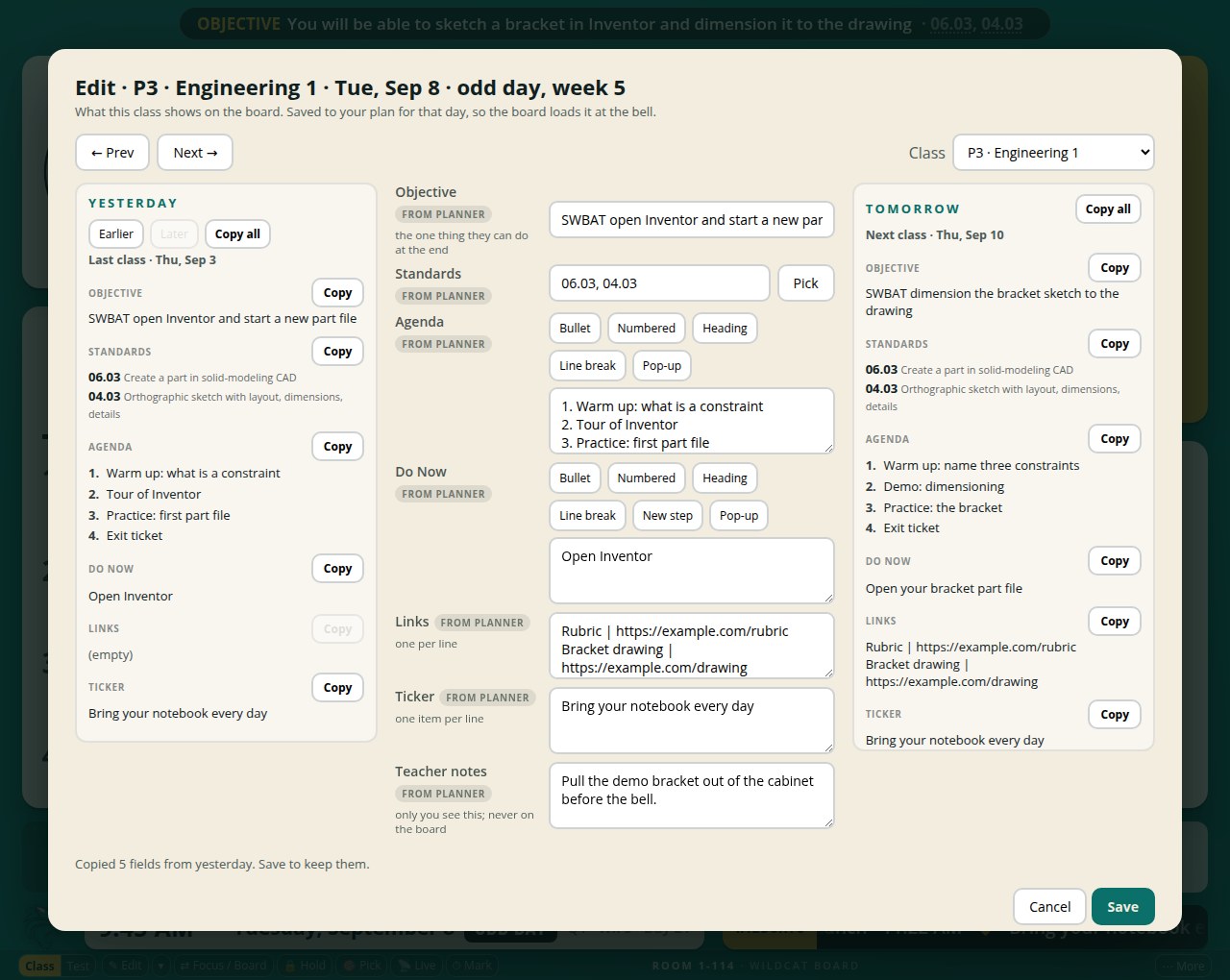
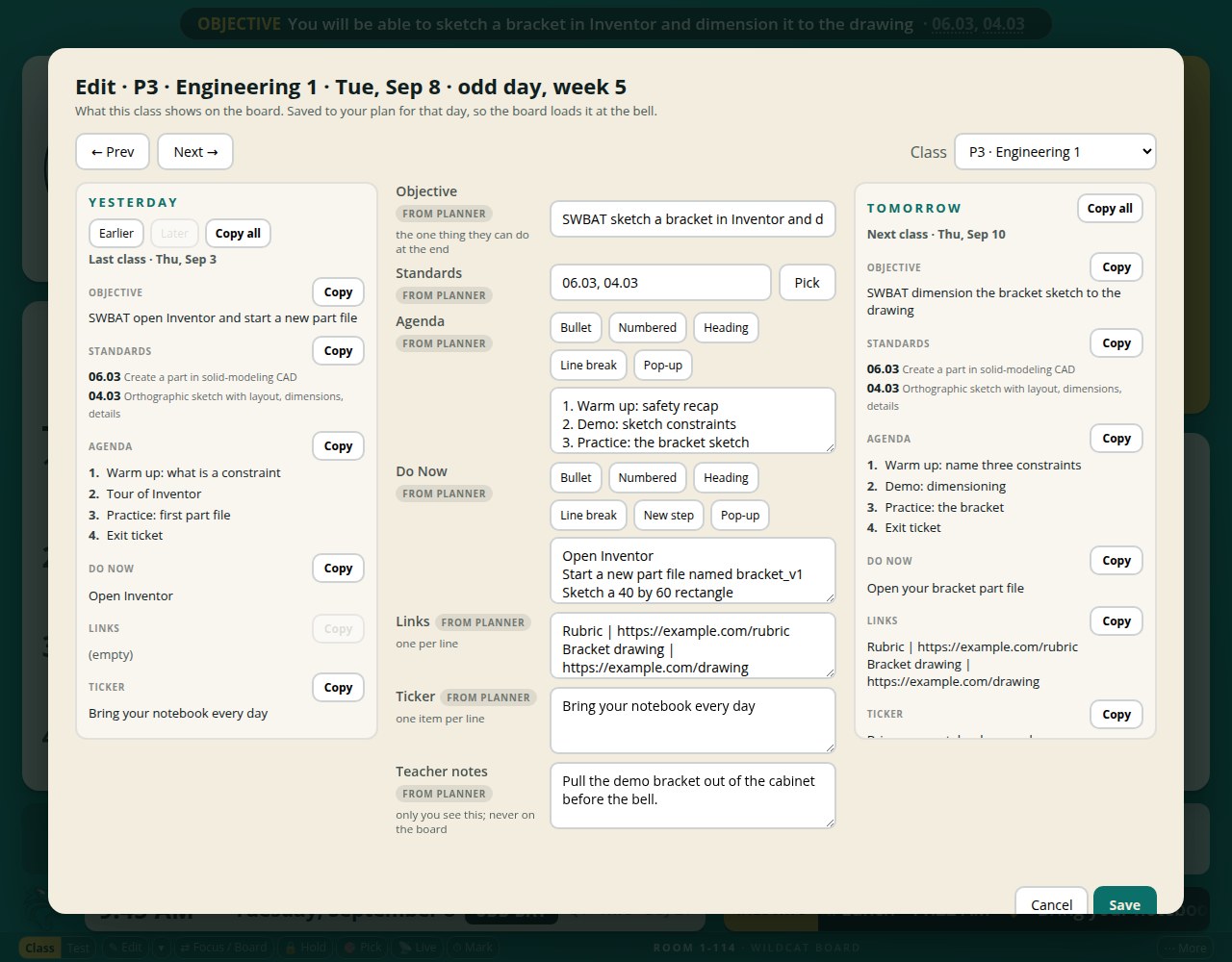
Open the class editor and every field on the Yesterday and Tomorrow sides has a Copy button, plus
Copy all for the whole side. Copy fills in the field for the class you are editing. Nothing is saved
until you press Save, and if you back out first, the board asks before letting the copied text go. This
works for a class you are previewing too: after Save, the preview shows what you copied, and the class
in the room is untouched.
After Copy all from yesterday, before Save.
See last class and next class while you edit
The class editor now has three columns. On the left is the last time this period met, taken from the
board's own record of what ran, with Earlier and Later to look further back. In the middle is the
class you are editing. On the right is this period's next meeting, from your plan. Each side shows the
objective, standards, agenda, Do Now, links and ticker, so you can see what came before and what comes
next while you type. On a phone the two sides become tabs above the fields.
Last class on the left, the class you are editing in the middle, next class on the right.
Give each small tile its own slides
The two small tiles on the board used to show the same rotating slides. Now each tile can show its
own set. Give your slides tags in the slide library (for example "rules" for classroom rules and
"clubs" for club announcements), then open a tile's pencil in Edit mode, tap the tags that tile should
show, and save. Tile 1 can show only the rules while Tile 2 shows only the club notices. A tile with
no tags shows all your slides, as before. Your slides still live in one library, so a slide can be on
both tiles or on just one.
The testing screen now comes in three looks. Gradient, a soft wash of color behind everything, is the
new default. Cards puts the test details and the codes on their own cards. Clean shows the same text
straight on the screen with no cards. Choose under Settings, Test mode, or from the editing menu while
a test is running. Your choice follows your board to every screen you are signed in on. The title and
the header line are brighter on every look so they read from the back of the room.
Cards.Clean.Gradient.
Edit test details right on the testing screen
Turn on Edit mode during a test and a pencil appears beside each detail on the screen: the title,
the room, the test and access codes, the proctor, and the instructions. Tap a pencil, type, and press
Enter. The change shows on the projector and on your phone. Details that are not on the screen at that
point in the test, along with the test length, extended time and breaks, are under Test fields in the
editing menu.
The access code, typed where it shows once the test is running.
Show the objective as its own card
Your objective and standards can now be a card on the board instead of the strip across the top.
Choose "as a tile" under Settings, Layout & tiles, or in the editing menu. Every arrangement has a
place for the card, and two new arrangements put it directly above or below the agenda. In Arrange you
drag and resize it like any other card. The card shows the objective phrased for students and each
standard with its name, and its pencil opens the same editor as the strip. If an arrangement has no
room for the card, the strip comes back on its own. With translations on, the card shows the
translated objective under the English.
"Objective above the agenda": the tile across the top."Objective below the agenda": the same tile under the agenda.
Type the objective right on the strip
In Edit mode the objective strip at the top of the board has a pencil. Tap it and the strip becomes
a text box with your course's standards list underneath. Tap codes to add or remove them, or type a
code that is not on the list. Press Done and it is saved to the class you are looking at; the strip
then shows the objective phrased for students with its codes. Two new options under Settings, Layout
& tiles: let a long objective wrap onto a second line, and show or hide the strip.
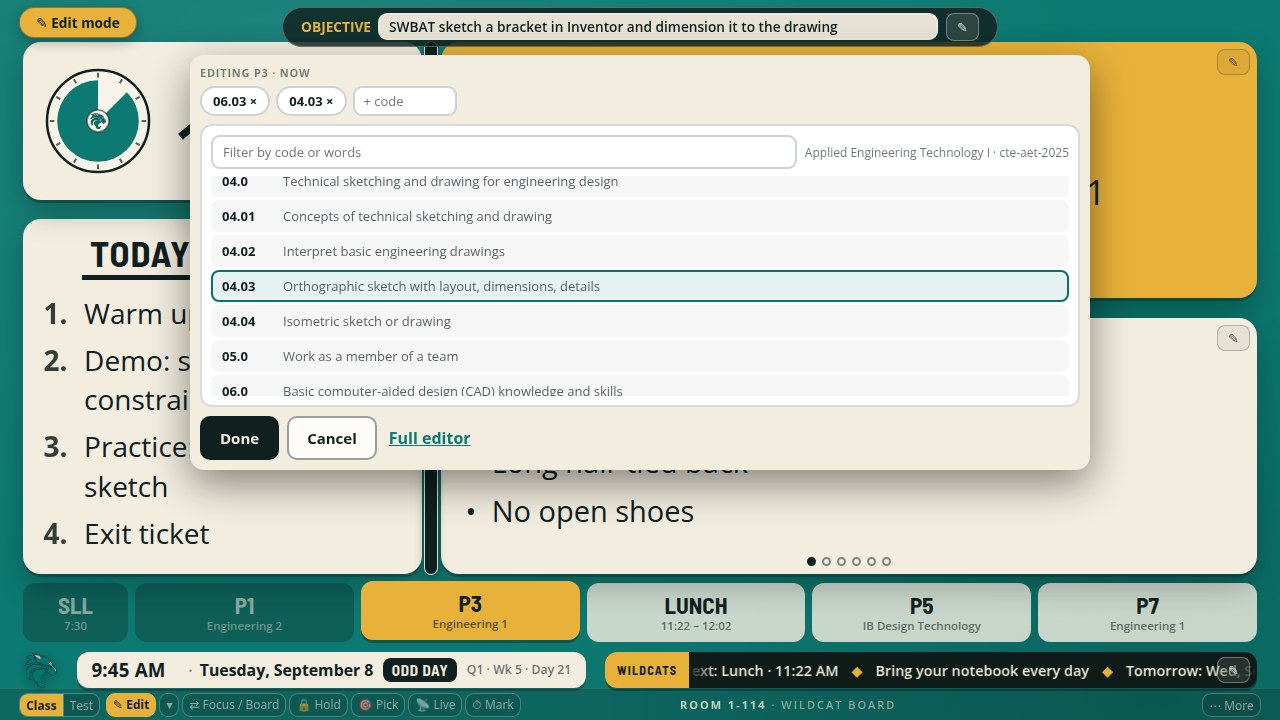
The strip open on P3 with two codes attached and the course list below.
Edit mode
The board itself is now where you edit. Press Edit at the bottom right (or the E key, or the Edit row
in the phone menu) and a pencil appears on every card, on the ticker, and on the objective strip, with
a small Edit mode badge so you know it is on. Turn it off and the board is clean again with no pencils
at all, so students never see editing controls. Edit mode is per screen and turns itself off at the
next bell. The arrow beside Edit opens a menu with everything else: the full class editor, Last class,
Recent versions, and Slides. Settings no longer has a Board content page: the words on the cards are
typed on the cards, and the header label is now under Appearance.
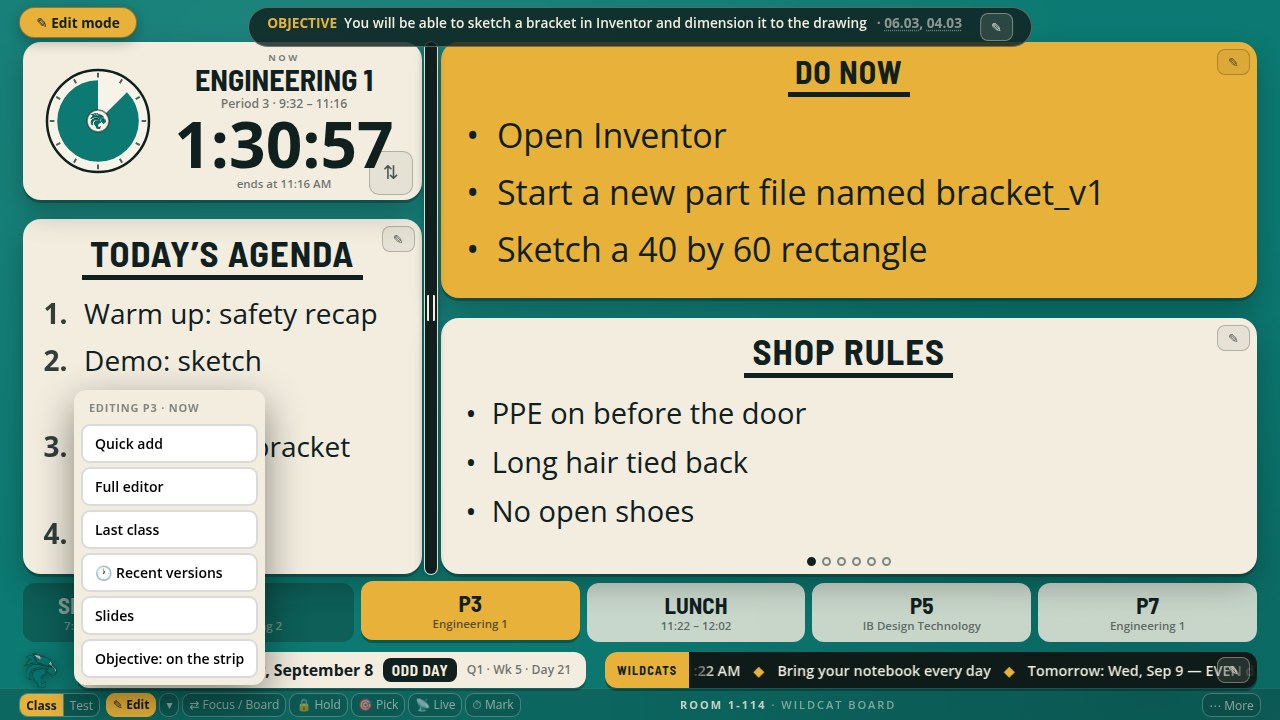
Edit mode on, with the editing menu open above the lit Edit button.
Edit the class you are looking at, right on the card
Tap the pencil on the Agenda or Do Now card and the card becomes a text box, with the insert toolbar
and Done and Cancel buttons. What you type is saved to the class the board is showing. If you are
previewing a later class, the edit goes to that class and the class in the room is untouched; a small
label on the card says which class you are editing. Editing the class in the room updates the board
at once. The ticker's pencil edits the ticker that runs under every class. If you cancel with unsaved
changes, the board asks first.
Previewing P5 and editing its agenda right on the card.
Bug fixes and stability improvements
Everything the board saves into a class's plan, from the class editor or from Last class, now goes
through one path, with the same Undo and the same entry in Recent versions. While you are typing on the
board, nothing changes under you: a sync from another device, the update from your planner, the switch
to the Focus screen at the end of class, the bell, a preview timing out, and a scheduled test all wait
until you finish. If a save fails, your text stays where you typed it, with the reason and a Retry
button.
September 4, 2026
Pop-ups on the Do Now, and a class editor that loses nothing
Copy last class into the class you are looking at
Preview a later class, tap Last class, and the board shows that class's previous meeting with a line
that says where a copy will go: "Copies into P5, Tue Sep 8". Use for P5 writes it into that class's plan
(the same row your planner reads) and drops you back on the preview with the content in place; the class
in the room is never touched. With nothing previewed the buttons read Use on today's board and behave as
before. Undo is one tap, and the schedule strip's class menu offers Last class for any class by name.
Translations that never move the English
The English text on the Agenda and Do Now cards stays put; only the second language changes, in its own
slot under the card or under each line, labelled with the language's name. A language whose translation
has not arrived yet no longer leaves a blank beat. Settings > Translations (and the phone menu) gain
"This screen shows": rotate, one language only, or English only, chosen per screen so the projector and
your phone can differ.
Pop-ups on the Do Now too
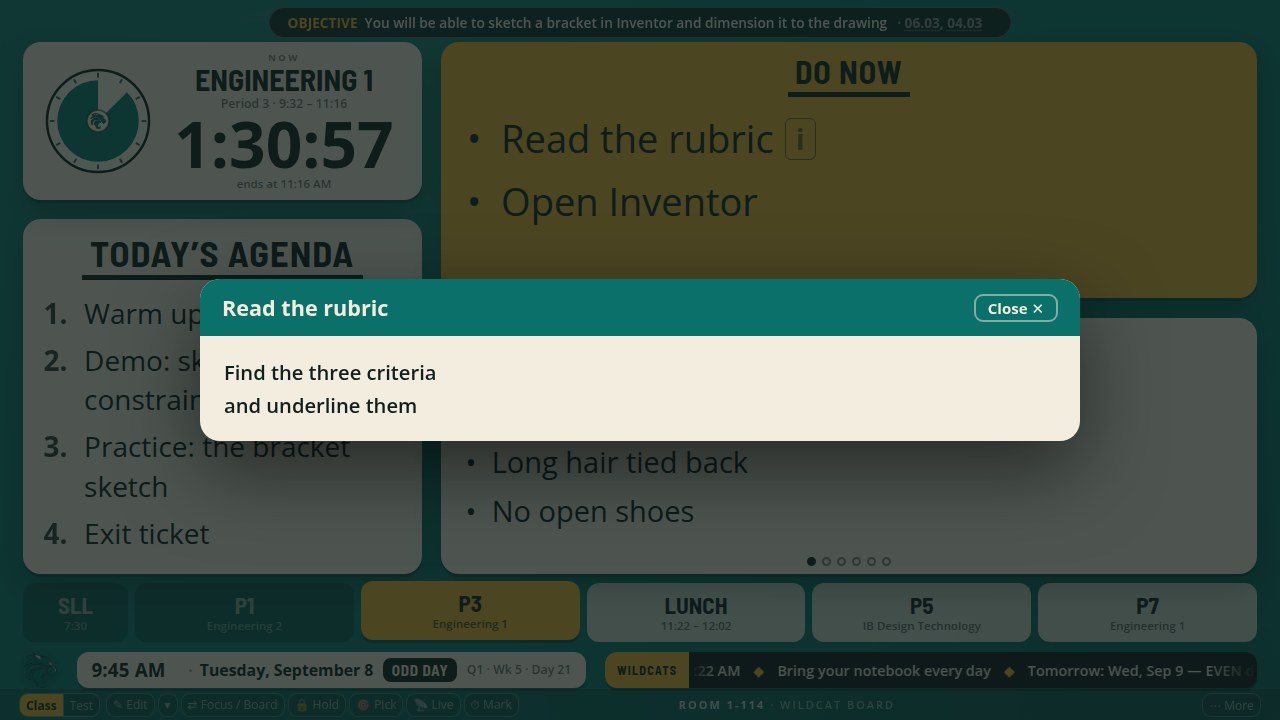
Write a Do Now step as a title, two colons and the long version (Read the rubric :: Find the three
criteria and underline them) and the board shows just the title; tap it and the long version opens big
over the face, the way agenda pop-ups already work. The Pop-up button on the Do Now's insert toolbar now
does what it says, and a pop-up on a later Do Now slide opens that slide's own text.
The short line on the card, the long version when you tap it.
Your class list, counted and backed up
The Students tab now says what this computer holds: how many students across how many periods, when
they were imported, and when they were last backed up. Choose Keep a backup file once, pick a file in
any folder (your Google Drive folder works), and the app rewrites that encrypted file every time the
list or a score changes, so a computer that loses its browser data is one Import away from whole again.
If a computer that held students suddenly holds none, the Students tab and Today say so the same day,
with Import backup right there. Names still never leave the computer.
Never lose what you typed
Every dialog on the board now asks before throwing away typed changes. Press Escape or Cancel with
something changed and a bar says You have unsaved changes, with Keep editing and Discard; unchanged
text closes at once, and a second Escape keeps you editing. The class editor's Previous and Next arrows
and its class switch ask the same way, so a stray key never costs you a plan.
Bug fixes and stability improvements
Signed out, the class editor's note that a plan was saved on this board only now stays on the board
after the editor closes, instead of vanishing with it. When a plan typed on this board while signed out
meets a different value already in your account, the account's copy stands and the board's text is kept
in Recent versions with Restore, so nothing you typed is lost. Save with nothing typed while this board
still holds a local plan for the class, and the board moves that plan into your account and says so.
A teacher note typed on this board is never lost either: when your account already holds a different
note, the board's note is added under a line that says which board and which day it came from. Text in
the board's dialogs (headings, the selected Settings tab, Save, link-style buttons, the remove buttons)
is a touch darker so it passes the WCAG AA contrast bar for everyone; the board face's colours are
unchanged. Personal presets now show only for their owners. The name picker's wheel text is
readable from across the room (a fourteen-letter name is nearly three times larger than before).
September 3, 2026
Quieter controls, shorter addresses, a live check from the board
Settings on a phone, and readable for everyone
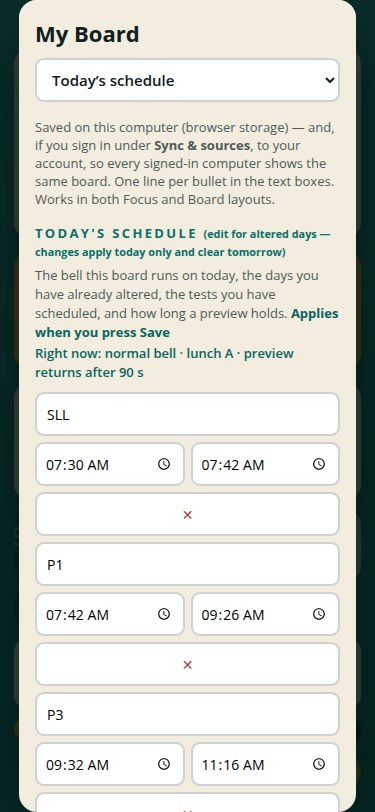
On a phone the Settings sidebar becomes a simple drop-down pinned at the top, the whole dialog
scrolls as one, and every button and field is big enough for a thumb. Help text and small labels
are darker, keyboard users can walk the sections with the arrow keys and see where they are, and
every field has a proper name for a screen reader.
Settings works on the phone in your pocket, one section at a time.
Settings you can find
The board's Settings sidebar is now grouped into Today, Set up once, and This board, in the same
order the panes appear. Every pane opens with one line saying what it controls and when it applies,
and Board content, Today's schedule, Test mode and Layout show a Right now line with what is in
force. My school has its own pane, Sounds and Wind-down are one pane called Bells and wind-down,
scheduled tests sit beside the altered days they belong with, extended time is two controls
(the factor and the minutes it works out to), and the controls row is one choice: fade when idle,
always shown, or collapse to a strip.
Every setting sits under a heading that says when it applies, and each pane says what is in force right now.
Breaks that stay put, and the phone as a test remote
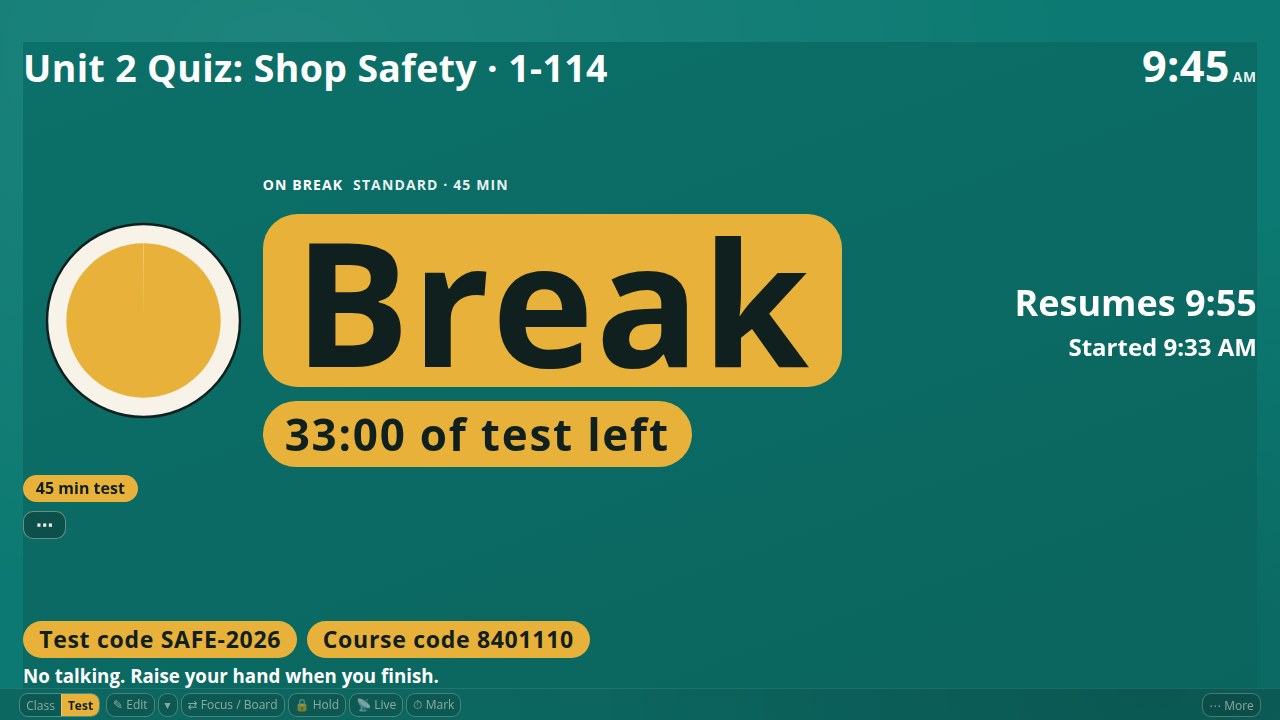
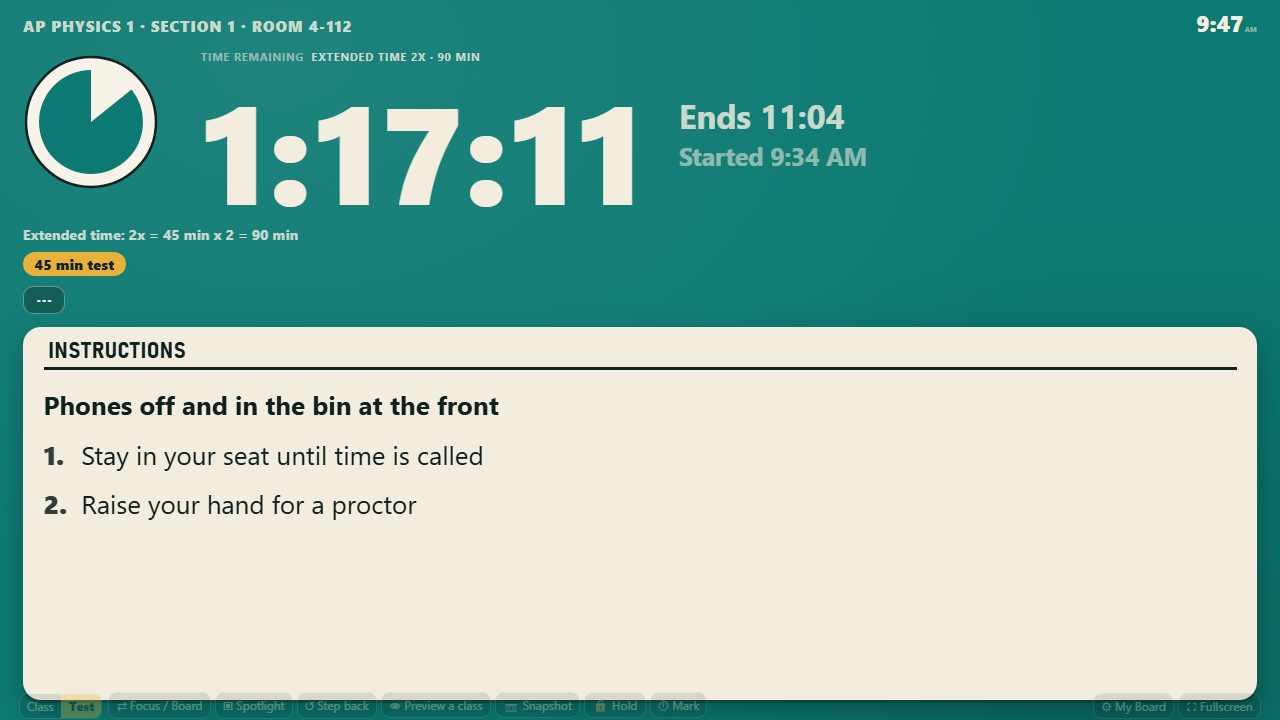
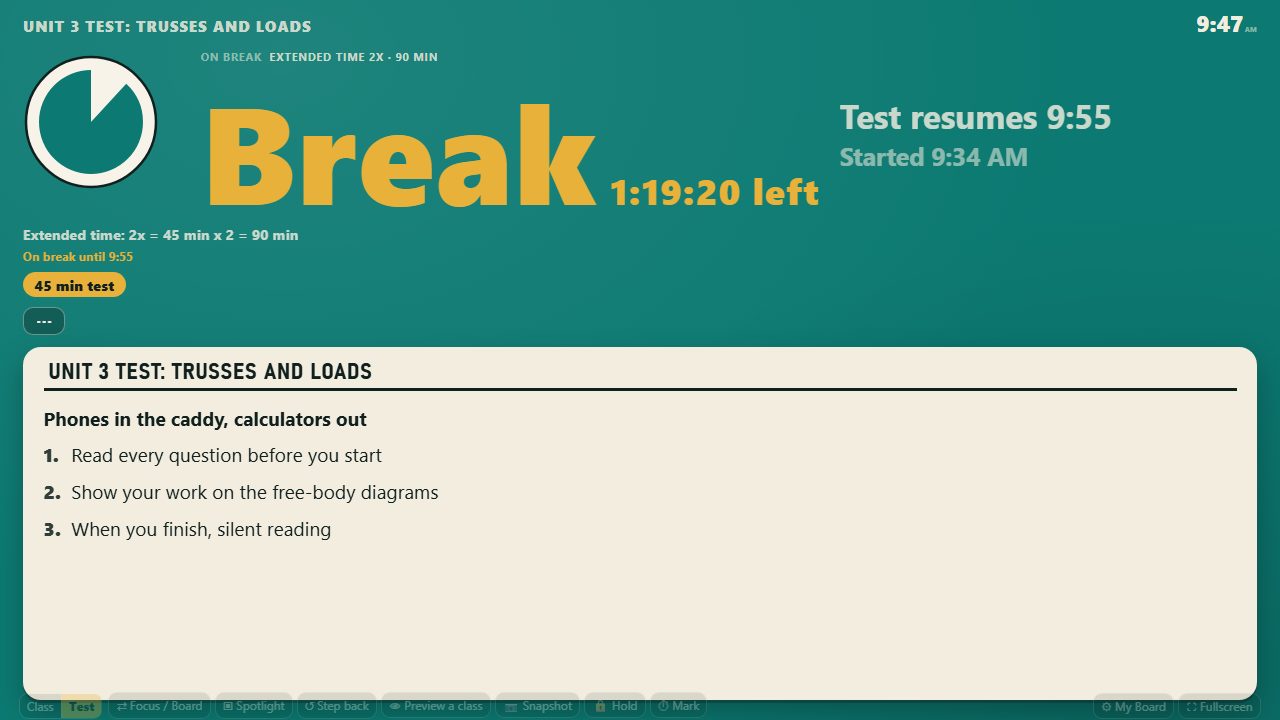
Call a break and the test screen keeps its layout: the countdown reads Break, the dial counts
the break down, and two lines say when the test resumes and how much test time is left. You choose
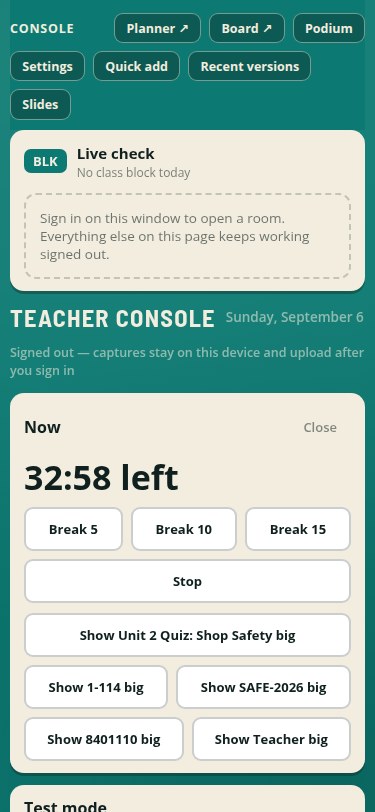
which details stay up during a break. On the phone, a Now block sits first while a test runs: the
time left, Break 5, 10 or 15, Stop or Resume, and a chip per detail to throw it up big on the board.
Stop and Resume keep the exact remaining time, the title is one title wherever you type it, tapping
a detail on the board opens it full screen, and leaving test mode says plainly that it ends the
test.
Call a break and nothing on the screen moves, so the room keeps reading the same picture.Your phone runs the test from anywhere in the room.
Early features, clearly labelled
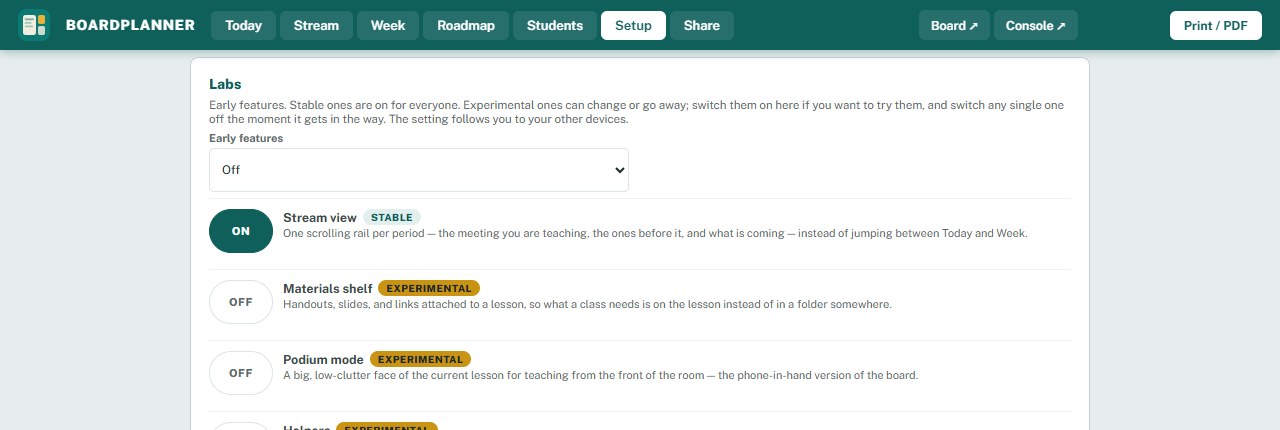
The Labs card on Setup now marks each early feature as stable or experimental and offers one
choice up top: Off, or Try experimental features (I understand they may change). Stable features
are on for everyone; experimental ones come on together when you opt in, and any single one can
still be switched off. The card sits near the top of Setup so it is easy to find.
Early features say plainly whether they are settled or still moving, and you choose whether to see them.
The test screen follows the test
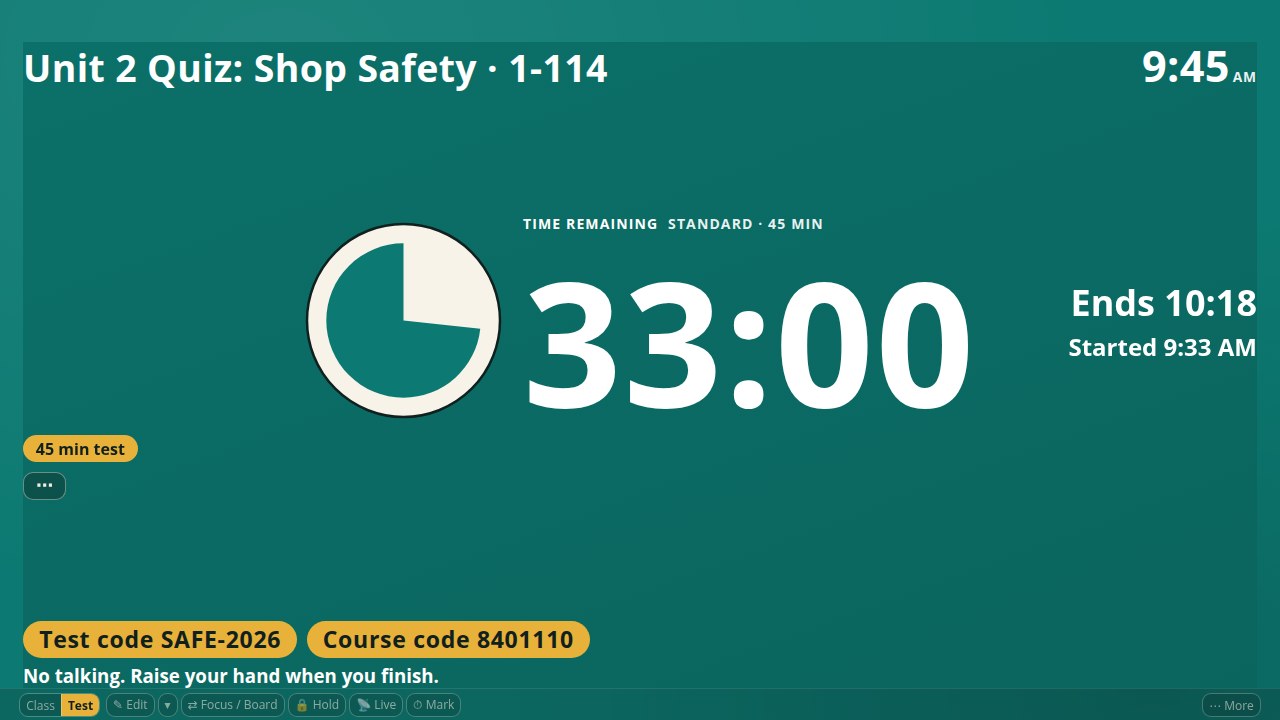
Before the test starts, the title, codes and proctor are large so the room can check them; once it
runs, the countdown takes over and the codes move to a footer strip where they stay readable. A
new Focused arrangement puts the title on top, the countdown and dial in the middle, a Now and Ends
pair on the right, and the codes with the first instruction line along the bottom; it is the
default for a new test and the four earlier arrangements are still there. Every arrangement now
keeps the end time, the start stamp and the instructions above a readable size on a projector,
and state words like Break and Time are dark on mustard instead of mustard on teal.
The screen changes shape when the test starts, so the countdown is the biggest thing in the room.
"This is what you did last class", in one tap
A Last class button on the board (and in the phone menu, and on the schedule strip's class menu)
puts the previous meeting of the class in the room straight onto the face: its agenda, Do Now and
objective, read only. Earlier and Later arrows step through that class's earlier meetings, Use this
content copies one onto today's board, and Back to now or the bell returns the live class. The
board now remembers 45 days of filed classes from your account instead of 14.
A whole quarter at a glance, and chips that say what you want
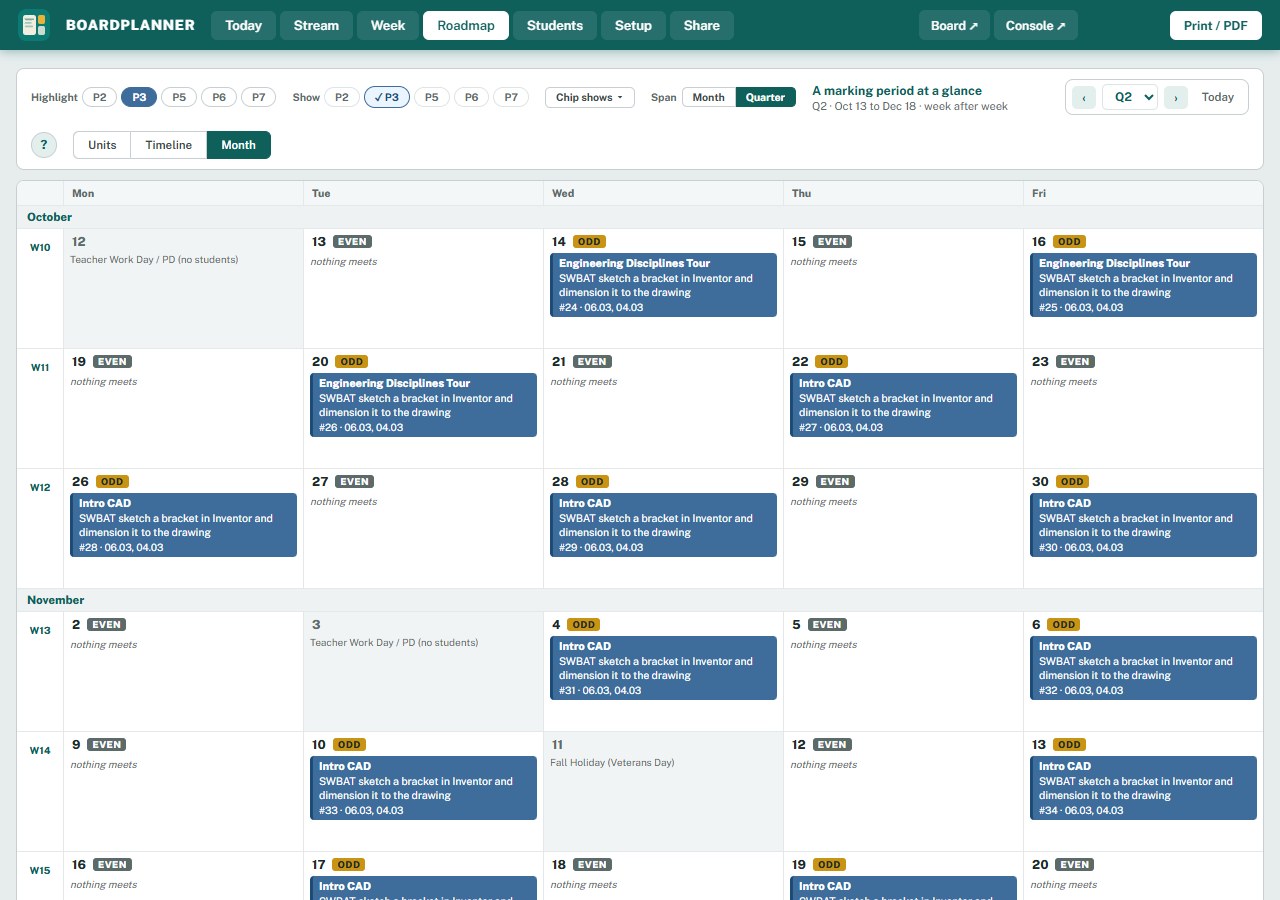
Month gains a Span switch: Quarter lays every week of the marking period on one scrolling page, with
a band where the quarter ends, a band at each new month, and a week with no school collapsed to one
line. Show just one period and the days turn into detail cards with the unit, the objective and the
standards. A Chip shows menu picks what every chip and hover card carries: unit, gist, lesson title,
standards, meeting number. The highlighted period now stands out in solid colour, and on Units the
marking-period strip runs the full width above the list with a tick for every meeting you can hover
for its gist.
A whole marking period on one scrolling page, and cards that carry what you asked them to carry.
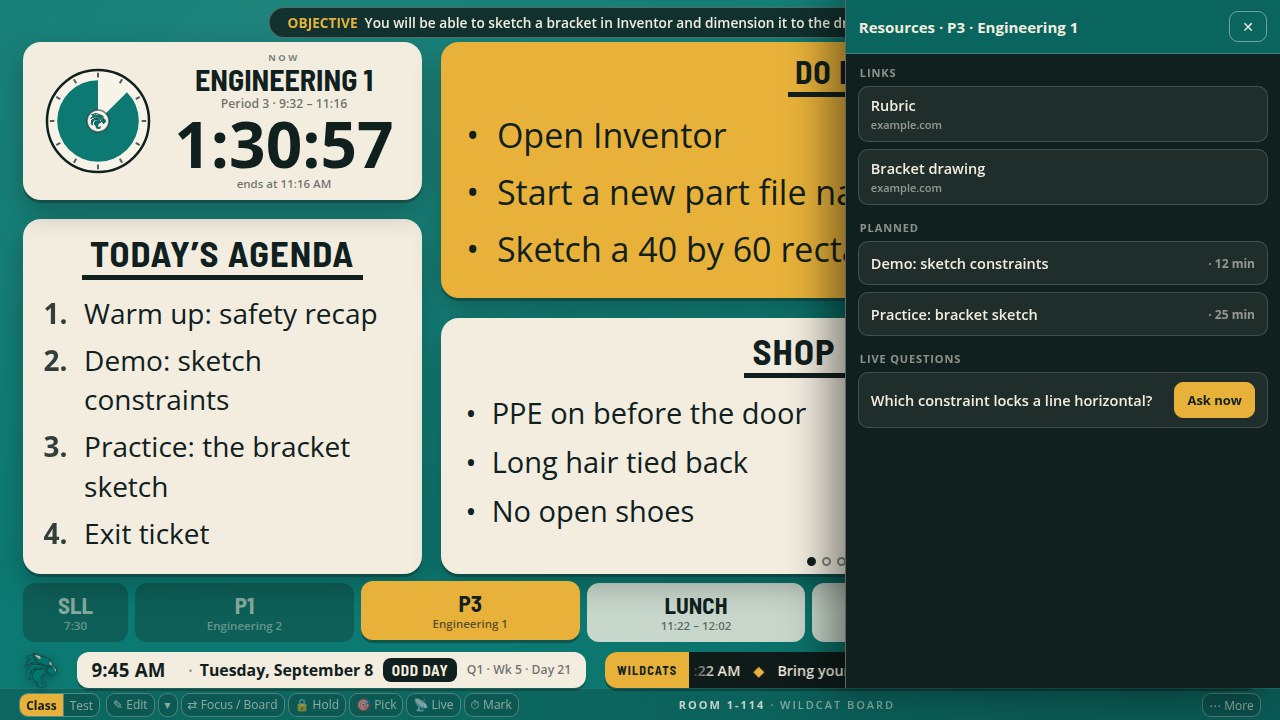
Resources, one tap away
A Resources button on the board (and in the phone menu) opens a side panel with the class's links,
the activities planned for it, and the live questions you planned ahead. Tap a link to open it,
or Ask now on a question to open the live check with that question loaded, ready to pick an
answer frame. The panel follows the class you are previewing, stays off the test and picker
faces, and closes itself at the bell.
The links, activities and questions for the class in the room, one tap from the board.
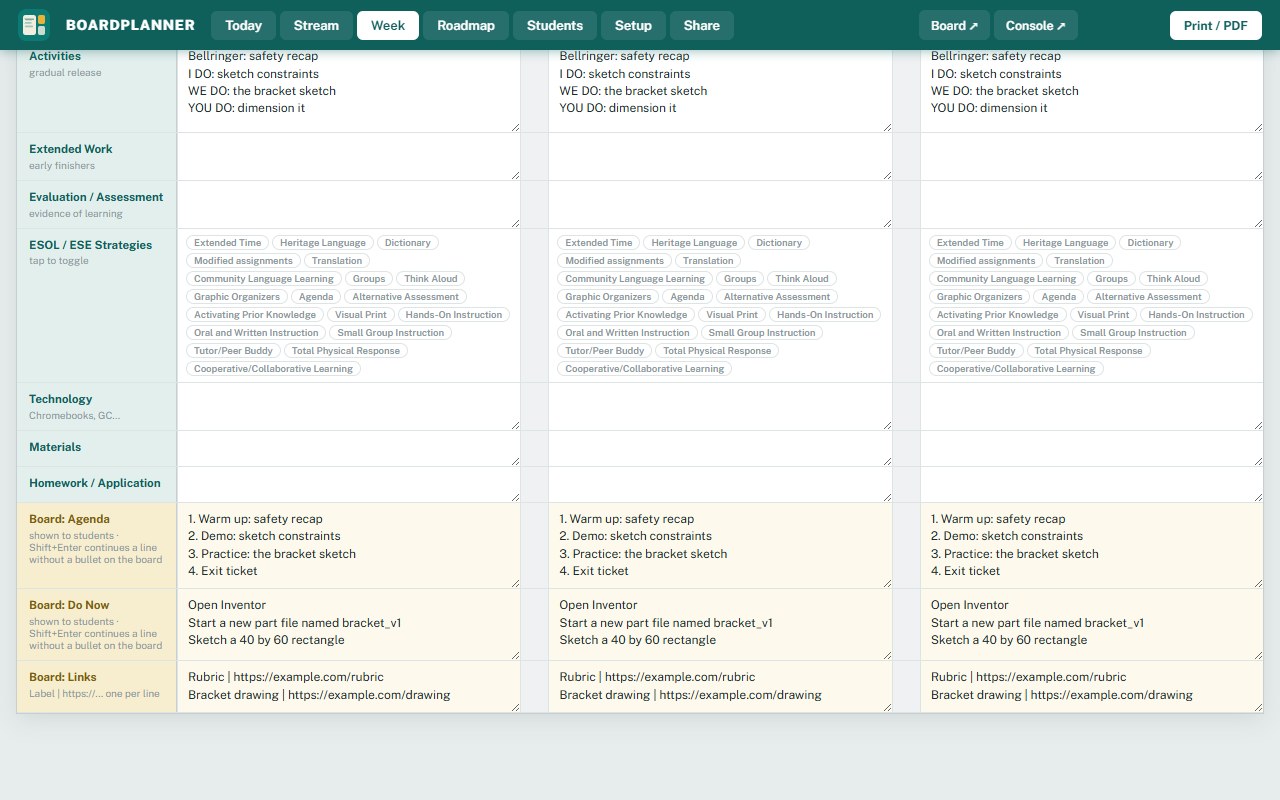
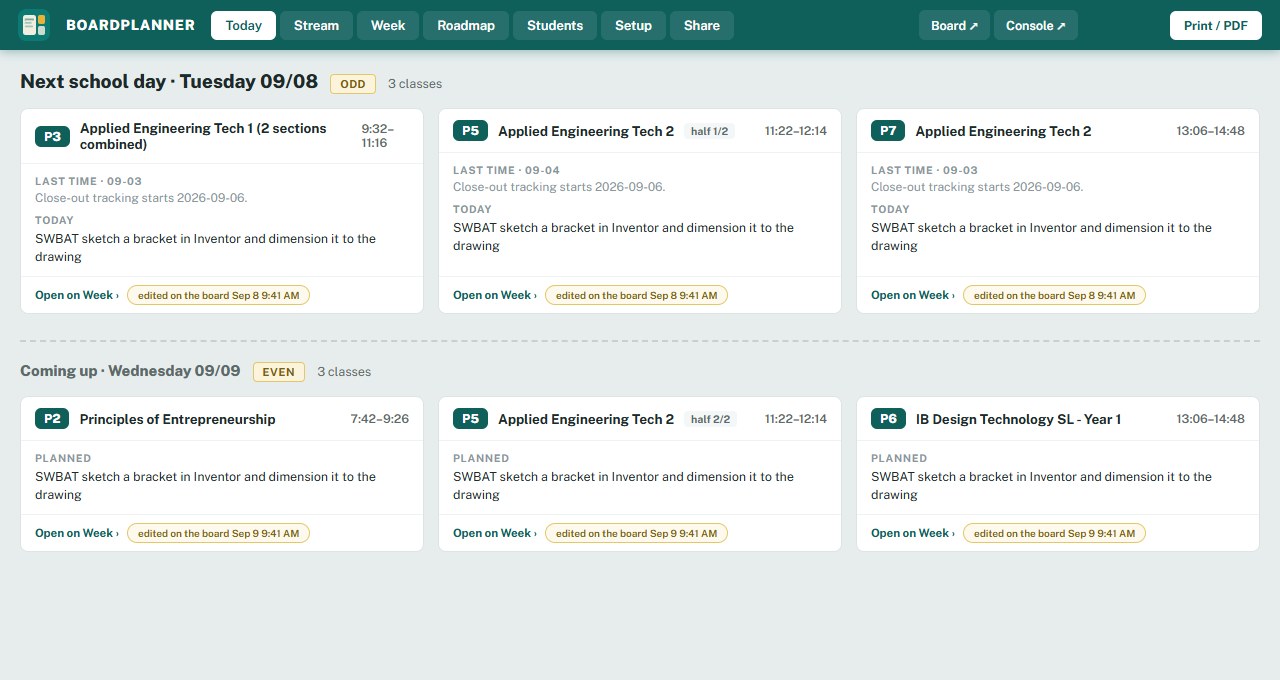
Links on the plan, and a note when the board wrote it
The Day Sheet gains Board: Links, one link per line as Label | address, so the video, the rubric or the
form for a lesson rides with the plan and reaches the board. When a plan was saved from the board's class
editor, the planner says so: an "edited on the board" chip on the day and on the Today card, and a History
entry that tells you what it looked like before the board changed it, with Restore one tap away.
The rubric, the video or the form rides with the plan and reaches the board.When a plan was saved from the board, the planner says so on the card.
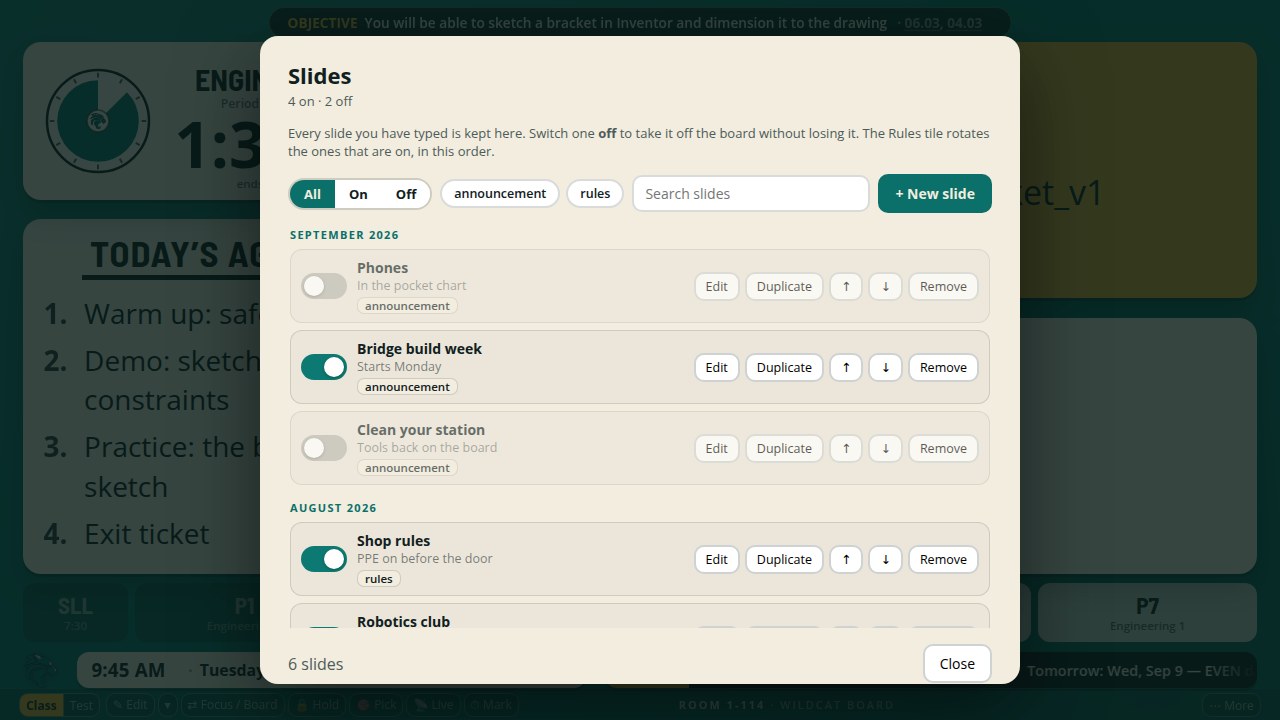
Every slide you ever wrote, kept
The rules and announcement slides are now a library. A Slides button on the board (and in the
phone menu) opens a gallery of every slide you have entered, grouped by the month you added it,
with a switch per slide: switch one off to take it out of the rotation and back on when it
matters again, nothing is deleted. Filter by on, off or a tag, search the text, edit in place,
duplicate, reorder, or remove (it stays in Recent versions). The slide editors in Settings keep
working as before; a slide you remove there is only switched off.
Every slide you have ever typed is kept, and switching one off never deletes it.
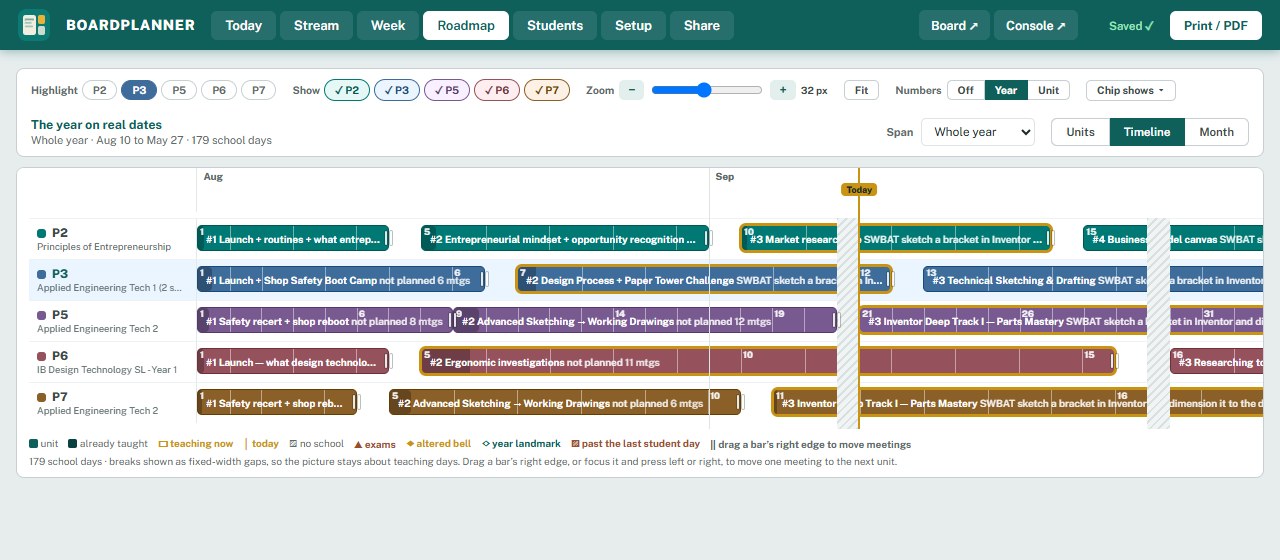
Zoom the Timeline like a video editor
The Timeline now zooms: a slider, plus and minus buttons, Fit, ctrl and the mouse wheel, or the plus
and minus keys. Zoom in and every meeting gets its own divider you can hover for the unit, the meeting
number and the day's gist; turn on Numbers to print meeting numbers (counting through the year or
within each unit) on the Timeline and on the Units strip. The period labels stay put while the chart
scrolls, the month names stay visible, the Show pills work here too, and Solo on a period shows just
that one. Drag handles on the bars are always visible now, and a zoom you chose comes back from the
link.
Zoom the year the way you scrub a video, and the period labels stay put while the chart moves.
Look ahead safely, edit from your phone
Preview a class and walk away: after a minute and a half with no touch (you can set 30 seconds to
10 minutes in Settings) the board returns to the live class by itself. The preview bar has an Edit
this class button, and editing keeps the preview up. On the phone console every class block has an
Edit class button that opens the same editor, so the next class can be planned from the hallway.
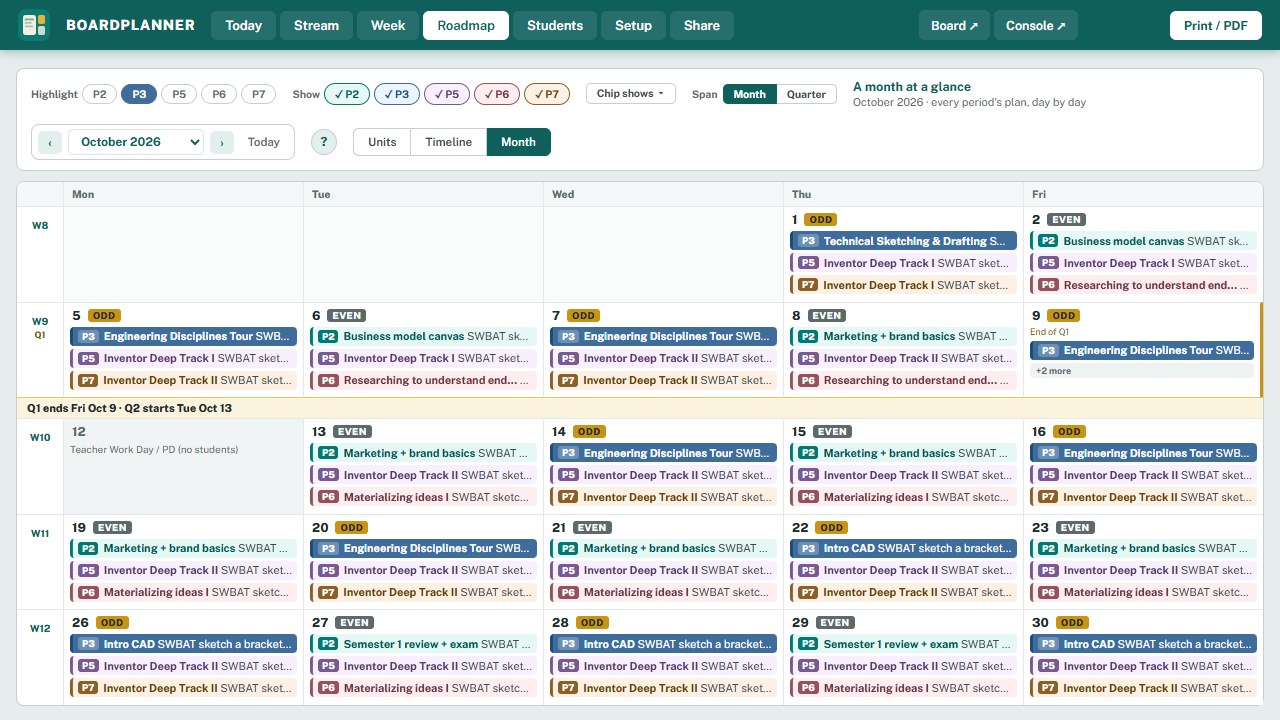
The whole month on one screen
Month now fits every week of the month on a projector or laptop screen without scrolling; when a day
has more classes than fit, the last ones fold into "+N more". Quarter ends stand out from across the
room: a mustard edge on the quarter's last day, a band between the weeks that says when the next
quarter starts, and the quarter id beside the week number. On the Timeline the quarter line is mustard
too, with its label even at the edge of the span. Hover cards no longer get cut off, badges and small
text are darker and a touch larger, everything you tap on a phone is at least 36px tall, and the
Students list stacks neatly on a phone. Month and Timeline links only carry what they need, and a link
with some periods hidden reopens the same way.
The whole month fits a projector without scrolling, and the quarter's end is visible from across the room.
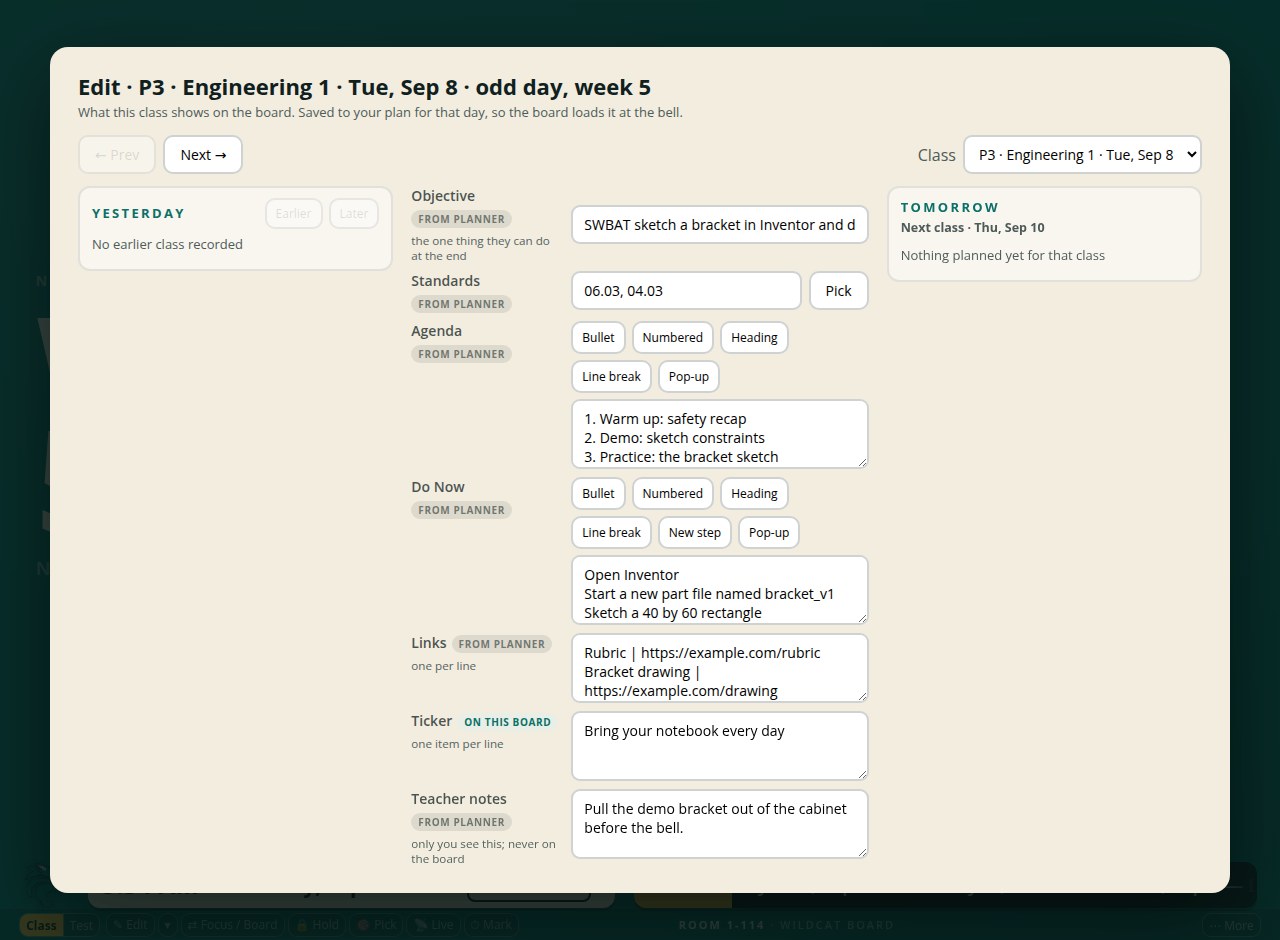
Plan the next class from the board
Tap any class on the schedule strip at the bottom and choose Edit. You get that class's plan for
today with the fields the board shows (objective, standards, agenda, Do Now, links, ticker) plus a
teacher notes box only you see, arrows to move through the day's classes in bell order and on to
the period's next meeting, and a picker that lists your course's standards with their titles. Save
writes the same plan row your planner reads, so the planner shows the change and the board loads
it at the bell. Each field says where its text came from, every save can be undone from the
board's pill, and signed out the board keeps the plan on this screen until you sign in. Preview a
class gains an Edit button too.
Plan the next class from the board itself, and the planner reads the same row.
The objective bar speaks to the room
The bar at the top now reads the way students and walkthrough visitors expect: "Objective: You will
be able to ..." followed by the standard codes. Type the objective any way you like (SWBAT, Students
will be able to, or just the verb) and the board phrases it. Each code shows its full title from your
course's standards registry when you hover it, because the registry now travels inside the board
itself. With codes and no objective the label reads Standards.
Type the objective any way you like and the board says it the way the room expects.
Numbered steps, line breaks and spacing on the board
Agenda and Do Now text can now carry numbered steps (start a line with 1.), a line that continues
the item above it on a new line (start it with +), and a blank line for a little space between
items. A list pasted from a doc with its own dashes or dots renders as the board's bullets. The
pencil on each card gets a small insert toolbar (Bullet, Numbered, Heading, Line break, New step on
the Do Now, Pop-up) so none of it has to be remembered mid-class.
Numbered steps, a line that continues the one above it, and a blank line for a little space.
Paste your whole roster, check it, then apply
The Students tab now takes a list in the shape most rosters come in: first name, last name, period,
and a period-seat like 3-14, one student per line, every class in one paste. Before anything is saved
you see a review table with each student's period (change any row) and what will happen (new, updates
a seat, seat already taken), then Apply. A student card gains Move to period, which keeps their notes,
flags and photo and refuses a seat that is taken. Export backup writes one password-protected file with
every period's roster and scores for this browser; Import backup restores it. As always, names live on
this computer only and never sync.
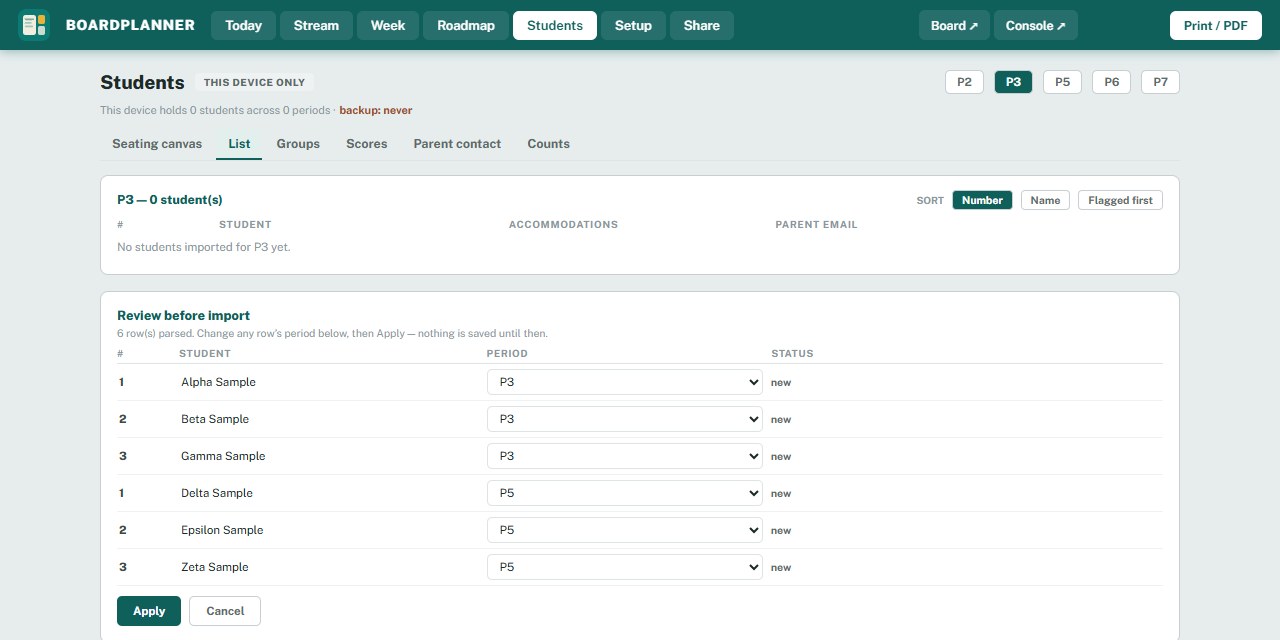
Check every row, and change any row's period, before a single name is saved.
Groups: names show plainly, the reveal is optional
Dragging a student between groups no longer replays the name reveal. Show names shows them at once;
an Animate the reveal switch (off unless you turn it on) plays the letter scramble once, for the moment
you want the class watching. Drag, tap-and-tap, lock and re-sort never animate.
Names read plainly the moment you tap Show names, and the reveal plays only if you ask for it.
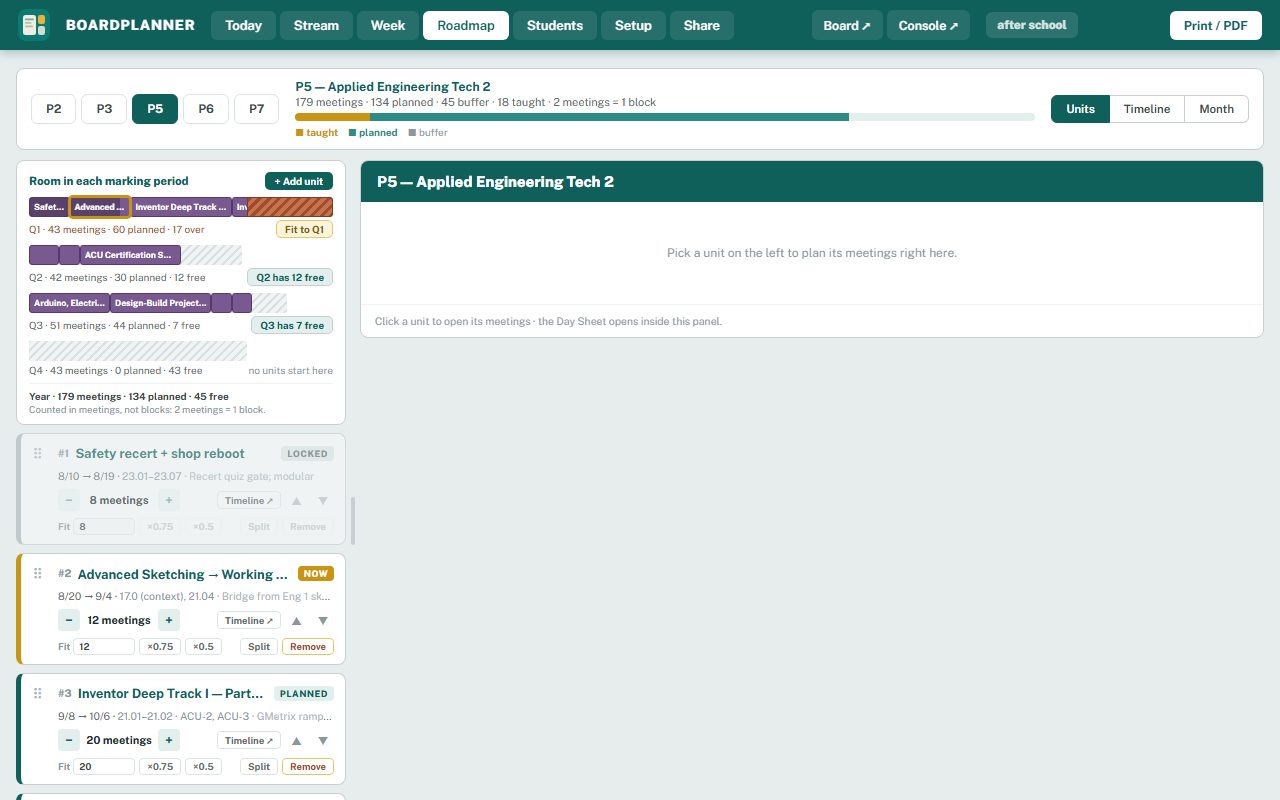
Make the course fit the marking period
Units now shows how much room each marking period really has. A bar per quarter shows its
meetings, the units that start in it laid end to end, what you have taught shaded, free
meetings hatched, and anything that runs past the quarter as a red tail with the number over.
Each unit gets fit tools: type a meeting count or tap x0.75 or x0.5, split it, remove it (its
lessons stay in the library), or move it up and down. Add a unit from the course's library
with its meeting estimate filled in, or a blank one. Fit to Q1 proposes a proportional trim
across the units in that quarter, never touching meetings already taught, shows the before and
after for each, and applies in one tap. Timeline and Month follow every change.
Room in each marking period. Q1 here holds 43 meetings against 60 planned, so Fit to Q1 is offered.
The year on real dates: Timeline and Month
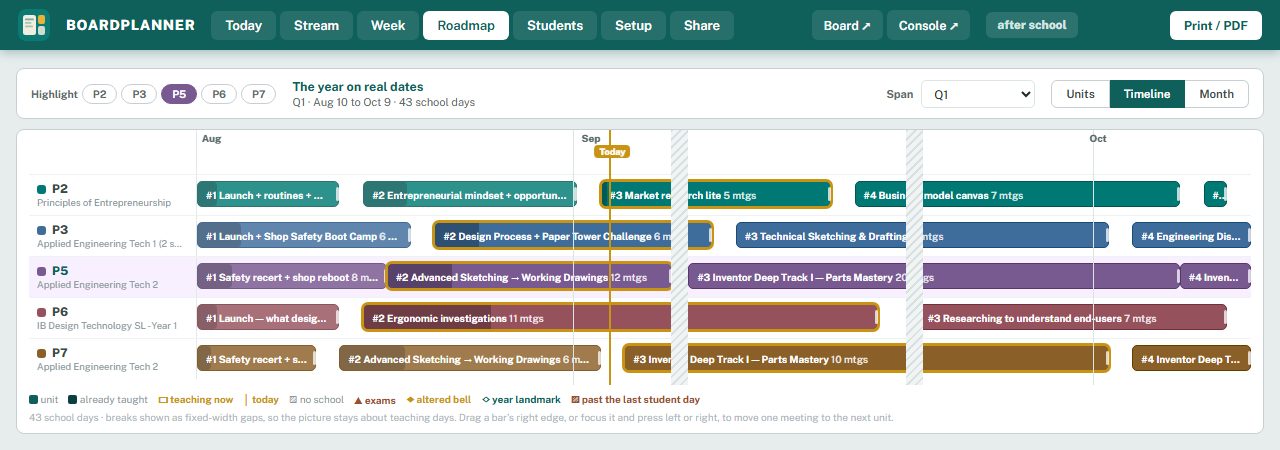
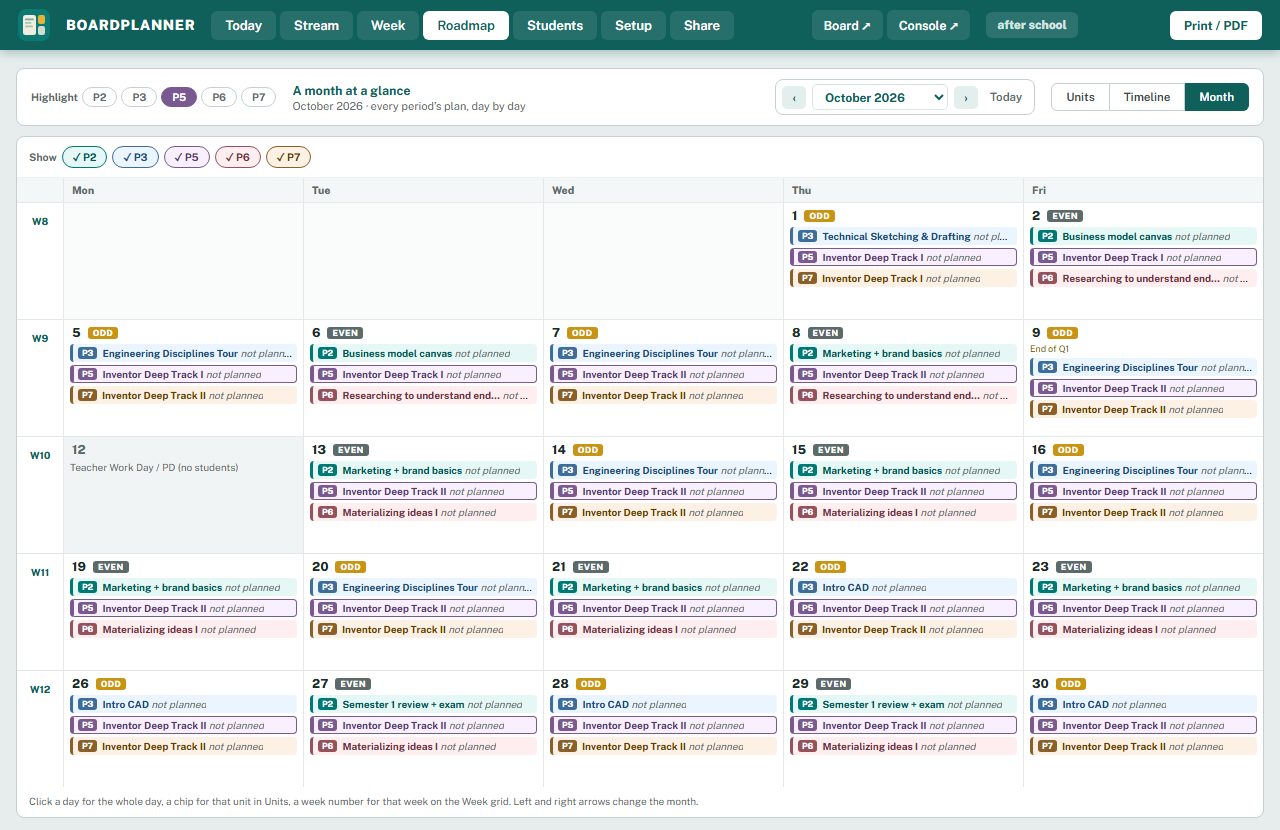
Roadmap now has three views of the same plan. Units is the list you know. Timeline draws every
period's units as bars on real school days for a marking period, a semester, or the year, with
holidays as gaps, today as a line, what you have taught shaded, and the current unit outlined;
drag a bar's edge (or press the arrow keys) to move meetings from one unit to the next. Month
is a calendar: each day shows its odd or even badge and a chip for every period with the unit
and what that day's plan says, holidays shaded with the reason, clubs on their days. Click a
day for the whole day, a chip to open that unit, a week number to open Week, and every view
links to the others. The address bar remembers where you are, so a month or a timeline can be
bookmarked. Paste your school Google Calendar's secret ICS address in Setup and its events appear
as gray chips on Month and as markers on Timeline, read only, refreshed every half hour.
Timeline, Q1.Month, October. Chips read the unit and the day's plan; a not-planned day says so.
The controls get out of the way
The board's buttons now sit on their own thin row along the very bottom, below the date and
the ticker, never over anything. Leave the mouse alone for a few seconds and the row fades to
a faint line; move it and the row comes back. Settings has switches for the fade and for
collapsing the row to a slim strip that opens on hover. On a 720p projector the row costs the
board about ten pixels.
Idle: the controls are there, but the room does not see them.
Live checks without leaving the board
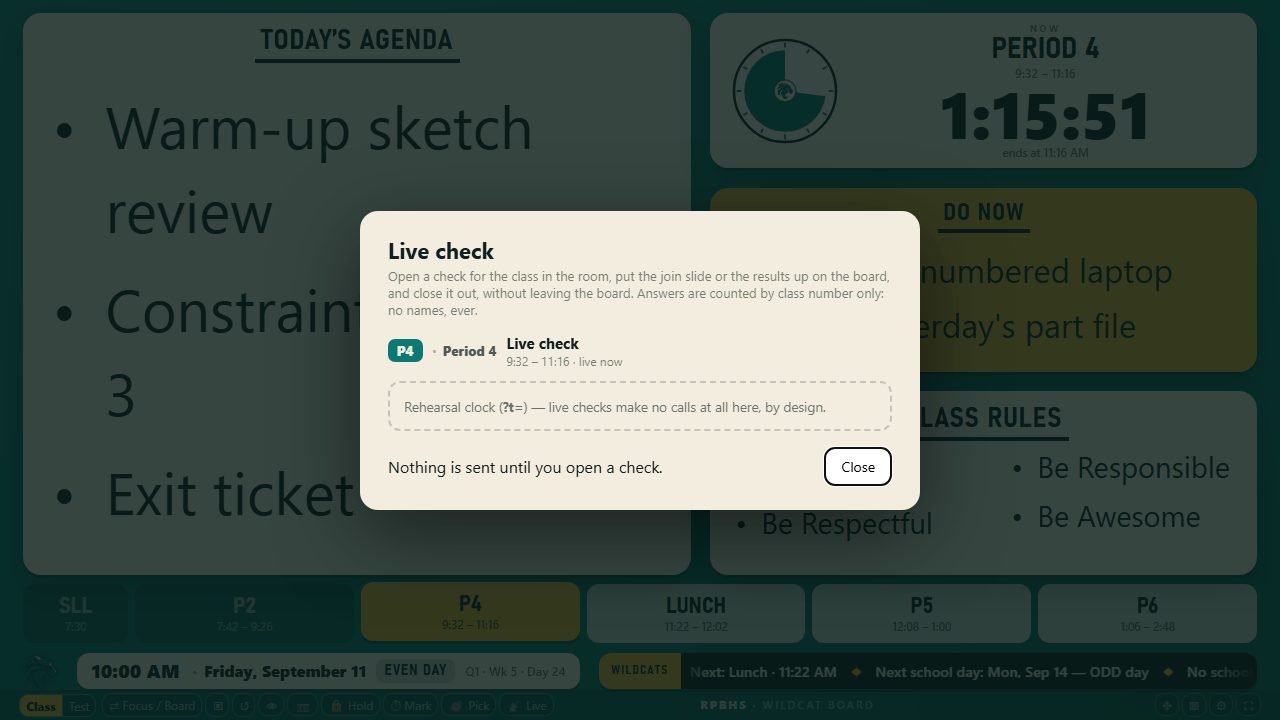
A Live button on the board opens a small window with the same controls as the console: open a
check, put the join slide or the results up, rotate the room code, end it. Answers are counted
by class number only, never by name, and the seat map stays on the console.
Live check from the board. Shown here on the rehearsal clock, so no calls are made.
Bug fixes and stability improvements
boardplanner.app/console opens the console, /board opens the board, and /podium opens Podium,
each as a real page behind the same sign-in (the /podium address had been landing on the planner
instead; fixed later the same day, and the planner now shows one Podium button, not two).
joinclass.xyz is back: a build setting had dropped
the join page from two days of updates, and it is now always included. Hold my board now holds
every projected field (slides, ticker, header, and test details too) when another device syncs.
Clubs show up on all-periods days. My school gains a Mascot box that works with or without a
school. Sync and sources shows how much board data your account holds. The test date is a date
picker and reads as "May 8, 2027" on the board. Arrange mode now keeps your tile arrangement
when you open and close Settings (the Layout picker shows "Custom arrangement"), works with a finger on a
touch board (no more tiles that keep moving after you let go, and a second finger is ignored), and the
timer text re-fits after you leave full screen. Lessons shared across courses
now appear in the planner's library under every period that teaches them.
September 2, 2026
Roster imports and polish
Import every class in one go
The roster import now takes all your classes at once. Either add a Period column (P7, 7, or
Period 7 all work) or write seat numbers as period-seat, like 7-1, 7-2, 7-3, and each student
lands in the right class. A plain single-class paste still goes into the period you have
selected. The result line tells you how many went where, what was skipped, and if a row's
period column disagreed with its seat number (the column wins). Rosters stay on your own
computer, as before.
Clubs, treated like classes
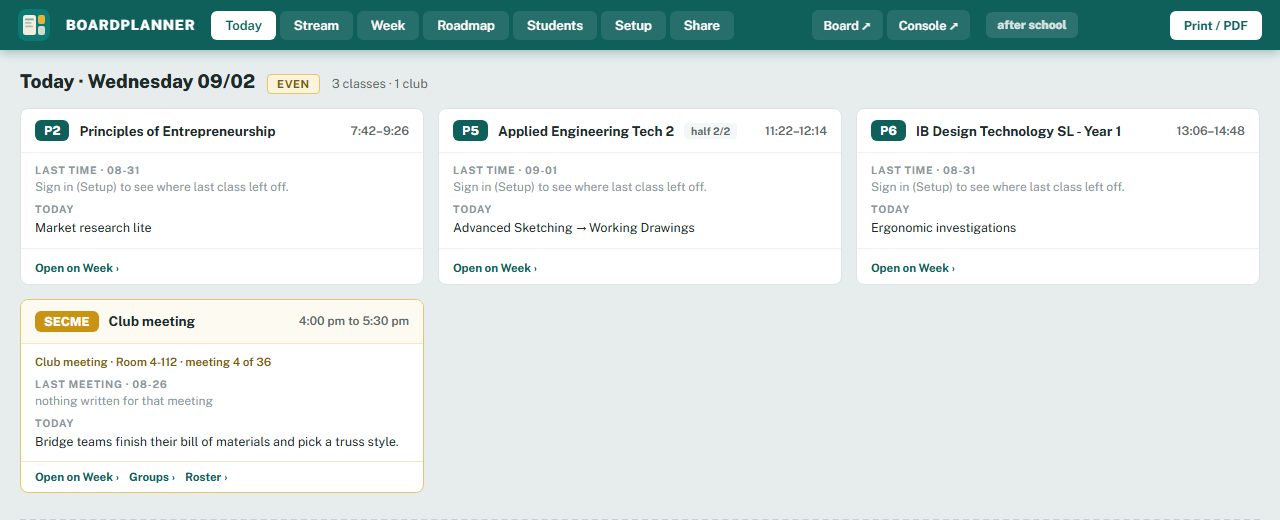
Setup has a Clubs section: name the club, pick its days and time, a room, a season, and any extra
dates, and the planner generates its meetings from the school calendar with holidays skipped.
From then on a club works like a period: a card on Today after the classes, its own rail in
Stream, a row on Week (with a weekend column when a competition falls on a Saturday), a
Roadmap track, a roster you import with the club's name in the Period column, groups, scores,
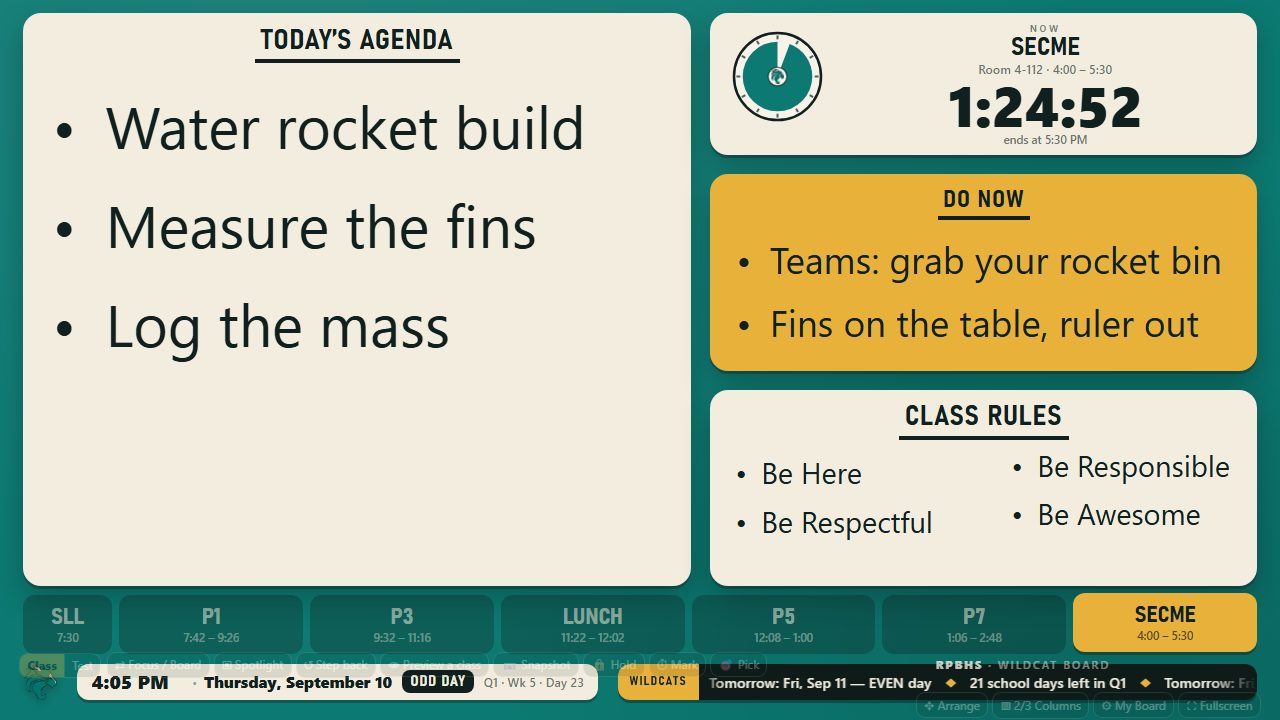
and materials. On the board the club shows up as the current segment after the last bell with
a countdown to its end and its plan on the glass, the picker can include it, and the console
closes it out like any block.
Today with a SECME meeting card after the classes.The board during a club meeting: SECME is the current segment with its own countdown.
Nothing you typed on the board is lost any more
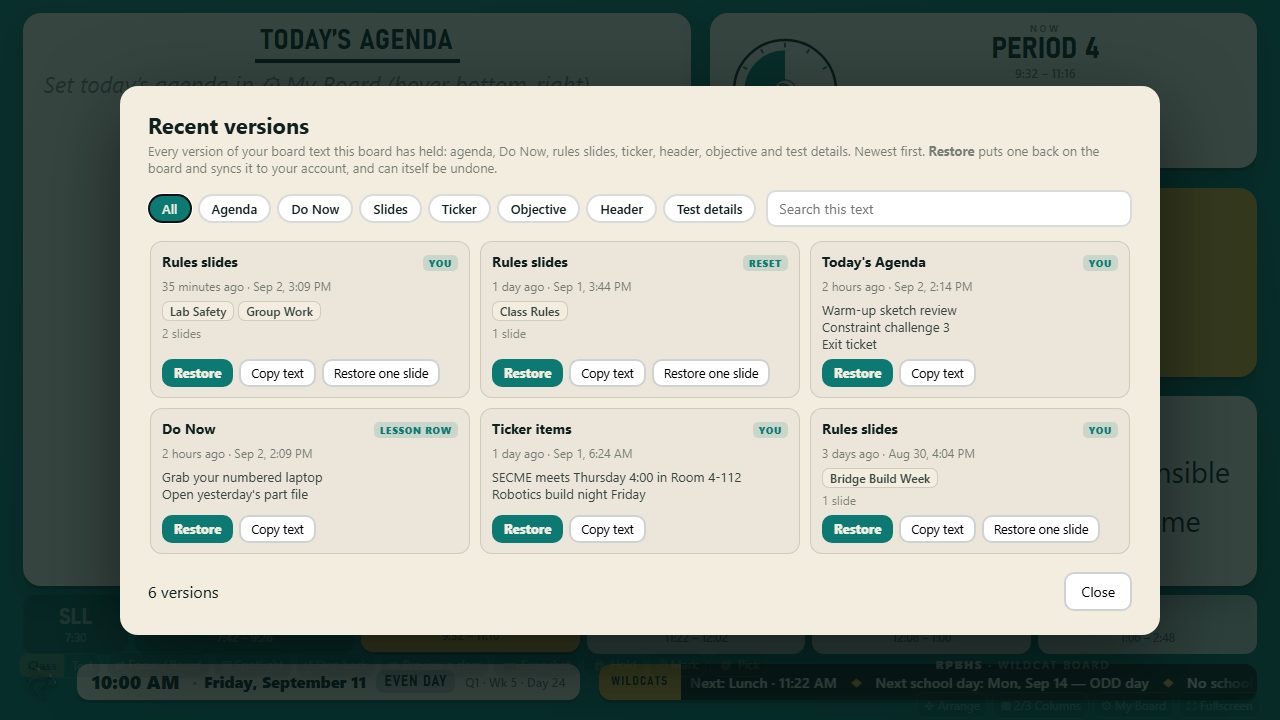
Every version of your board text is now kept: agenda, Do Now, rules slides, ticker, header,
objective, and test details. A Recent versions gallery (Settings, or the phone menu) shows them
as tiles, newest first, with a search box; Restore puts one back and syncs it, and for slides you
can restore a single slide. Anything automatic that changes the board (a lesson row arriving,
a sync from another device, a reset) now offers Undo for everything it touched, and Step back
remembers the slides too. Three ways slides could vanish are fixed: Reset to generic asks
first and is undoable, a sync from another device is undoable, and text containing a double
quote no longer gets cut short on save.
Recent versions. Slide tiles show each slide's title; Restore one slide brings back just that one.
My school
Settings has a My school picker with every Palm Beach County public high school. Pick yours and
the board takes the school's colors, the brand line reads the school and mascot, and your name
stays. Customize the three colors (the board keeps the text readable and warns if it is not) or
upload a logo, and choose None to go back to the built-in themes.
The same board with Wellington chosen.
Bug fixes and stability improvements
On phones the board no longer scrolls sideways (the date plate now wraps), and the end-of-day
time picker fits in its dialog. Reset to generic asks before it clears anything.
Run the test from your phone, with the details on the board
The console's Test sheet is now the remote: mode, test length, extended time, start, stop,
breaks, and a form for the details. Type the test title, module or section, room, school, date,
test code, course code, access code, and proctor once; each one can sit in the header line or
in the details card, and empty ones never show. The board follows as you type. Any detail can go
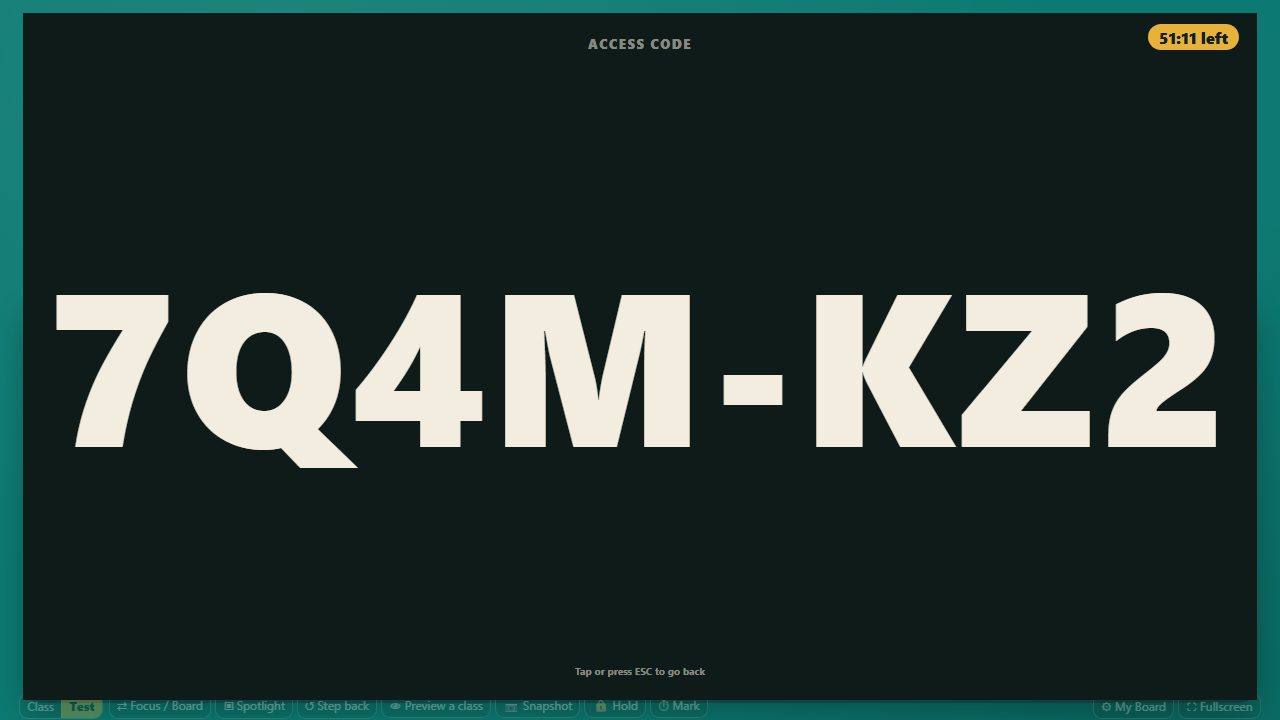
full screen with one tap, with the time remaining kept in the corner.
Details in the header and the card, typed once on the phone.The access code, full screen, with the clock still in the corner.
Test mode, the way a testing day actually goes
Flip the board from Class to Test before students walk in and the test face is already up
with the clock, the instructions, and the test length waiting. Nothing counts down until you
tap Start, which stamps the start time under the timer. Pick a length from the presets or type
one (45, 1.5 hours, 1h 30m), turn on extended time at 1.5x, 2x, or a custom factor and the
board does the math and shows it, and choose whether the room sees the extended timer, the
standard one, or both side by side, each labeled. Add a break on the fly or schedule one: the
clock pauses, the board says when the test resumes, and every end time shifts. Stopping takes
two taps, and leaving Test mode mid-test asks first. The session saves to your account as it
changes, so a second signed-in device shows the same running test.
Before Start: loaded, labeled, waiting.Extended time only, the default when the toggle is on.A mixed room: two timers, each labeled.On a break the clock holds and the board says when the test resumes.
The picker gets a list, a slot machine, and sound
Everyone in the draw now sits in a list down the right side: sit anyone out, remove them, add a
guest or a whole second class, or clear it and type a club's names for the day. Hide the list
and the visual takes the whole screen. The gear train is gone; in its place a slot machine spins
letter boxes that lock in one by one to spell the pick. Clicks or arcade sounds (or none) and a
burst of confetti finish the moment. Nothing from the picker is saved anywhere.
The wheel with the new list panel.The slot machine, landed on a number. With names on, the boxes spell the first name.
Groups: sort, drag, or build by hand
The Groups tab now says Sort and Re-sort, and you can drag a student number from one group to
another. Start blank puts every number in a tray so you can place each one yourself, then Sort
the rest fills whatever is left while keeping your placements and your don't-pair links.
Easier on a phone
On the board, the bottom buttons fold into one Menu button so the date and ticker are never
covered. In the planner, the lens strip scrolls sideways, the controls sit on one row, and Today
cards keep their times on one line. Signed in already? The home page now shows My console, Board,
and Planner, and short addresses work too: boardplanner.app/console, /board, and /podium.
Accommodation counts, typed once
Students has a Counts tab: type each period's IEP, 504, ESOL, and other counts from your
school Sheet and they show on the Week toolbar and the Day Sheet. The Sheet template's
Accommodations tab is now a seat-numbered scaffold with the count formulas built in, so the
numbers you type are the numbers it shows. Names never enter the planner.
Bug fixes and stability improvements
The brand line and the button strips along the bottom of the board no longer overlap at any
screen width. Numbers on the picker wheel and gear train always read the right way up. Test
mode instructions fill the card at poster size when there are only a few lines. The Materials
deck preview shows headings and numbered steps instead of raw markers.
September 1, 2026
Planning the whole period at once
Groups in seconds
Students now has a Groups tab. Pick how many groups or how big, tap Deal, and the planner
sorts student numbers into groups while keeping apart any pair you marked as don't-pair. Lock a
group to keep it through a re-deal, sit someone out for the day, and save a set by name for next
time. Reveal names when you want them: the letters spin like a slot machine and settle on first
names, and nothing from the reveal is stored anywhere.
Four groups dealt for a sample class. Names stay hidden until you ask.
Two views you can switch on
Setup now lists two extra planner views you can turn on for yourself: Materials, a shelf of the
slides, handouts, and Drive exports that already exist for each lesson, with a way to attach
them to a day; and Podium, a large teacher-facing view of the current lesson with the countdown,
quick notes, and the close-out card at the bell. Both are off until you flip them.
Name picker on the board
Tap Pick on the board and a wheel (or a gear train, if you prefer) spins through your class's
student numbers and lands on one. It draws from the seating chart kept on your own computer,
skips anyone you sit out, and can hold off repeats until everyone has had a turn. Numbers are
the default; showing first names is a deliberate switch that resets every time the picker
opens, and nothing from the picker is ever saved.
The classic wheel.The gear train, for the engineering rooms.
Bug fixes and stability improvements
Console cards now show the class name beside the period badge. Today's close-out list no
longer counts an event twice after it syncs. Planner activities light up the verdict chips on
the console. The brand line and the button strips no longer overlap on tablet widths, and the
altered-day editor fits on a phone.
Test mode
On testing days the board becomes a calm face: the clock, the time the test ends, a countdown to
it, and your instructions in big type. Nothing rotates and the ticker is off. Type the
instructions once in Settings, pick one of three layouts, and either start it with one tap from
the board or the console, or schedule it for a date and period so the board switches over by
itself when that block starts and back when it ends.
The countdown layout. The end time comes from the bell schedule unless you set your own.The details layout, for tests where the instructions matter more than the clock.
The Stream
Each class period now has one scrolling rail instead of two separate screens. The meeting you
are teaching sits open at the top, the meetings still coming line up underneath it, and the ones
you already taught are one tap away above.
Period 3's rail. Past meetings collapse to a single line you can reopen, and today's
meeting is open and ready to type in.
Standards recall chips
The benchmark codes you have already taught in that course show up as chips right under the
standards box, each one carrying the date you last used it. Tap a chip to add it to today. Codes
you have not taught yet sit in a second row, so you can see what the course still owes.
Used codes carry their last-taught date. The second row is everything in the course
registry you have not gotten to yet.
Stations
The same lesson now has three views. Everything shows every field, Board shows only what your
students will see, and Compliance shows the objective, standards, driving question, and
evaluation. Switching stations only hides rows, so anything you already typed is still there.
The Compliance station on a Period 3 meeting. Four fields on screen instead of
fourteen.
The board rewind
Under the Board station, every class you have already taught turns into a card showing exactly
what was on the board that day: the Do Now, the agenda, and the standards. Each field has a copy
button, so you can send a good Do Now forward to a day that is still coming.
Four past blocks in Period 3, each one holding what the room actually saw.
The rewind shows your live edits too
When you changed the board mid-class, that changed version is what the rewind card shows,
marked "as shown on board". If it went up differently from the plan, a small link lets you flip
between the two, and the copy button copies whichever one you are looking at. Each card can also
open your projector straight to that day with one link.
The Week gets its space back
Days a class does not meet now fold into a slim labeled ribbon, so the days that matter get the
room. Click a ribbon to see everything happening across your other classes that day, and jump
straight into any of them.
Two new board layouts
Pick "Do Now left" to make the Do Now the tall anchor of the screen, or "Do Now wide" to give
it double width under the timer. Both live in Layout and tiles, and you can set a different
layout for each class period.
See where class time goes
Tap Mark on the board or the console when the class moves to the next thing, name it if you
want, and each class builds a timeline: how many minutes in, how long since the last
transition, and what happened. Great for spotting which class takes eight minutes to unpack.
Your view stays put, and your typing is protected
The board no longer switches views on you when class starts: pick Spotlight and it stays
Spotlight, with a new "At class start" setting if you want that behavior everywhere. In the
planner, every day now keeps its own edit history with one-tap restore, saves flush the moment
you close a tab, and if your saves stop reaching the cloud the planner tells you plainly
instead of pretending everything synced.
Clocks that answer the real questions
The time of day now leads the date bar in bold. Tap the class countdown to flip it to time
elapsed when you want to say "we are 25 minutes in." And the activity timer gains a stopwatch
mode that counts up, for timing how long things really take.
A roomier Roadmap
The Roadmap now puts your periods in tabs across the top, your units in a slim list on the
left, and the unit you are working on in a big panel on the right, with the lesson editor
right inside it. Drag the divider to make either side wider, and it remembers your choice.
The planner fits your phone
On a phone the planner now opens straight into the Stream on the class you last viewed, the
Week grid steps aside until you are back on a bigger screen, and nothing scrolls sideways.
The phone console also now shows the classes you planned in the planner, and its close-out
cards read cleanly in portrait.
Load the next class early
Preview a class now checks for your newest plans the moment you open it, and a new
"Put this on the board now" button loads a coming class onto the board ahead of the bell.
If a day is planned but its board fields are empty, the preview says exactly that instead of
claiming there is no lesson.
A better activity timer
The timer now matches whichever board theme you use, one-tap name presets like Do Now, Quiz,
and Clean Up fill it in fast (and you can save your own), and while a big timer runs the class
countdown stays in the corner, the objective stays posted, and you can keep one tile, like the
agenda, on screen beside it.
Undo sticks around
When the board updates itself and you want the old content back, the Undo now shrinks into a
small corner button and waits for you until the next class starts, instead of vanishing after a
few seconds.
Course names where codes used to be
Browsing standards now says the course name and its state course number instead of an internal
framework id. Plus bug fixes and stability improvements.
August 31, 2026
The room, the marks, and the bell
Seating canvas
Drag students where they actually sit so the chart matches the real room. You tell it which wall
is the front, and a pair you have marked not to sit together lights up when they end up next to
each other. Accommodation flags show on the card itself. Names, photos, and positions stay in
your own browser and are never uploaded.
A Period 3 chart with made-up students. The two seats outlined in red are a pair
marked not to sit together.
Quick scores
Tap to mark participation and short assignments while you walk the room. When you are ready,
copy a column out as plain text and paste it into your own gradebook. Nothing here is synced, and
the only way a mark leaves this computer is you copying it.
Three columns for Period 3. Participation cells cycle with a tap, and each column
copies out on its own.
Altered bell days, set ahead
Enter a testing morning or a pep rally schedule whenever you first hear about it. The board
switches to that schedule by itself on the right date, so there is nothing to remember that
morning.
Two altered days waiting in the schedule settings, weeks before either one
arrives.
Plans reach the board on their own, and the objective stays posted
Sign in once and the day you planned publishes to your classroom board. The objective and its
standards code now sit in a bar across the top of every board view, so the required line is
posted whether or not anyone walks in.
The board mid-period, with the objective bar pinned above everything else.
Hold my board, and undo for automated changes
When the board swaps in your agenda or Do Now on its own, a small Undo appears for a few seconds
so you can put back what was there. If you want the board to stop changing for the rest of the
day, Hold my board freezes today's content on that computer.
A live class countdown in the planner
The planner header now shows which class is running and how much time is left in it, and it
warns you on a day with an altered bell. Tap it to jump to that period.
Tap to edit on Today cards
Tap the agenda or the Do Now on a Today card and type. There is no separate form to open and no
save button to hunt for.
Display density
Compact, Normal, and Large step the text and the boxes up together, so the planner can match
your screen and how far you sit from it. It changes the look only. Nothing you have typed is
touched, and the printed sheets are unaffected.
Three sizes, and the change lands the moment you tap.
A better phone experience
The board and the planner both read properly on a phone in portrait now, plus bug fixes and
stability improvements.
Want your board on this list?
BoardPlanner is in classroom pilot and opening to more teachers soon. Leave your email and we
will send your invite as soon as your board is ready.
 Board
Board